
Media player for Android TV: features to look for and a setup guide
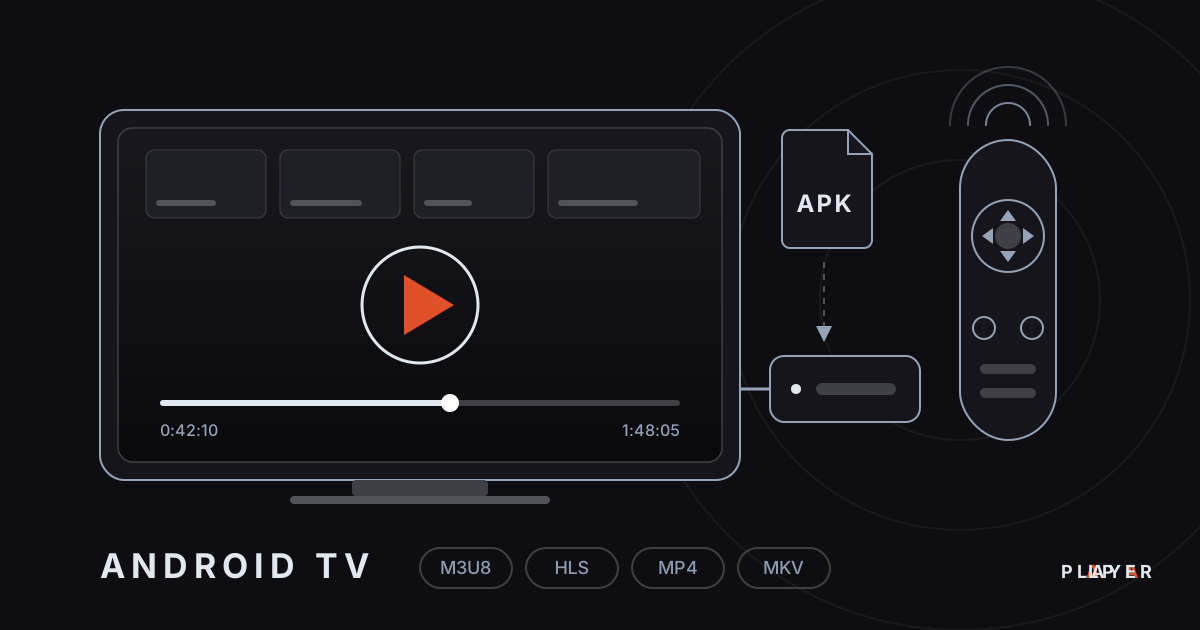
Short answer: A good media player for Android TV is easy to control with a remote, opens common formats such as M3U/M3U8, HLS, MP4 and MKV, and lets you add sources without typing long addresses on the TV. Alpa Player, a free media player from Alpa Yazılım, runs on Android TV, Google TV and TV boxes. The Android APK is available at alpaplayer.com, and a Google Play version is coming soon.
Key takeaways
- Choose a media player for Android TV by remote-friendliness first, then format support, then how easily you can add sources.
- Alpa Player is free: no account, subscription or purchase, and the app ships with no built-in content.
- The Android APK can be downloaded from alpaplayer.com today, and the Google Play version is in the release process.
- You can send a playlist to the TV yourself from a phone or computer using the TV's MAC address and a 6-digit key.
- If video stutters, try a wired connection first, then switch the playback engine.
A media player for Android TV is an app that plays video files and network streams on a television or TV box and is designed to be driven by a remote control. Moving a phone app to a big screen rarely works well: tiny buttons, long web addresses and touch-only menus get in the way on a TV. This guide explains how to choose a good Android TV player, how the well-known options compare, and how to set up Alpa Player, a free app developed by Alpa Yazılım, step by step.
What is Android TV, and how is it different from Google TV?
Android TV is Google's Android-based operating system for televisions. It ships on TVs from makers such as Sony, Philips and TCL and on many TV boxes. Google TV is the newer, recommendation-focused interface that runs on top of Android TV on recent devices. For app compatibility they work the same way: an app built for Android TV usually runs on Google TV as well.
You will meet Android TV in three forms: a smart TV with the system built in, a set-top TV box, and a small streaming stick that plugs into HDMI. In all three, the remote normally has arrow keys, an OK button and a back button. There is no touchscreen, so TV apps work on a focus model: exactly one item is highlighted at any moment and the arrow keys move the highlight. An app that does not handle focus well feels awkward on a TV, however good it looks on a phone.
What should you look for in a media player for Android TV?
A good Android TV player is comfortable with a remote, opens the formats you actually own and makes adding a source painless. The table lists the criteria worth testing; for a longer checklist, see video player features.
| Criterion | Why it matters | How to test it |
|---|---|---|
| Remote navigation | A TV has no touchscreen, so every action goes through the arrow keys. | Go from the home screen to playback using only the remote. |
| Format support | MP4, MKV, HLS and M3U8 all show up in everyday use. | Try the files and addresses you really have. |
| Adding sources | Typing a long address with an on-screen keyboard is slow. | Look for a way to send a source from a phone or computer. |
| Playback engine choice | One engine may open a file that another cannot. | Check settings for an engine or external player option. |
| Resume and favorites | Picking up a long video where you left off saves time. | Stop a video halfway and reopen it. |
| Security | It matters how addresses and passwords are stored. | Read the privacy information and the requested permissions. |
Which media players are popular on Android TV?
VLC, Kodi, Plex and Alpa Player are all used on Android TV, and each fits a different need; no single app is right for everyone. The comparison below sticks to widely known facts. For a wider look, read best media player apps and VLC alternatives.
| Player | Strength | Worth knowing |
|---|---|---|
| VLC | Open source, with very wide format and network stream support. | The number of settings can feel like a lot for new users. |
| Kodi | An open-source media center that grows through library tools and add-ons. | Setting it up and learning it takes time. |
| Plex | Streams your own library from a Plex server to the TV in an organized way. | It needs a server, and some features depend on a paid plan. |
| Alpa Player | Free, with a TV-first clean interface, M3U/M3U8, HLS, MP4, MKV, RTSP and remote playlist upload. | It provides no content, so you add your own source. Google Play version coming soon; APK for now. |
What does Alpa Player offer on Android TV?
Alpa Player is a free media player developed by Alpa Yazılım, with an interface as clean as Apple TV and Netflix and smooth arrow-key navigation on a TV. The same app is just as comfortable with a remote, touch or a mouse.
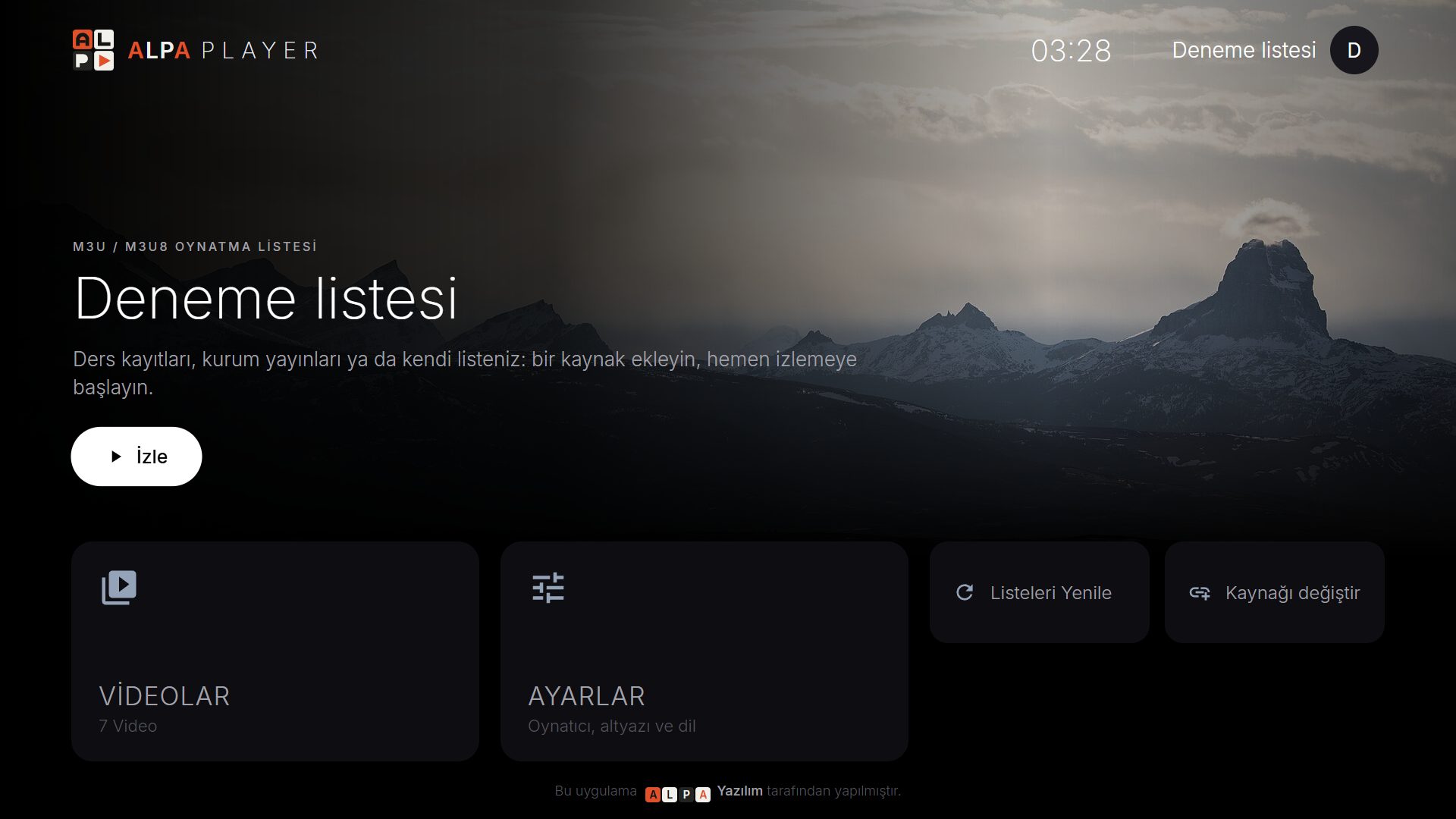
- Source types: an M3U/M3U8 playlist address, a single video or stream link, a server account from your service provider, and an organization account.
- What it plays: M3U and M3U8 playlists, HLS streams, MP4, MKV, RTSP and more.
- Everyday viewing: resume where you left off, favorites, recently watched and a program guide. See resume playback and favorites for details.
- Security: addresses and passwords you add are kept encrypted with AES-256 in the device's secure storage, never shown on screen and never sent to Alpa Yazılım.
The app has no ready-made channels, movies, shows or playlists; it is not a streaming service. It only plays sources you have the right to use. For a fuller introduction, read what is Alpa Player.
How do you install Alpa Player on Android TV?
Today you install Alpa Player on Android TV by downloading the Android APK from alpaplayer.com and opening it on the device; the Google Play version is in the release process, so check the free Alpa Player download section for the current status. Download the APK only from this official source, because copies passed around elsewhere may have been modified. For general safety habits, see is a media player safe.
- Download the Android APK on your computer or phone.
- Move it to the TV with a USB drive, or download it from the same page using a browser or downloader app on the TV.
- Allow installs from unknown sources on the TV. Menu names vary by maker and Android version; look under Settings, Security and restrictions, or for a per-app "install unknown apps" permission.
- Open the APK with a file manager and confirm the installation.
- When it finishes, switch the permission back off and launch the app from the home screen.
A fuller walkthrough is in how to install an APK on Android TV.
Which Android TV device is good enough for playback?
A good-enough Android TV device can decode the resolution you watch in hardware, has a stable network connection and enough memory to keep apps responsive. Very old or low-memory boxes can make menus feel slow and stall on high-bitrate 4K video.
- Hardware decoding: H.264 is decoded in hardware on nearly every device, while H.265 (HEVC) and AV1 support varies.
- Network: a device with an Ethernet port helps a lot in homes where Wi-Fi fluctuates.
- Storage and memory: leave free space for apps, updates and cache; performance drops when the device is nearly full.
- Software updates: a device that still receives security patches protects your accounts better.
If you are about to buy one, the Android TV box buying guide covers processor, memory, codecs and ports in detail.
How do you add a playlist without typing on the remote?
You skip the on-screen keyboard by sending the playlist to the TV remotely from a phone or computer. On the Add Source screen (labeled Kaynak Ekle in the app), the MAC tab shows your TV's MAC address and a 6-digit device key.
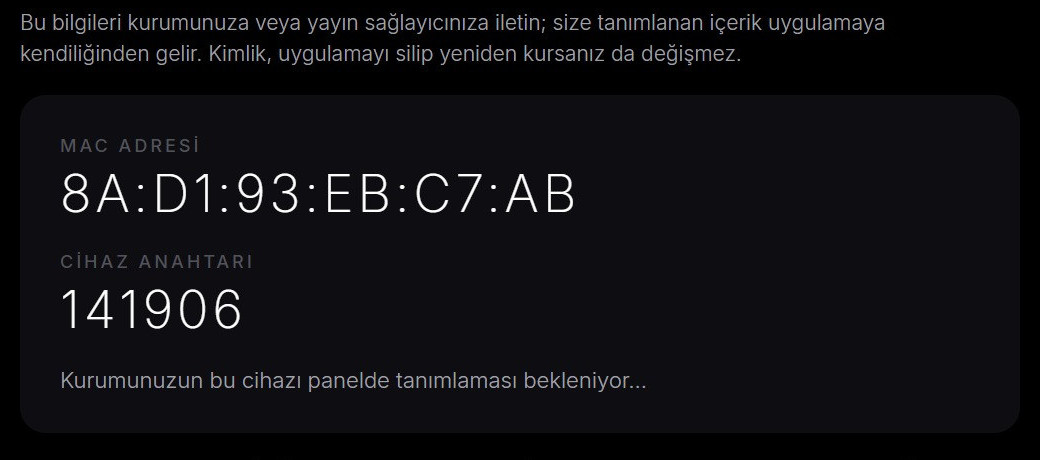
You enter those two values on the remote playlist upload page, add your server account or M3U address, and confirm the responsibility statement; the list then appears on the TV. The address and password are never displayed in the app. The upload is always something you do yourself, and every upload is recorded with your IP and MAC address, so add only sources you have the right to use. For a walkthrough, see upload a playlist to your TV and find your TV's MAC address. If you would rather type the address in the app, how to add an M3U playlist shows how.
How do you choose a playback engine and get good picture quality?
On Android, Alpa Player uses an ExoPlayer (Media3) based engine by default and also offers a VLC engine and an external player option. If a file will not open, has no sound or looks corrupted, switch the engine in the player settings and try again. Playback engines: ExoPlayer vs VLC explains the difference, and Google documents the default engine's foundation at Media3 ExoPlayer.
Whether 4K and HDR play smoothly depends on your TV or box, the connection and the source. A stable connection of roughly 15-25 Mbps is the usual recommendation for 4K. For more, see 4K HDR playback, H.264, HEVC and AV1 compared and internet speed for streaming. Which codecs your device decodes in hardware differs from model to model.
What if video keeps buffering on Android TV?
Buffering is most often a network problem, so the first step is to connect the TV to your router with an Ethernet cable if you can. Working through this order solves most cases:
- Use a cable, or switch Wi-Fi to the 5 GHz band; see Wi-Fi vs Ethernet for streaming.
- Close and reopen the app, then restart the TV.
- Change the playback engine in the app's settings.
- Check whether other devices are running large downloads at the same time.
- Compare with another video, or an open-license test video, in case the source itself is the problem.
The full checklist is in fix video buffering.
How do you keep Android TV playback legal and safe?
Player software is legal; responsibility lies with the content. Alpa Player provides no content and plays only sources you have the right to use, such as videos you filmed, content you bought, or open-license material. The wider picture is in are media player apps legal. If you want to try the app first in a browser, the Alpa Player web demo uses open-license samples, and the legal notice covers the details.
Step by step: Install Alpa Player on Android TV and add your first source
- Download the Android APK from alpaplayer.com and get it onto the TV with a USB drive or the TV's browser.
- In the TV settings, allow installs from unknown sources.
- Open the APK with a file manager and confirm the installation.
- After installing, switch the permission back off and open the app.
- On the Add Source screen, select the MAC tab and note the MAC address and the 6-digit key.
- On a phone or computer, open the remote upload page, enter those values and add a source you have the right to use.
- Confirm the responsibility statement, and the list appears on your TV.
Frequently asked questions
Is Android TV the same as Google TV?
Not exactly. Android TV is Google's Android-based operating system for televisions, while Google TV is the newer recommendation-focused interface that runs on top of it on recent devices. Apps usually work on both, and Alpa Player supports Android TV, Google TV and TV boxes.
Is Alpa Player really free on Android TV?
Yes. Alpa Player has no account requirement, subscription or purchase, and it is a non-profit project of Alpa Yazılım. The app contains no ready-made channels, movies, shows or playlists, so you add the source you want to watch yourself.
Can I download Alpa Player from Google Play?
A Google Play version is in the release process and is listed as coming soon. For now the Android APK can be downloaded from alpaplayer.com. You can follow the store status in the download section.
Which file and stream types can I play on Android TV?
Alpa Player plays M3U and M3U8 playlists, HLS streams, MP4, MKV and RTSP sources, among others. Smooth playback also depends on your device's hardware decoder and connection speed; if something struggles, try switching the playback engine.
Do I have to type a long address with the remote?
No. Enter the MAC address and 6-digit key shown on the MAC tab of the Add Source screen on the remote upload page and add your list from a phone or computer. The address and password are not displayed on the TV.
Does Alpa Player provide channels or movies?
No. Alpa Player is not a streaming service and offers no content. It plays only sources you have the right to use. Every upload made through the website is recorded with the IP and MAC address, and the person who uploads is responsible.
Sources
Related articles
 Device guides
Samsung Smart TV Media Player: Options for 2026
Need a Samsung smart TV media player? Learn how Tizen apps work, which models Alpa Player supports and how to watch your own videos today.
 Device guides
LG webOS Media Player: Compatibility and Setup
Looking for an LG webOS media player? See which models work, how the LG store route differs from APKs, and how to load a playlist without typing.
 Device guides
Fire TV Stick Media Player: Safe Setup Guide
Choosing a Fire TV Stick media player? Compare options, see how Alpa Player supports Fire TV, check the Appstore status and install apps safely.