
How to add an M3U playlist in Alpa Player, step by step
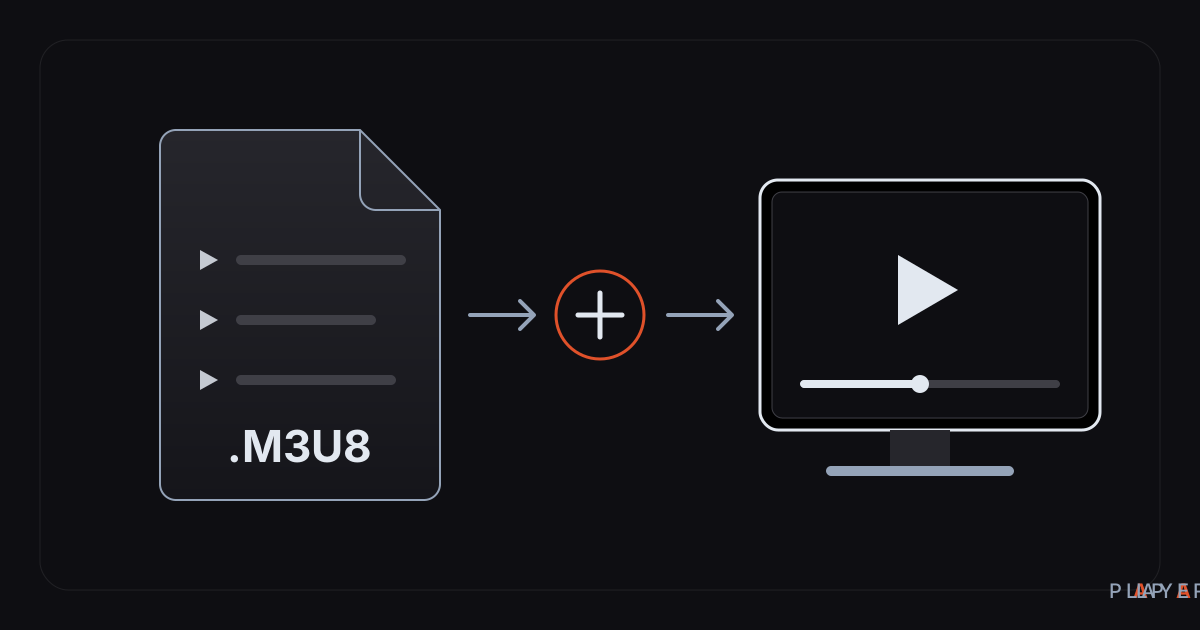
Short answer: To add an M3U playlist, open Alpa Player, go to Add Source, choose the M3U / M3U8 tab, give the list a display name, then paste a playlist address you have the right to use and confirm. The address must point straight at the playlist, not at a web page. If typing a long address with a TV remote is painful, you can send it from your phone using the Device ID (MAC on TV) screen instead.
Key takeaways
- You add an M3U address in Alpa Player through Add Source, on the M3U / M3U8 tab.
- The address has to lead directly to the playlist itself, not to a web page that links to it.
- To avoid typing on a remote, send the list from your phone with the MAC address and 6-digit key shown on the TV.
- Addresses and passwords are stored encrypted with AES-256 in the device's secure storage and are never shown on screen.
- Alpa Player provides no content, so only add lists you have the right to use.
If you are wondering how to add an M3U playlist to a media player, the short version is this: open the player's add-source screen, enter the address of the list, and confirm. In Alpa Player that path is Add Source → M3U / M3U8 (the screen is labeled Kaynak Ekle in the screenshots below). This guide walks through each step, shows the mistakes that cause most failures, and explains how to avoid typing on a TV remote altogether.
Alpa Player is a free media player developed by Alpa Yazılım. It ships with no channels, movies, shows or lists of its own; it only plays sources that you have the right to use. If you have not installed it yet, download Alpa Player for free first and come back.
What is an M3U playlist, and why do you add it by address?
An M3U playlist is a plain-text file in which each entry points to an audio or video source. It starts with an #EXTM3U line, and every item has an info line (#EXTINF) followed by the item's address. The format is covered in more detail in our what is an M3U file article.
#EXTM3U
#EXTINF:-1,Sample video
https://example.com/video/sample.m3u8
M3U8 is the same format saved with UTF-8 text encoding, and the same extension is also used for HLS streaming manifests. If you want the full comparison, read what is M3U8. For adding a list, you only need one fact: Alpa Player accepts both kinds as playlists.
Playlists usually live at a web address rather than in a file you carry around, so you give the player the address instead of copying a file onto your TV. The list stays on the publisher's server, and a refresh picks up any changes.
What do you need before you start?
You need four things, and all of them can be ready in a few minutes.
- The app installed: Android phone or tablet, Android TV, Samsung or LG TV, or Windows. Check the download section for the current status of each platform.
- An internet connection: the playlist is read from a server, so an offline device cannot open it.
- An M3U or M3U8 address: it usually starts with
https://and leads straight to the list. - The right to use the list: your service provider gave it to you, or you created it yourself. Neither the app nor this article recommends or supplies lists.
If a third party gave you the address, make sure it comes from a lawful service. Our guide on how to spot a licensed streaming service explains what to look for.
How to add an M3U playlist in Alpa Player, step by step
Adding a list takes six short steps, and all of them happen on the same Add Source screen.
- Open the app. On the home screen, select the Add Source button or card.
- Pick the tab. Along the top of the screen, choose M3U / M3U8.
- Name the list. Type the name you want to see on screen, for example "Living room". The name is only a label for you.
- Enter the address. Paste or type the playlist address and make sure no space is left at the start or the end.
- Confirm. Press the confirmation button on screen. The app connects and reads the list.
- Start watching. Once the list opens, move through it with the arrow keys or by touch.
Three tips for typing with a remote
- Paste the address into a notes app on your phone first and check it, then copy it character by character.
- If you can, plug in a USB keyboard or pair a Bluetooth one; on-screen remote keyboards are tiring for long addresses.
- If you would rather not type at all, use the remote upload method described below.
Which tab should you choose?
The tabs on the Add Source screen are split by the kind of information you hold, and picking the wrong one is the most common mistake.
| Tab | Choose it when | You enter |
|---|---|---|
| Server account (first tab) | Your service provider gave you a server address, a username and a password | Name, server address, username, password |
| M3U / M3U8 | You have a playlist address | Name and playlist address |
| Single link | You want to play one video or one stream address | One address |
| Kurum (institution) | Your school or organization gave you an access code | Institution code, number, password |
| MAC (Device ID on phones) | You want to send a list from a phone or computer instead of typing | The app shows a MAC address and a key; you enter them on the website |
A username and password belong on the server account tab, not the M3U tab; a single video address needs only the single link tab; and an organization code goes on the Kurum tab.
Do you have to type a long address with the TV remote?
No. Alpa Player lets you send a list from your phone or computer to the TV, so you never need to type a single character with the remote.
In short: on the TV, open Add Source and switch to the MAC tab (it is called Device ID on phones). The screen shows your device's MAC address and a 6-digit key. On your phone, open the list upload page, enter those two values, add your server account or M3U address, and accept the responsibility notice. The list arrives on the TV within seconds.
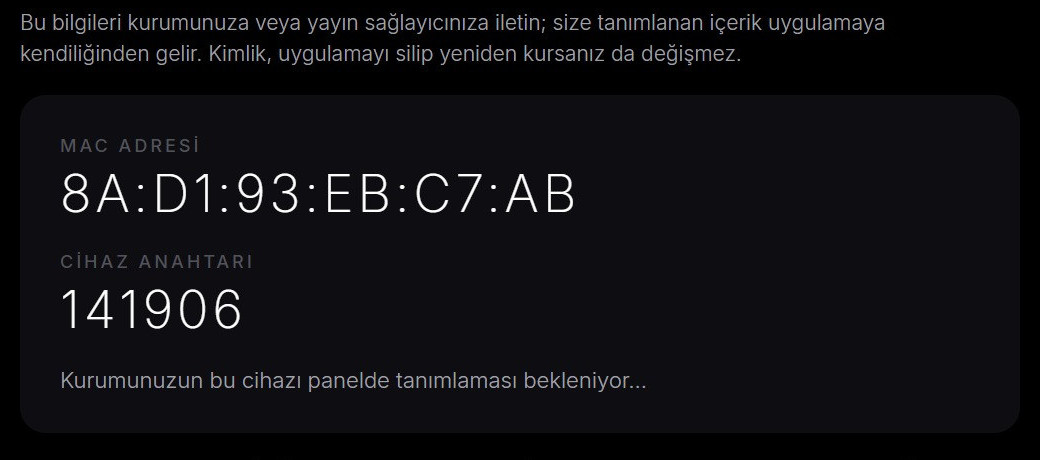
This route has two nice side effects. The address and password are never displayed in the app, and you are the one who uploads the list, so the responsibility for it is clearly yours. For a full walkthrough, see how to upload a playlist to your TV.
Why will the list not open? Six common problems
When an address looks right but the list stays empty, the cause is almost always one of the six below.
| Symptom | Likely cause | What to do |
|---|---|---|
| The address is rejected | It does not start with http:// or https://, or has a space at either end | Copy it again and delete stray spaces |
| The list loads empty | The address leads to a login or info page instead of the list | Paste it into a desktop browser; you should see list text or a file download |
| It connects but nothing plays | The stream behind an entry is offline or expired | Contact whoever provides the list |
| Only some entries play | Entries are not all published in the same format or codec | On Android, try another playback engine in Settings |
| Constant stuttering | Network speed or Wi-Fi signal is too weak | Follow the steps in how to fix video buffering |
| Secure connection error | If the TV's date and time are wrong, https connections cannot be verified | Set the date and time to automatic |
On Android, the default playback engine is based on ExoPlayer (Media3), and there are also a VLC engine and an external player option. If an entry will not open in one engine, trying another often solves it. Settings is one of the three cards on the home screen and holds the player options.
Where are your address and password stored?
Addresses and passwords you add are stored encrypted with AES-256 in the device's secure storage, are never shown on screen, and are not sent to Alpa Yazılım.
In practice, that means a guest sitting in front of your TV, or a screenshot you share, will not reveal your list address or password. You can read the whole security approach in is your media player safe.
The responsibility side should be just as clear. Alpa Player is only a player; it does not sell, supply or host content. Making sure the list is lawful and that you hold the rights to what it plays is up to you. Every upload made through the website is recorded with your IP address and the device's MAC address. See the legal notice for details.
What should you do once the list is added?
Once the list opens, the built-in viewing tools save you from searching from scratch every time.
Alpa Player offers resume playback, favorites, recently watched items and a program guide. We explain how to combine them in resume playback and favorites. To speed up navigation with a remote, see smart TV remote tips.
With several devices, repeat Add Source on each one. A remote upload to a device that already has a list replaces it, so keep the old address in your own notes.
Step by step: How to add an M3U playlist to Alpa Player
- Open the app and select Add Source on the home screen.
- On the Add Source screen, choose the M3U / M3U8 tab.
- Give the list a name that will appear on screen.
- Paste or type an M3U or M3U8 address you have the right to use, with no spaces at either end.
- Press the confirmation button and wait for the app to connect to the list.
- When the list opens, browse and start watching; if typing on the remote is hard, send the list from your phone using the MAC tab details.
Frequently asked questions
What is the difference between M3U and M3U8, and which one should I add?
M3U8 is the M3U format saved with UTF-8 text encoding, and the extension is also used for HLS streaming manifests. Alpa Player accepts both as playlists, so enter whichever address you have on the M3U / M3U8 tab. What matters is that the address leads directly to the list.
Does Alpa Player come with a ready-made M3U playlist?
No. Alpa Player is not a streaming service, and the app contains no channels, movies, shows or lists. It only plays sources that you add and have the right to use. We do not recommend lists, and making sure a list is lawful is the user's responsibility.
Can other people see the address I add?
No. Addresses and passwords are stored encrypted with AES-256 in the device's secure storage, they are not shown on any screen, and they are not sent to Alpa Yazılım. The same applies to remote upload: what you enter on the upload page does not appear on the app screen.
I added the address but the list is empty. Why?
The most common cause is an address that leads to a web page instead of the playlist. Paste it into a desktop browser; you should see list text or a file download. Stray spaces, missing characters and expired links produce the same symptom. If it persists, contact whoever provides the list.
Typing on a TV remote is painful. Is there an easier way?
Yes. Open Add Source, switch to the MAC tab (Device ID on phones), and enter the MAC address and 6-digit key on the list upload page from your phone. Add your address, accept the responsibility notice, and the list reaches the TV in seconds, with no typing on the remote.
Is Alpa Player paid?
No. Alpa Player is free, with no membership, subscription or purchase, and it is a non-profit project. The Android APK and the Windows installer can be downloaded from the Alpa Player website, and store versions are in the release process. See the download section for the current status.
Sources
Related articles
 How-to
Upload a playlist to your smart TV from your phone
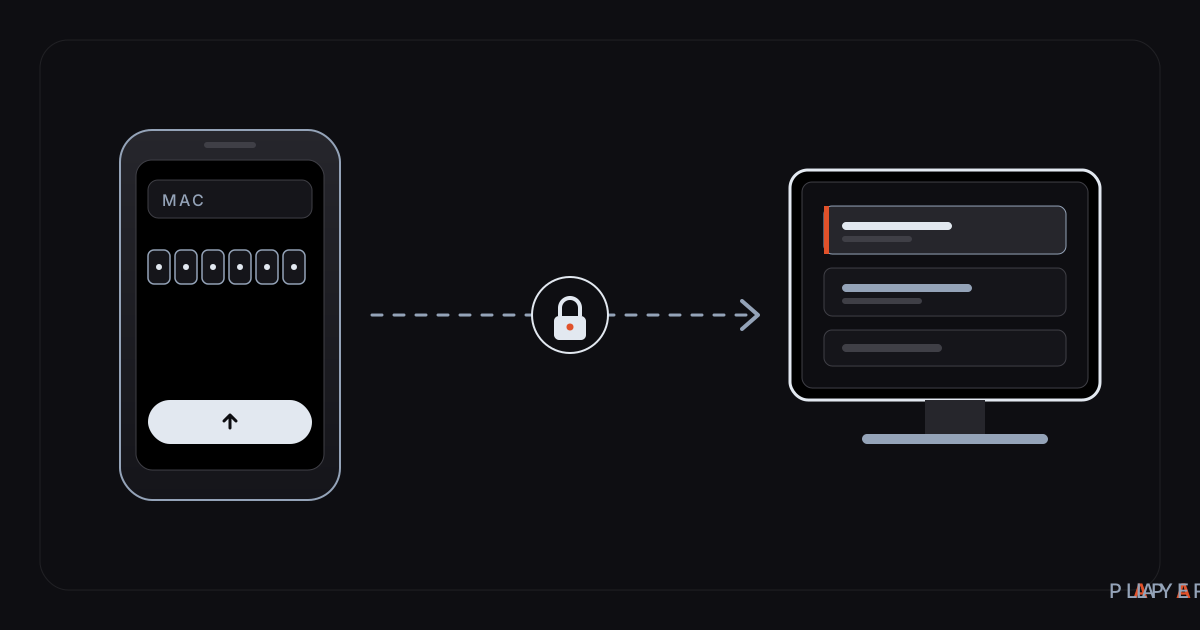
Upload a playlist to your smart TV without typing on the remote: enter the MAC address and 6-digit key on your phone and the list arrives. Steps and fixes.
 How-to
How to find the MAC address on a smart TV
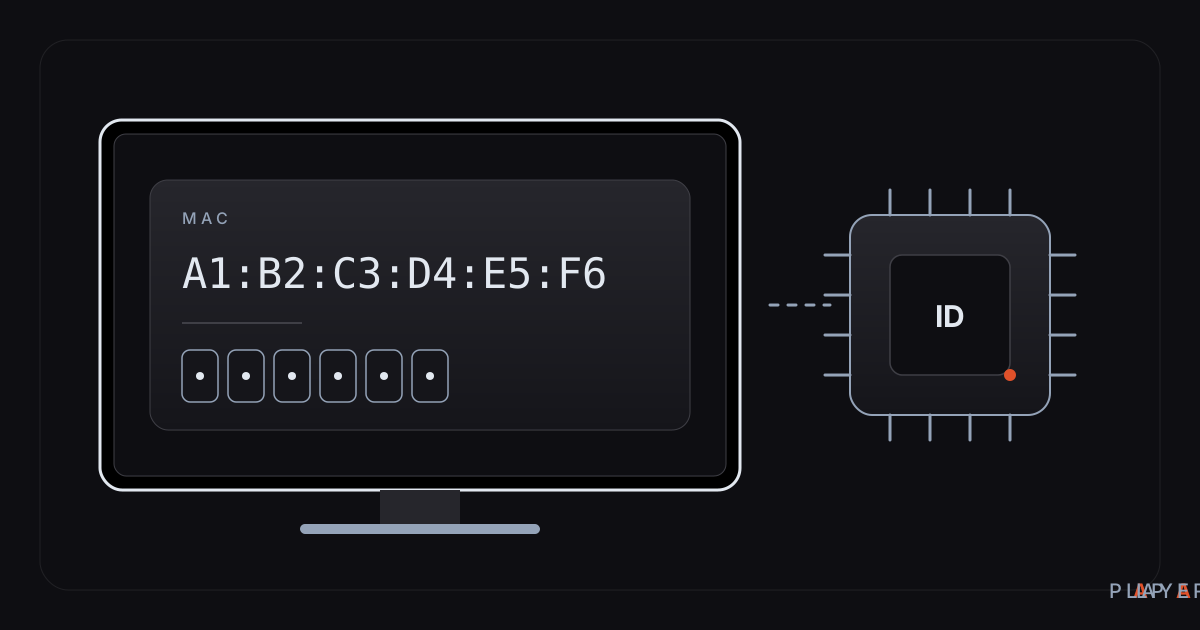
Find the MAC address on your smart TV: where the network menu hides it, what the device ID in Alpa Player shows, and what a MAC address is actually used for.
 How-to
Smart TV remote tips: navigate faster, type less
Smart TV remote tips for faster navigation, typing without a keyboard, uploading a playlist from your phone and fixing a misbehaving remote, with Alpa Player.