
Upload a playlist to your smart TV with a MAC address and key
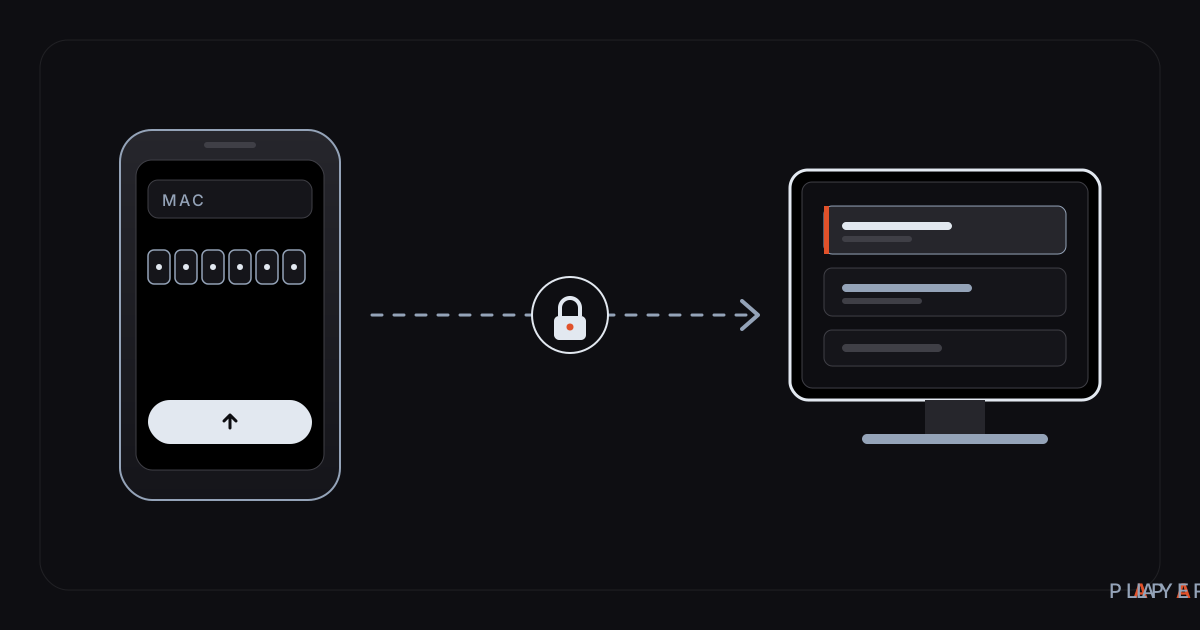
Short answer: To upload a playlist to your smart TV, open the MAC tab of Add Source in Alpa Player on the TV (Device ID on phones); it shows a MAC address and a 6-digit key. On your phone, open the list upload page, enter both values, add your server account or M3U address and accept the responsibility notice. The list reaches the TV in seconds, and nothing has to be typed with the remote.
Key takeaways
- In the app, Add Source → Device ID (labeled MAC on TV) shows your MAC address and a 6-digit key.
- You enter those two values on the upload page from a phone or computer, so nothing is typed with the TV remote.
- You can add a server account or an M3U address, and the address and password are never displayed in the app.
- Every upload is logged with the IP address and MAC address, and the person who uploads, meaning you, is responsible for the list.
- Uploading again to the same device replaces the previous list.
To upload a playlist to your smart TV without a keyboard, you read two values off the TV, type them into a web form on your phone, and the list shows up on the TV a few seconds later. It is the easiest way to get a long address or a multi-field account onto a screen that only has arrow keys. This guide covers each step with real screenshots, the form fields, the logging that goes with it, and what to do if nothing arrives.
Alpa Player is a free media player developed by Alpa Yazılım. It contains no content of its own and plays only sources you have the right to use. If it is not on your TV yet, download Alpa Player for free and then follow the steps below.
Why upload a playlist to your TV instead of typing it?
Uploading from a phone removes the need to enter hundreds of characters one by one with an on-screen remote keyboard.
A playlist address or a server account is rarely short: a long server address, a username, a password, and often a few awkward symbols. Typing all of that with arrow keys is slow, and a single wrong character leaves you with a list that will not open. Doing it twice, once to test and once for real, is even worse.
With remote upload, all the typing happens on a device that has a real keyboard. The TV only receives the finished list. The address and password also never appear on the TV, which helps if you share the screen.
What do you need before you start?
You need very little: the app on the TV, an internet connection, and the list details you want to add.
- Alpa Player on the TV or device: you must be able to open its Add Source screen. If you are still setting up, see media player for Android TV or the download section.
- Internet on both sides: the TV and the phone or computer you upload from both need to be online.
- The list details: either a server account from your service provider (server address, username, password) or an M3U / M3U8 address.
- The right to use the list: you are the one uploading it, so its lawfulness is your responsibility.
This article does not recommend lists or tell you where to get them. If you are unsure whether a source is licensed, read how to spot a licensed streaming service first.
How do you upload a playlist to your smart TV, step by step?
The upload takes four steps: read the details on the TV, open the upload page, add your list, and wait for it to appear.
- Open Add Source on the TV. Choose the MAC tab at the top of the screen. On phones and tablets the same tab is named Device ID.
- Read the two values. The screen shows your device's MAC address and a 6-digit device key. Leave this screen open.
- Open the upload page. On your phone or computer, open the list upload page and type the MAC address and the key into the matching boxes.
- Add your list and send it. Pick server account or M3U / M3U8, fill in the details, accept the responsibility notice and press the upload button.
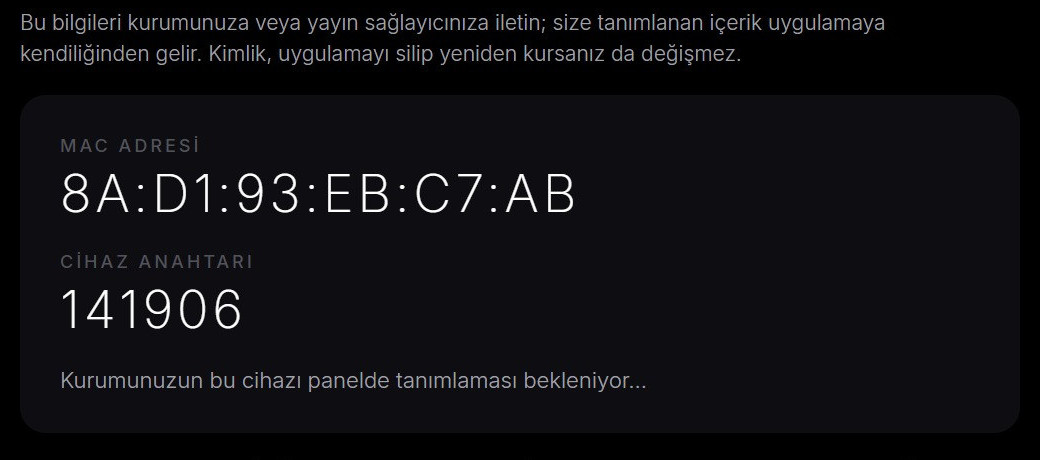
When the page says your list has been uploaded, look at the TV. If the app is still on the MAC screen, the list opens by itself within a few seconds. If you are back on the home screen, press Refresh Lists (Listeleri Yenile in the Turkish interface).
What do the upload form fields mean?
The form has two parts: first you identify the device, then you choose the kind of list and fill in its details.
| Field | What to enter | Note |
|---|---|---|
| MAC address | The MAC address from the app, in the form A1:B2:C3:D4:E5:F6 | Copy exactly what the app shows |
| Device key | The 6-digit number from the app | Digits only |
| Name | The label you want to see on screen | Just a name for your own use |
| Server account | Server address, username and password | Given by your service provider |
| M3U / M3U8 | The address of the playlist | It must lead straight to the list |
| Responsibility notice | A checkbox you tick | You confirm the list is lawful and that responsibility is yours |
The form also asks you to confirm that you have read the data protection notice. If you are not sure how to prepare the address itself, the checklist in how to add an M3U playlist covers it.
It is also worth understanding what the MAC address actually is and why you should use the value shown in the app. We explain that in how to find your TV's MAC address.
What if the list does not show up on the TV?
If the upload went through but no list appears, the cause is usually a mistyped value or a screen that has not refreshed yet.
| Symptom | Likely cause | What to do |
|---|---|---|
| The form shows an error or will not submit | The MAC address or key does not match what the app displays | Compare each character with the TV screen; the key must be exactly 6 digits |
| Upload succeeded but no list on the TV | The app is on the home screen and has not read the list yet | Press Refresh Lists on the home screen |
| The old list is still there | You may have uploaded to a different device or MAC address | Upload again to the right device; a new upload replaces the old list |
| The device cannot receive uploads | It may be managed by an organization such as a school or hotel | Devices managed by an organization cannot receive lists from this page; ask your administrator |
| The list arrived but will not play | The address or account details are wrong or expired | Verify them with your service provider and upload again |
The most common slip is the key: swapping or skipping one of six digits is easy. Reading the number aloud from the TV as you type catches most mistakes.
What gets logged, and who is responsible?
Every upload from the website is recorded with the uploader's IP address and the device's MAC address, and the person who uploads the list, which means you, is responsible for its lawfulness.
The upload page spells this out. Alpa Player is only a player: it does not sell, supply or host content. To prevent abuse and to be able to answer requests from the authorities, each upload is stored in encrypted form with your IP address, the date and time, the device's MAC address and the list you uploaded. If unlawful use is detected, the device is blocked and the information is shared with the competent authorities.
The aim is to keep the player on the right side of the law. For the broader question of whether player apps are lawful, read are media player apps legal, and for the site's terms see the legal notice. None of this is legal advice.
On the security side, the addresses and passwords you add are stored encrypted with AES-256 in the device's secure storage, are never shown in the app, and are not sent to Alpa Yazılım. For the wider picture, see media player privacy and security.
Which method fits which situation?
There are three ways to get a list onto the TV, and the best one depends on how much you have to type and what hardware you own.
| Method | Upside | Downside |
|---|---|---|
| Typing with the remote | No extra tools | Slow and error-prone for long addresses |
| USB or Bluetooth keyboard | Fast typing | You need to find and pair one |
| Remote upload (MAC + key) | Typed on a phone, and the address never appears on the TV | Needs internet and the upload page |
For one short address the remote may be fine, but with several fields, such as a server account, remote upload saves real time. For other ways to make remote navigation less tedious, see smart TV remote tips.
After the upload
Once the list is open, the app's everyday viewing features save you time on every later visit.
Alpa Player offers resume playback, favorites, recently watched items and a program guide. One thing to remember: uploading again to the same device replaces the earlier list, so if there is a list you do not want to lose, keep its address in your own notes.
Step by step: How to upload a playlist to your smart TV from a phone
- On the TV, open Add Source in Alpa Player and select the MAC tab (Device ID on phones).
- Note the MAC address and the 6-digit device key, and leave that screen open.
- On your phone or computer, open the list upload page and enter the MAC address and key.
- Choose server account or M3U / M3U8 and enter your list details.
- Accept the responsibility notice and press the upload button.
- Return to the TV; the list opens within seconds, or press Refresh Lists on the home screen.
Frequently asked questions
Where do I find the MAC address I need to upload a playlist to my smart TV?
Open Add Source in the app and switch to the MAC tab (Device ID on phones and tablets). The MAC address and a 6-digit device key are shown there. Enter these values on the upload page, and use the ones displayed in the app rather than any address from the TV's own network menu.
Can I add a list without typing anything on the remote?
Yes. The app shows the MAC address and key, you enter them on the list upload page from your phone, add your server account or M3U address and accept the notice. The list opens on the TV within seconds. If you are on the home screen, press Refresh Lists.
Will my address and password appear on the TV?
No. The list address and password are never displayed anywhere in the app. They are stored encrypted with AES-256 in the device's secure storage and are not sent to Alpa Yazılım, so even if the TV is shared, your details do not show up on screen.
Is the upload logged, and who is responsible for the list?
Yes. Each upload is recorded with the IP address, date and time, the device's MAC address and the uploaded list. Alpa Player supplies no content; the person who uploads the list, meaning the user, is responsible for its lawfulness and for holding the necessary rights.
What happens if I upload to the same device twice?
The new list replaces the old one. If you want to keep the earlier list, store its address and account details in your own secure notes first. Devices managed by an organization, such as a school or a hotel, cannot receive lists through this page.
What kinds of lists can I upload?
The upload page offers two choices: a server account from your service provider (server address, username and password) or an M3U / M3U8 playlist address. In both cases you must have the right to use the list.
Sources
Related articles
 How-to
How to add an M3U playlist: step-by-step guide
How to add an M3U playlist in Alpa Player: the exact steps in Add Source, the mistakes that break a list, and a way to skip typing on your TV remote.
 How-to
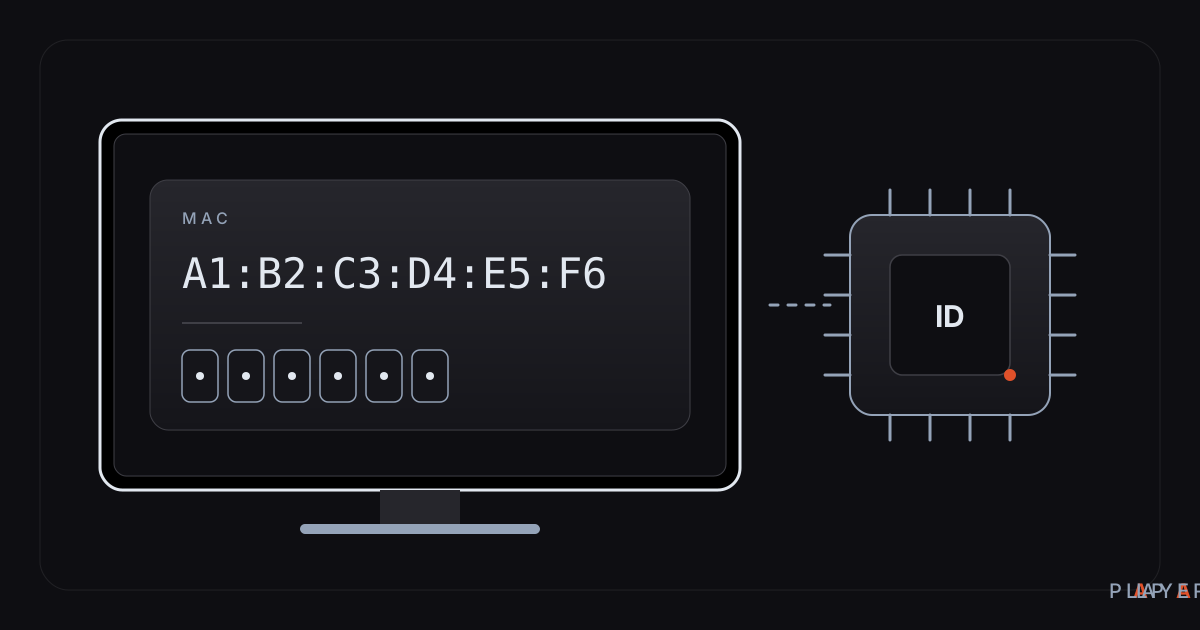
How to find the MAC address on a smart TV
Find the MAC address on your smart TV: where the network menu hides it, what the device ID in Alpa Player shows, and what a MAC address is actually used for.
 How-to
Smart TV remote tips: navigate faster, type less
Smart TV remote tips for faster navigation, typing without a keyboard, uploading a playlist from your phone and fixing a misbehaving remote, with Alpa Player.