
Smart TV remote tips: get around faster and skip the typing
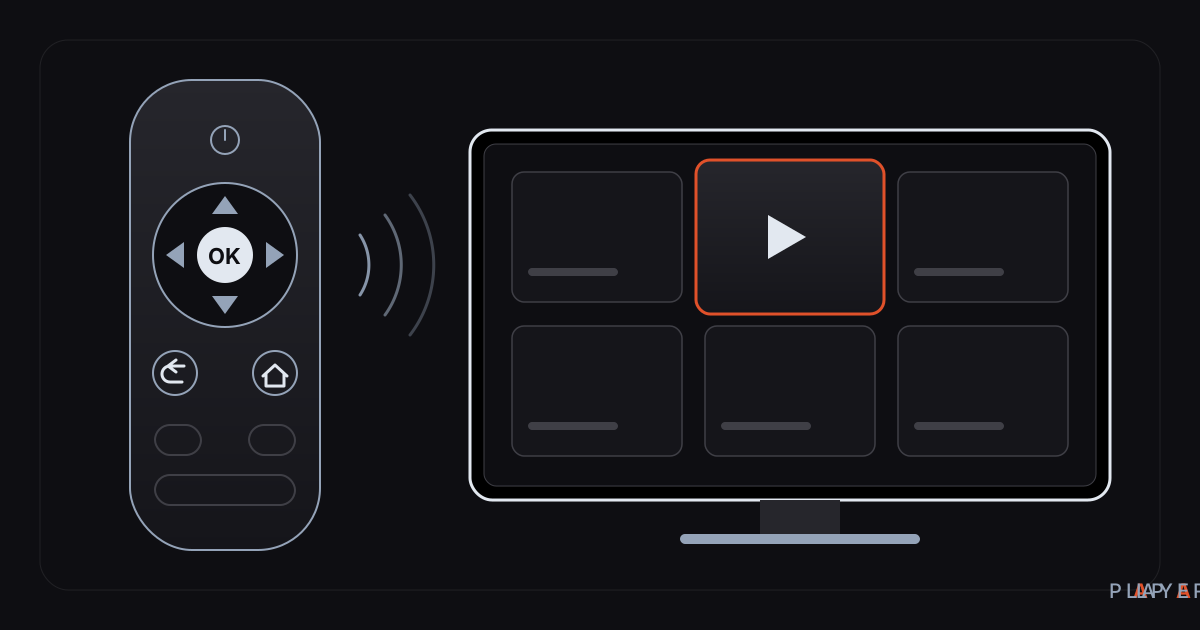
Short answer: For faster smart TV remote navigation, think in rows and columns, use Back to go up one level and Home to leave an app. To avoid typing, try your phone's remote app, a USB or Bluetooth keyboard, or voice input. In Alpa Player you can send a list from your phone with the MAC address and 6-digit key, so you never type a character with the remote.
Key takeaways
- Treat the screen as a grid and plan your route by rows first, then columns, to save button presses.
- Back moves up one level and Home leaves the app, so mixing them up is the most common time-waster.
- Typing with a remote is slow; a phone remote app, a keyboard or voice input are the easiest alternatives.
- In Alpa Player, the MAC tab details let you upload a list from your phone, with nothing typed on the remote.
- When the remote misbehaves, check the batteries first, then the pairing, and restart the TV last.
Most smart TV remote tips come down to one fact: the remote is great for moving around and terrible for typing. Arrow keys make you press the same button over and over, and an on-screen keyboard turns a short address into a chore. This guide collects the basics of what each button does, ways to move faster in Alpa Player, ways to avoid typing altogether, and fixes for the usual remote problems. Everything here can be tried on a living-room TV in a few minutes.
Alpa Player is a free media player developed by Alpa Yazılım. Its interface follows the simplicity of Apple TV and Netflix, and it works equally well with a remote, a touch screen or a mouse. If you have not installed it yet, download Alpa Player for free and try the tips directly in the app.
What do the main remote buttons do?
On most smart TV remotes, the same eight to ten buttons do nearly all of the work, and knowing them speeds up every app you use.
| Button | What it usually does | Practical tip |
|---|---|---|
| Arrow keys | Move the highlight up, down, left and right | Follow the highlight; if you lose it, press any arrow |
| OK / Select | Opens or confirms the highlighted item | Wait for a response before pressing a second time |
| Back | Returns to the previous screen or one level up | Pressing it repeatedly can close the app |
| Home | Takes you to the TV's home screen | The fastest way out of an app |
| Play / Pause | Starts or stops the video | Works with one press on most remotes |
| Rewind / Fast-forward | Skips backward or forward in a video | Holding can speed it up; it varies by remote |
| Volume / Mute | Controls the sound | With HDMI-CEC it can also drive a soundbar |
| Microphone | Voice search or voice input | Not every remote has one |
The exact behavior of each key in Alpa Player can differ slightly with your remote and device. The most dependable approach is to take the logic above and spend a few minutes trying it with your own remote.
How can you move faster with the arrow keys?
You move faster by treating the screen as a grid and cutting down the number of presses it takes to reach your target.
The Alpa Player TV interface is built for smooth navigation with arrow keys. The home screen has three large cards: Add Source, Institution and Settings. Big, clear targets mean you reach where you are going with few presses.
- Think in rows and columns. Decide which row you need first, then move sideways; random pressing wastes more buttons.
- Use Back for one step only. To return to the start, press Home once instead of tapping Back many times.
- Follow the highlight. The selected item is always clearly marked; if the highlight disappears, one arrow press brings it back.
- Hold, but not for too long. In many apps, holding an arrow scrolls a list quickly, but at full speed it is easy to overshoot.
- Build shortcuts. Putting what you watch most into favorites ends the search through a long list. See resume playback and favorites for details.
- Pause when you are lost. If you are not sure what is selected, wait a moment, then press one key.
How can you avoid typing with a TV remote?
The best way to stop typing with a remote is to move the typing to a device that has a real keyboard.
| Method | What you need | Best for |
|---|---|---|
| On-screen keyboard | Just the remote | A few letters |
| USB or Bluetooth keyboard | A keyboard, sometimes pairing | Regular, longer typing |
| Phone as a remote | The brand's phone app (for example Google TV, SmartThings or LG ThinQ) | Navigation and typing together |
| Voice input | A remote with a microphone | Search boxes |
| Remote playlist upload | Phone, internet, MAC address and key | Long addresses and server accounts |
Phone apps depend on brand and model, but many makers provide an official one that works as a remote and lets you type with the phone keyboard. Search your app store for your TV brand's name.
If none of those is handy, Alpa Player has its own answer.
Do you have to type on the remote to add a list in Alpa Player?
No. In Alpa Player you can send a list from your phone or computer, so you do not need to type a single character with the remote.
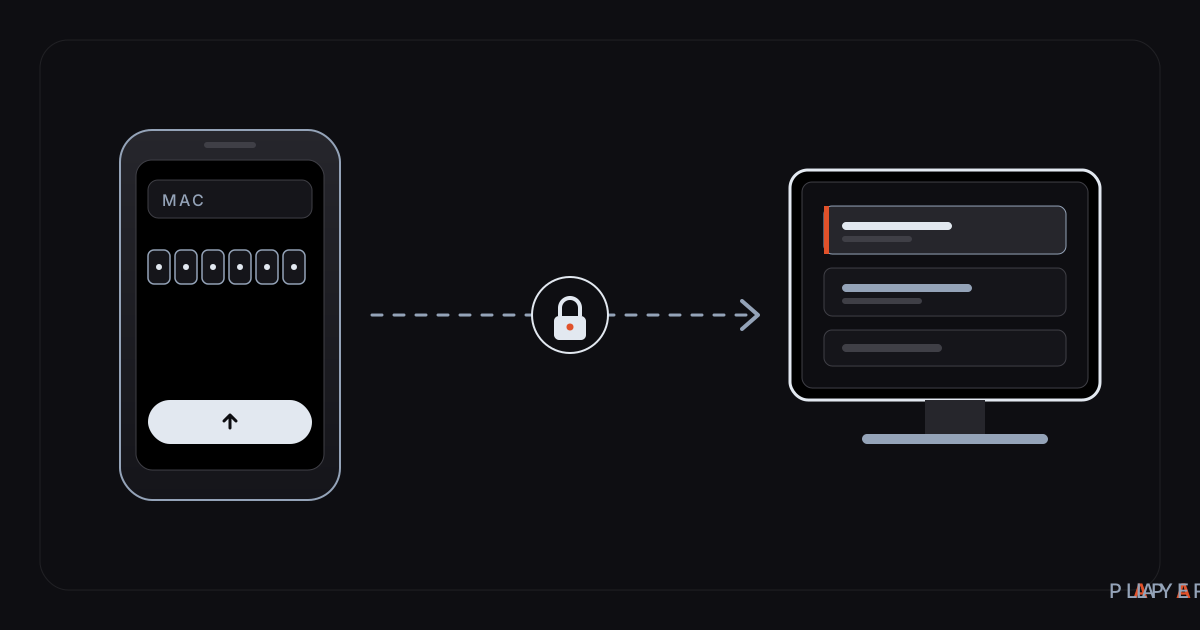
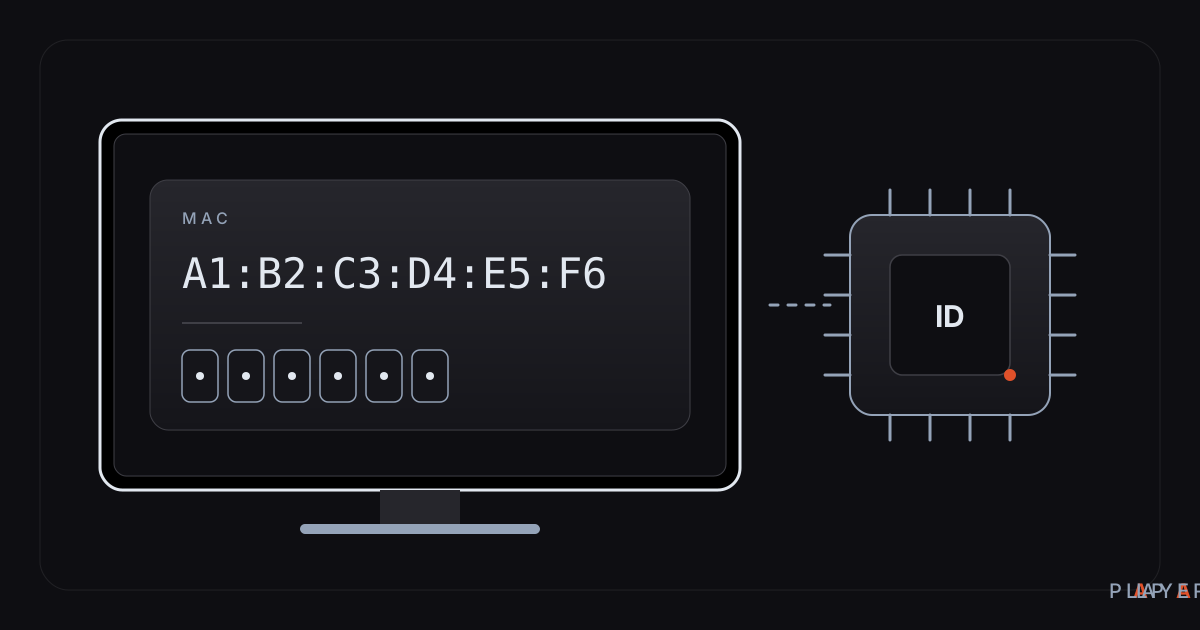
On the TV, open the MAC tab of Add Source. The screen shows a MAC address and a 6-digit device key. On your phone, open the list upload page, enter those two values, add your server account or M3U address, and accept the responsibility notice. The list then arrives on the TV.
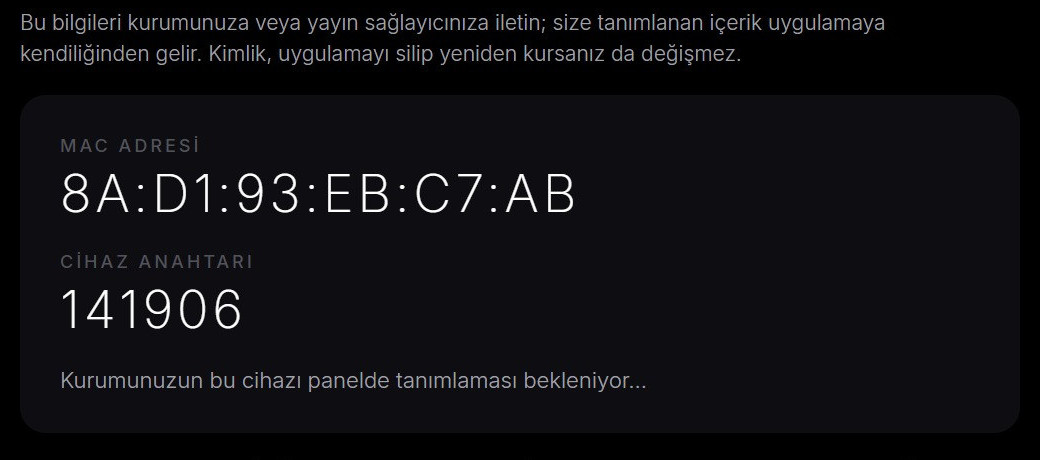
This method cuts the typing and keeps your address and password off the TV screen. The upload is recorded with your IP address and the device's MAC address, and the person who uploads the list, meaning the user, is responsible for it. For a full walkthrough, read how to upload a playlist to your TV, and for preparing the address itself, how to add an M3U playlist.
What should you do when the remote stops working?
When a remote stops responding, the cause is usually the battery, the pairing or the line of sight, and a few simple checks fix it.
| Symptom | Likely cause | What to do |
|---|---|---|
| No button works | Dead batteries or a broken pairing | Replace the batteries; re-pair a Bluetooth remote |
| Buttons respond late | Weak batteries, wireless interference or a busy system | Power-cycle the TV and clear obstacles between the remote and the TV |
| Only some buttons work | The app may not use that button | Do the same job with the arrow keys and OK |
| The remote is lost or broken | - | Use a phone app, the button on the TV or a USB mouse |
| Fast scrolling overshoots | Holding the key too long | Press in short bursts |
If your remote is infrared (IR), it must point at the TV with nothing in the way. Bluetooth remotes do not need a line of sight, but they must be paired. Your manual or the manufacturer can tell you which kind you have.
Which habits make watching with a remote easier?
Comfortable remote viewing comes from not repeating the same steps and from reducing button presses before they happen.
- Give lists short, clear names. When you add a source, a short on-screen name such as "Living room" lets you pick the right one at a glance if you have several.
- Use favorites and recently watched. Alpa Player offers resume playback, favorites and recently watched items. Reaching what you open often through one short route saves a lot of presses.
- Enter information once, on the right device. Instead of retyping an address with the remote on every device, upload it remotely from your phone, which also lowers the risk of typos.
A small habit during playback helps too: use Play / Pause to stop the video and the seek keys to skip, rather than digging into menus. If your remote lacks those keys, try pressing OK during playback once to learn what it does; behavior can vary by device.
Can one remote control everything with HDMI-CEC?
HDMI-CEC is a feature that lets devices connected by HDMI control one another, and it can reduce several remotes to one.
Manufacturers give it different names, such as Anynet+ on Samsung and SIMPLINK on LG. Once enabled, the TV remote can also manage a TV box, a soundbar or a player. When choosing a box to pair with your TV, see how to choose an Android TV box, and for audio, home theater setup tips will help.
HDMI-CEC does not work flawlessly with every combination of devices. If you hit trouble, switching the feature off and on in the TV settings, or restarting the devices, is often enough.
Frequently asked questions
Can I add a list to Alpa Player without typing a long address on the remote?
Yes. Open the MAC tab in Add Source, enter the MAC address and 6-digit key on the list upload page from your phone, add your list and accept the responsibility notice. The list arrives on the TV in seconds, and you type nothing with the remote.
How do I control my TV if the remote breaks?
Many TVs and boxes can be controlled with the maker's phone app, and TVs usually have a power button, a menu button or a joystick on the set itself. A USB mouse or keyboard also works on most devices. The Alpa Player interface itself works equally well with a remote, touch or a mouse.
Why does the Back button take me out of the app?
Back returns you one level up from where you are. If you are already at the top level, it can close the app. Instead of pressing Back many times to reach the start, press the Home button once, which is safer.
What is the difference between an IR remote and a Bluetooth remote?
IR remotes use infrared light and must see the TV, while Bluetooth remotes use radio signals, need no line of sight but must be paired. Bluetooth remotes may also offer extras such as a voice button. Your manual will tell you which type you own.
Can I use Alpa Player with a mouse or by touch as well?
Yes. The interface is designed to be just as easy with a remote, touch or a mouse, and arrow-key navigation on TV is smooth. Which input you use depends on your device.
On which TVs and devices does Alpa Player work with a remote?
Alpa Player runs on Android phones and tablets, Android TV, Google TV and TV boxes, Samsung TVs (Tizen 2020 and later), LG TVs (webOS 2020 and later) and Windows, and it supports Fire TV. See the download section for the current status of store versions.
Sources
Related articles
 How-to
How to add an M3U playlist: step-by-step guide
How to add an M3U playlist in Alpa Player: the exact steps in Add Source, the mistakes that break a list, and a way to skip typing on your TV remote.
 How-to
Upload a playlist to your smart TV from your phone
Upload a playlist to your smart TV without typing on the remote: enter the MAC address and 6-digit key on your phone and the list arrives. Steps and fixes.
 How-to
How to find the MAC address on a smart TV
Find the MAC address on your smart TV: where the network menu hides it, what the device ID in Alpa Player shows, and what a MAC address is actually used for.