
Home theater setup: turn your living room into a cinema, step by step
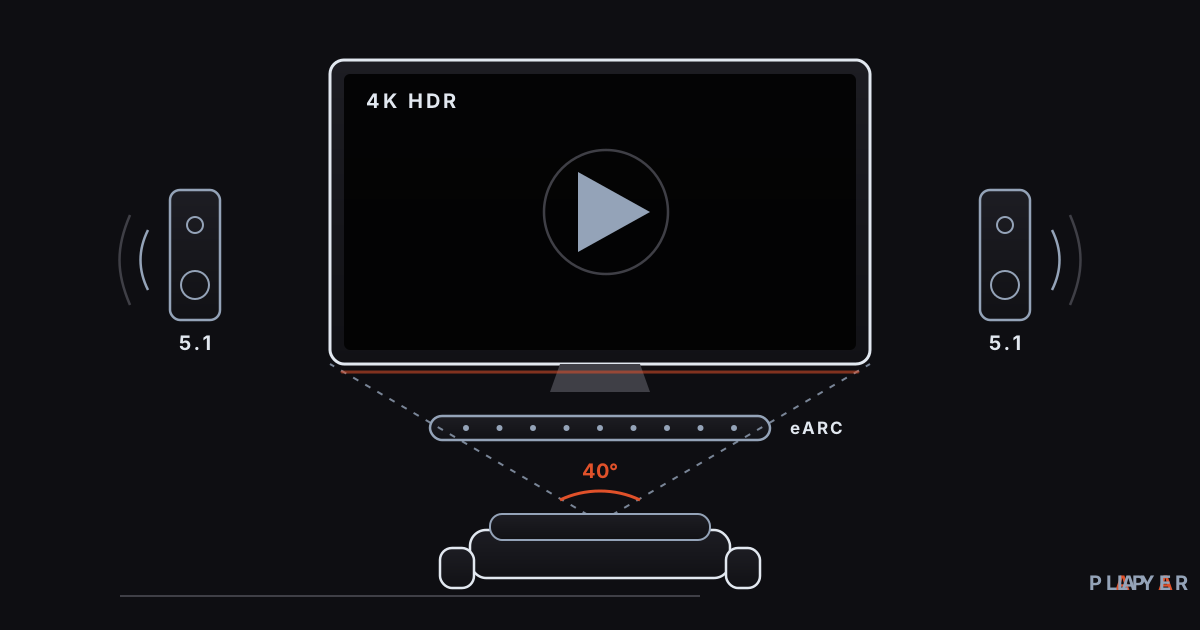
Short answer: A home theater setup means tuning the TV and sound system you already own until the experience approaches a cinema. Switch the TV to Movie or Filmmaker mode and turn off motion smoothing, sit about 1.2 to 1.6 screen diagonals away, send sound to a soundbar over HDMI ARC or eARC, dim the room, and run your player from a good source on a wired network.
Key takeaways
- The cheapest and most effective step is switching the TV to Movie or Filmmaker mode and turning off motion smoothing.
- A practical seating rule is about 1.2 to 1.6 times the screen diagonal, which matches roughly a 30 to 40 degree viewing angle.
- Connecting a soundbar over HDMI ARC or eARC carries more audio formats than an optical cable does.
- Room lighting and echo often change the experience more than a hardware upgrade.
- A remote-friendly player such as Alpa Player, with resume and favorites, keeps movie night smooth.
The magic of a movie theater does not come from the big screen alone; a dark room, strong sound and a properly calibrated picture all work together. The good news is that a good home theater setup rarely requires new gear. The settings on your current TV, where the sofa sits, a soundbar, and the lighting in the room make the biggest difference. In this guide we go through each step in order of cost, starting with the free settings.
Where should a home theater setup start?
A home theater setup should start with the cheapest layer, the settings, because a home theater stands on four legs: picture, sound, room, and source, and the first two cost nothing to tune. Fix the TV's picture mode first, then route the sound, then prepare the room, and finally look at the quality of your source (the video file, the network, the player).
The order matters for a simple reason: adding an expensive audio system to a badly configured TV solves nothing. The sections below follow that order.
How do you set up the TV picture for a cinema look?
To get a cinema look, drop the bright, oversaturated "showroom" settings and pick a mode that stays close to how the film was made. Menu names vary by brand, but the logic is the same:
- Picture mode: Choose "Movie," "Cinema," or "Filmmaker Mode." Many brands offer the last one; it turns off motion smoothing and respects the content's frame rate and color intent. Avoid "Vivid" and "Dynamic."
- Motion smoothing: Turn it off. It generates in-between frames and makes films look like a daytime soap opera.
- Color temperature: The "Warm" preset usually gets closest to the standard white point; a bluish screen tires the eyes.
- Sharpness: Keep it low or neutral; extra sharpening adds halos around edges.
- Brightness: Match it to the room. A dark room needs a lower backlight, and blacks look deeper.
- Auto brightness and eco modes: Turn them off while watching films; a screen that changes brightness mid-scene is distracting.
- HDR input setting: Some TVs need the HDMI input set to an "enhanced" mode. The name varies; see 4K HDR playback for the details.
Game mode is an option too: it does the least processing and cuts latency, but it also switches off the improvements in Movie mode. If you notice sound and picture drifting apart, our guide to the audio out of sync fix lists the remedies.
How far should you sit from the screen?
You should sit about 1.2 to 1.6 times the screen diagonal away, which corresponds to the commonly cited 30 to 40 degree viewing angle recommendations (roughly 30 degrees from SMPTE and 40 from THX). Too close, and you scan pixels and edges; too far, and you lose the sense of a big screen.
| Screen | Diagonal | Distance (feet) | Distance (meters) |
|---|---|---|---|
| 43 in | about 109 cm | 4.3 - 5.8 ft | 1.3 - 1.8 m |
| 55 in | about 140 cm | 5.5 - 7.5 ft | 1.7 - 2.3 m |
| 65 in | about 165 cm | 6.5 - 8.8 ft | 2.0 - 2.7 m |
| 75 in | about 190 cm | 7.5 - 10.2 ft | 2.3 - 3.1 m |
These numbers are a rule of thumb, not a precise measurement. Your own eyes are the best judge: if you can read subtitles comfortably and do not have to turn your head to see the screen edges, the distance is right. Keep the screen near eye level, because a TV mounted too high strains the neck.
How do you choose a sound system and connect it to the TV?
For most people the first audio upgrade is a soundbar, because the speakers in thin TVs are physically small and cannot deliver dialogue and bass well. How you connect the soundbar decides which audio formats it can receive.
| Connection | What it carries | Note |
|---|---|---|
| Optical (TOSLINK) | Stereo PCM and compressed 5.1 (Dolby Digital, DTS) | Lossless formats do not fit |
| HDMI ARC | Stereo PCM, Dolby Digital, Dolby Digital Plus, DTS (up to 5.1); Atmos metadata in Dolby codecs | Introduced with HDMI 1.4 (2009) |
| HDMI eARC | Uncompressed 5.1/7.1 PCM, Dolby TrueHD, DTS-HD Master Audio | Introduced with HDMI 2.1; about 37 Mbps of bandwidth |
| Bluetooth | Compressed stereo audio | Latency risk; not recommended for movies |
Plug the soundbar into the TV's HDMI input labeled ARC or eARC; the other inputs do not carry this feature. Place the soundbar centered right under the screen and do not block its front. For a subwoofer, a corner usually gives stronger bass, but try a few positions and listen. For late-night viewing, the "night mode" or "speech clarity" setting on your soundbar tames explosions and lifts dialogue.
If the sound and picture drift apart, the cause is usually soundbar processing or the HDMI chain; take a look at our sync guide for the steps.
Why do room lighting and acoustics matter?
The room shapes the experience independently of the screen and speakers, because light and reflections change the picture and hard surfaces create echo. A few simple measures are enough for a cinema feel:
- Curtains: Daylight and screen reflections wash out black levels. Use heavy curtains or blinds.
- Bias lighting: A soft LED strip behind the TV reduces the contrast between the bright screen and the dark wall and eases eye strain.
- Reflective surfaces: Turn off or reposition lamps and shiny objects opposite the screen.
- Echo: Rugs, curtains and bookshelves soften the room and reduce harsh echo.
- Speaker placement: Do not squeeze the soundbar inside a cabinet; the sound needs open air.
Lowering the room light lets you lower the TV's brightness too, which deepens the blacks and rests your eyes.
Cables, network and source: the invisible quality
Picture and sound quality depend not only on the TV and speakers but also on the signal that reaches them. Two things deserve attention: cables and the network.
For 4K and HDR over HDMI, use a cable certified for at least 18 Gbit/s ("Premium High Speed"); high frame rates such as 4K at 120 Hz need a 48 Gbit/s "Ultra High Speed" cable. Old cables can cause dropouts or color problems.
The network matters for streams as well. A wired connection is steadier than wireless; Wi-Fi vs Ethernet for streaming explains the difference, and internet speed for streaming covers how much you need. If the source itself has a low bitrate, even the best TV cannot make it beautiful.
If you are shopping for an Android TV box, the Android TV box buying guide offers a checklist for codec support and ports.
How do player settings affect your home theater?
The player decides what format and frame rate reach the TV, which makes it a hidden part of any cinema setup. Check three settings:
- Frame-rate matching: Forcing 24 fps film content onto a 60 Hz output can cause judder. Many Android TV and Google TV devices have a setting to match the content's frame rate; turn it on if you find it.
- Audio output: Pick a format your soundbar supports; a compressed format it cannot handle may leave you with silence.
- Playback engine: If one source keeps stalling, switching engines can help; see ExoPlayer vs VLC.
Alpa Player is a free media player developed by Alpa Yazılım. It is built to run on Android TV, Google TV and TV boxes, on Samsung (Tizen 2020 and later) and LG (webOS 2020 and later) TVs, and on Windows. Its interface follows the simplicity of Apple TV and Netflix, with smooth arrow-key navigation on a remote. Resume, favorites and recently watched keep movie night uninterrupted; see resume playback and favorites for details, and smart TV remote tips for remote shortcuts.
Alpa Player provides no content and plays only sources you have the right to use. Download Alpa Player for free and try your settings with your own videos.
What should you do first? A priority order by impact
If your budget or time is limited, start with the steps that give the most for the least. The ranking below is a general suggestion, and results differ from home to home.
| Order | Step | Cost | Impact |
|---|---|---|---|
| 1 | Set the TV to Movie/Filmmaker mode, turn off motion smoothing | Free | High |
| 2 | Darken the room, reduce reflections | Low | High |
| 3 | Correct the seating distance | Free | Medium |
| 4 | Connect a soundbar over ARC/eARC | Medium | Very high (sound) |
| 5 | Wired network and the right HDMI cable | Low | High for streams |
| 6 | A larger or newer TV | High | Medium |
In short, a great home theater comes from the right settings more than from expensive gear. Work through the steps in order, compare against a familiar scene after each change, and write down the arrangement you like.
Step by step: Home theater setup, step by step
- Set the TV picture mode to Movie or Filmmaker and turn off motion smoothing.
- Place the sofa about 1.2 to 1.6 times the screen diagonal away.
- Connect the soundbar to the TV's ARC or eARC input over HDMI and center it under the screen.
- Darken the room, reduce reflections, and add soft light behind the screen.
- Use a wired network and a suitable HDMI cable; check frame-rate and audio output settings in the player.
- Try your own videos in a remote-friendly player such as Alpa Player and compare the settings against a familiar scene.
Frequently asked questions
What is the most important first step in a home theater setup?
The most important and cheapest step is switching the TV's picture mode to Movie, Cinema or Filmmaker and turning off motion smoothing. Those two settings move the picture toward a cinema look without buying anything. After that, darken the room and send the sound to a soundbar.
How far should I sit from the TV?
A practical rule is to sit about 1.2 to 1.6 times the screen diagonal away. For a 65-inch TV that is roughly 6.5 to 8.8 feet (2.0 to 2.7 m). It matches the 30 to 40 degree viewing-angle recommendations and is a starting point rather than a strict rule.
What is the difference between ARC and eARC?
Both carry sound from the TV to a soundbar over HDMI. ARC handles compressed audio such as Dolby Digital and DTS up to 5.1 channels, while eARC has more bandwidth and can carry uncompressed 5.1/7.1 PCM, Dolby TrueHD and DTS-HD Master Audio.
Is a Bluetooth speaker a good idea for movies?
Usually not. Bluetooth audio is compressed and sent wirelessly, which adds latency and can break lip sync. For movies, HDMI ARC/eARC or an optical cable is more reliable.
How does Alpa Player help with my home theater setup?
Alpa Player offers a clean interface that navigates smoothly with a remote, plus resume, favorites and recently watched. On Android you can switch the playback engine. Alpa Player provides no content; it plays only the sources you add.
Sources
Related articles
 Quality & network
4K HDR Playback: What You Need and How to Set It Up
4K HDR playback needs the right TV, HDMI cable, codec support and bandwidth. Learn how HDR10, Dolby Vision and HLG differ and fix washed-out colors.
 Quality & network
Bitrate vs Resolution: What Decides Video Quality?
Bitrate vs resolution explained: see how frame rate and codec also shape video quality, with clear tables and a file size formula. Try Alpa Player.
 Quality & network
Fix Video Buffering: 12 Solutions That Work
Fix video buffering on your TV, phone or PC with 12 practical solutions covering network, WiFi, device, source and playback engine. Alpa Player tips included.