
Internet speed for streaming video: how many Mbps for SD, HD and 4K
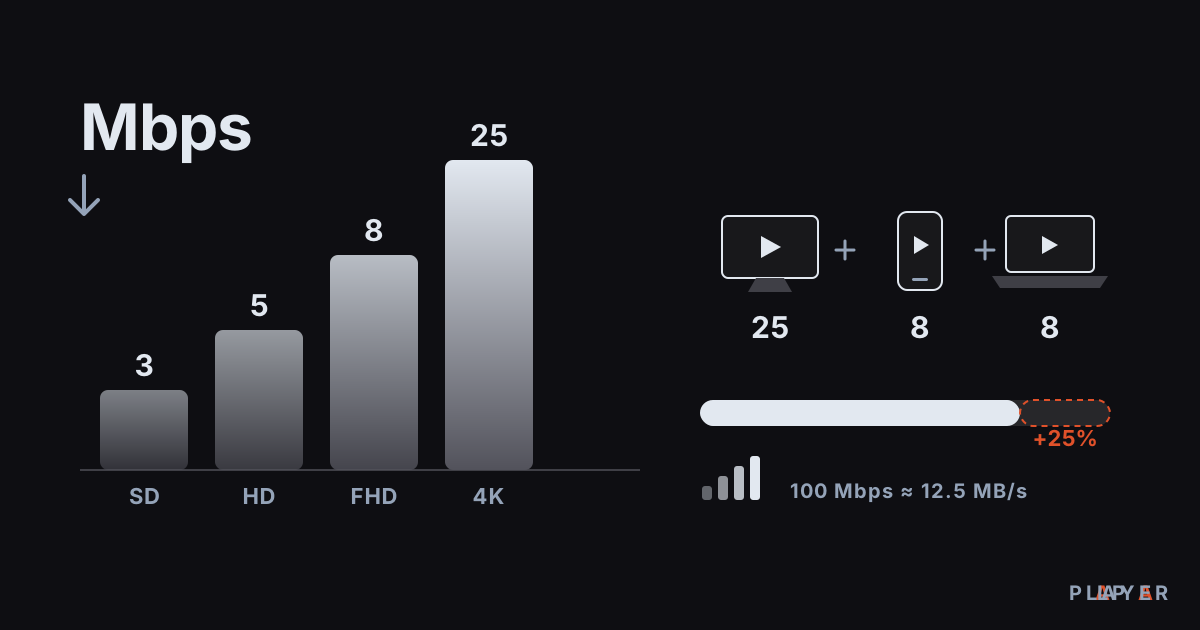
Short answer: Internet speed for streaming depends on quality: roughly 1.5 to 3 Mbps for SD, 3 to 5 for HD, 5 to 8 for Full HD and 15 to 25 Mbps for 4K. If several devices stream at once, add their needs together and leave about 25 percent extra. These are approximate ranges, and the real figure varies by video.
Key takeaways
- About 1.5 to 3 Mbps covers SD, 3 to 5 covers HD, 5 to 8 covers Full HD and 15 to 25 Mbps covers most 4K streaming.
- To size a home, add up the Mbps of every stream that runs at once and leave roughly 25 percent headroom.
- Mbps means megabits per second; eight megabits make one megabyte, so 100 Mbps tops out at 12.5 MB/s.
- WiFi speeds are often well below the plan speed, so the most reliable test is over a cable.
- A good speed test does not guarantee smooth video, because unstable signal or a slow source server can still cause buffering.
Internet speed for streaming depends on the bitrate of the video you watch and on how many devices in the house are active at the same time. There is no single answer to "how many Mbps is enough", but widely accepted ranges, such as about 5 to 8 Mbps for Full HD and about 15 to 25 Mbps for 4K, make a good starting point.
This guide gives the speed for each quality in a table, shows a simple formula for a busy household, and explains how to measure your connection properly. It ends with notes on Alpa Player, a free media player developed by Alpa Yazılım.
How many Mbps do you need for streaming video?
The speed you need is set by the bitrate of the video: roughly 1.5 to 3 Mbps for SD, 5 to 8 Mbps for Full HD and 15 to 25 Mbps for 4K is usually enough. The table below shows widely used approximate ranges; exact values vary with the stream, the codec and the source.
| Quality | Suggested speed | Data per hour |
|---|---|---|
| SD (480p) | 1.5 to 3 Mbps | 0.7 to 1.4 GB |
| HD (720p) | 3 to 5 Mbps | 1.4 to 2.3 GB |
| Full HD (1080p) | 5 to 8 Mbps | 2.3 to 3.6 GB |
| 4K (2160p) | 15 to 25 Mbps | 6.8 to 11.3 GB |
| High-bitrate 4K file (home network) | 40 to 100 Mbps or more | 18 to 45 GB or more |
Data use is easy to estimate: multiply the Mbps figure by 0.45 and you get roughly the gigabytes used in one hour. A 5 Mbps stream uses about 2.25 GB per hour. If your plan has a monthly cap, this tells you what an hour of viewing costs.
Remember that bitrate and resolution are not the same thing. The same 1080p video can arrive at 3 Mbps or at 10 Mbps depending on the codec. We explain how they relate in bitrate vs resolution, and the other requirements for 4K are in our 4K HDR playback guide.
What is the difference between Mbps and MB/s?
Mbps is megabits per second and MB/s is megabytes per second, and because a byte has 8 bits, the MB/s figure is one eighth of the Mbps figure. Internet plans are normally sold in Mbps, while download managers usually show MB/s. So a 100 Mbps line can move at most about 12.5 MB per second in theory.
Real-world speed is lower than that. Protocol overhead, the router, the quality of the wireless link and your provider's network all pull the measured number down. Plan with the speed you measure, not the one on the box.
How much speed does a house with several streams need?
A busy household needs the sum of all simultaneous streams, and adding about 25 percent headroom is a good rule. The margin keeps video from freezing when speed dips for a moment.
| Scenario | Total need | With headroom |
|---|---|---|
| One person watching Full HD (8 Mbps) | 8 Mbps | About 10 Mbps |
| Two people, two Full HD streams (8 + 8) | 16 Mbps | About 20 Mbps |
| Family: one 4K (25), two Full HD (8 + 8), one video call (4) | 45 Mbps | About 56 Mbps |
Video calls use roughly 2 to 4 Mbps and need that speed in both directions. Game downloads, cloud backups and system updates are large consumers outside this sum, and video can slow down while they run. For that case, read our guide to fixing video buffering.
How do you measure your internet speed correctly?
For a reliable speed test, use a cable, pause other traffic, and repeat the test a few times at the hour when you see problems. A single test can be misleading.
- Use a cable if you can: A wireless test measures your WiFi signal as well as your internet. Test over a cable, then over WiFi, and compare to see where the problem sits.
- Pause other traffic: Open downloads and other streams pull the result down.
- Test on the TV too: If the TV has a browser, measuring there shows the speed the TV really gets.
- Note the time: If the evening result is lower than the morning one, the bottleneck is shared infrastructure.
- Do not look only at download speed: Watching video depends on download speed, but video calls and uploads need upload speed, and latency and packet loss matter more for live streams.
Why does video buffer when speed seems fine?
Video can buffer even after a good speed test, because the test measures a quick burst to a nearby server while your video comes from a different one. An unstable wireless signal, a device that struggles to decode, or a slow source server can all cause the problem.
Stability matters as much as the average. A connection that measures 100 Mbps but drops out briefly now and then can give a worse viewing experience than a steady 30 Mbps. For wireless trouble, see our comparison of WiFi vs Ethernet.
How do latency, jitter and packet loss affect streaming?
Speed is not the only measure: latency, jitter and packet loss also shape how smooth video looks, especially for live streams. Latency (ping) is the round-trip time of a data packet, measured in milliseconds. Jitter is how much that time varies, and packet loss counts the packets that vanish on the way and must be sent again.
A ready-made video hides small delays thanks to its buffer. Live streams and video calls use a very small buffer, so any fluctuation shows up directly as stutter. Even a small amount of packet loss can sharply cut the usable speed of a connection because of retransmissions.
For a quick check on Windows, open Command Prompt and run this command:
ping -n 20 example.comIf the times in the result lines swing widely, or you see "Request timed out" messages, the connection is unstable even when speed is sufficient. Try a wired connection first, and if the problem continues, contact your provider with your measurements.
What can you do if your speed is not enough?
When speed falls short, the fastest fix is to lower the video bitrate and the lasting fix is to improve the connection. Consider the options below in order.
- Drop the quality one level; HD looks good enough on many screens compared with Full HD.
- Adaptive streams lower the quality automatically when the connection slows down; we cover how in adaptive bitrate streaming.
- Pause big downloads and backups while you watch.
- Connect the device by cable or move it closer to the router.
- Ask your provider whether your plan reduces speed after a data cap.
- If the measured speed is consistently far below your plan, contact the provider, and consider a faster plan if needed.
Does Alpa Player need a fast connection?
Alpa Player is a free media player developed by Alpa Yazılım that plays sources such as MP4, MKV, HLS, M3U and M3U8, and the speed you need is set by the source you play, not by the player. A file on your home network, an internet stream and an IP camera feed all ask for different speeds. You can download Alpa Player for free and try your network with the browser-based open-license demo.
On Android, if a source stutters even though your speed is enough, you can switch the playback engine in Alpa Player: the default ExoPlayer-based engine, a VLC engine, or an external player. The app has no channels, movies or playlists of its own, and you are responsible for having the right to use any source you play.
Step by step: How to work out the internet speed your home needs
- List the devices that will stream at the same time and the quality each will use: SD, HD, Full HD or 4K.
- Write down the Mbps for each quality from the table, add other uses such as video calls, and total them.
- Add about 25 percent headroom to the total.
- Connect a device by Ethernet and run a speed test at the hour when you notice problems.
- Compare the measured speed with your result; if it is lower, reduce quality, improve the network or upgrade the plan.
Frequently asked questions
Is 25 Mbps enough for 4K?
For most streaming-service 4K content, about 15 to 25 Mbps is enough. If other devices are online at the same time, you need extra headroom above that. High-bitrate 4K files from your own library can ask for 40 to 100 Mbps or more.
My plan is 100 Mbps but WiFi measures much less. Why?
Real wireless speed depends on distance, walls, interference and the wireless hardware in the device, so it falls below the plan speed. Measure at the same spot over a cable and compare. If the gap is large, moving the router closer, using the 5 GHz band or switching to a cable helps.
Does upload speed affect watching video?
Watching video depends mostly on download speed. Upload speed matters for video calls, live broadcasting and sending files. A very low upload speed can slow some control traffic, but it rarely causes trouble during ordinary viewing.
How many 4K streams can a 100 Mbps connection handle?
If each 4K stream takes about 25 Mbps and you keep 25 percent headroom, roughly 80 of the 100 Mbps is usable, which fits about three 4K streams at once. The number drops if other devices are also using the connection.
How many Mbps does Alpa Player need?
The speed is set by the source you play, not by the player: a low-resolution stream runs on a few Mbps, while 4K needs roughly 15 to 25 Mbps. Alpa Player plays sources such as MP4, MKV, HLS, M3U and M3U8, and on Android you can switch the playback engine if playback stutters.
Sources
Related articles
 Quality & network
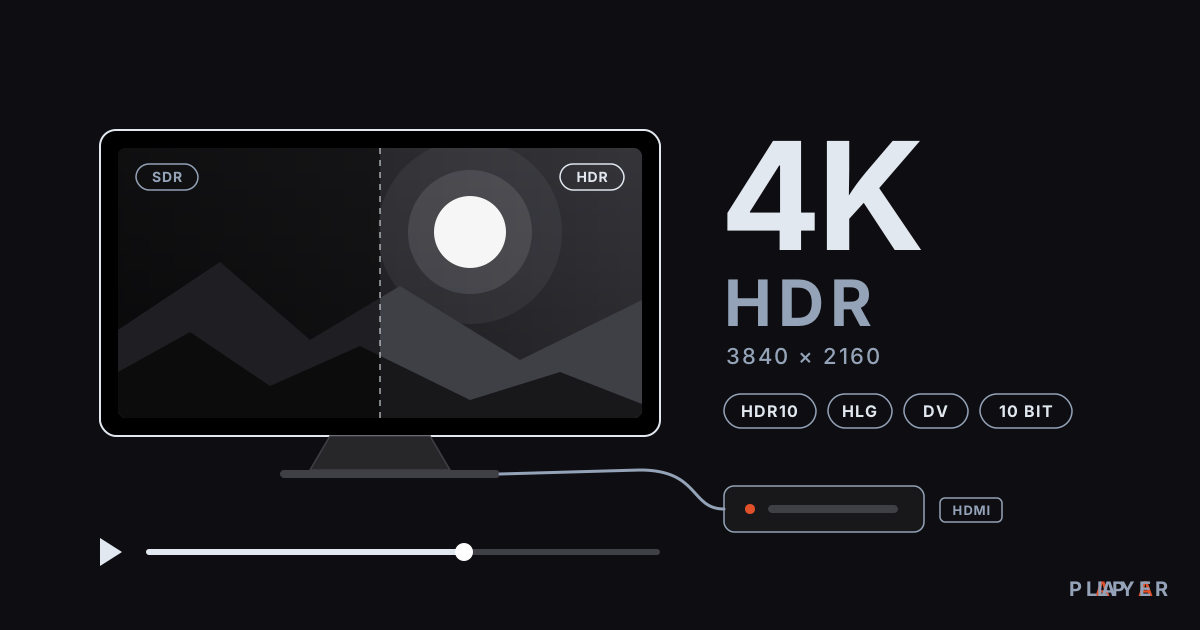
4K HDR Playback: What You Need and How to Set It Up
4K HDR playback needs the right TV, HDMI cable, codec support and bandwidth. Learn how HDR10, Dolby Vision and HLG differ and fix washed-out colors.
 Quality & network
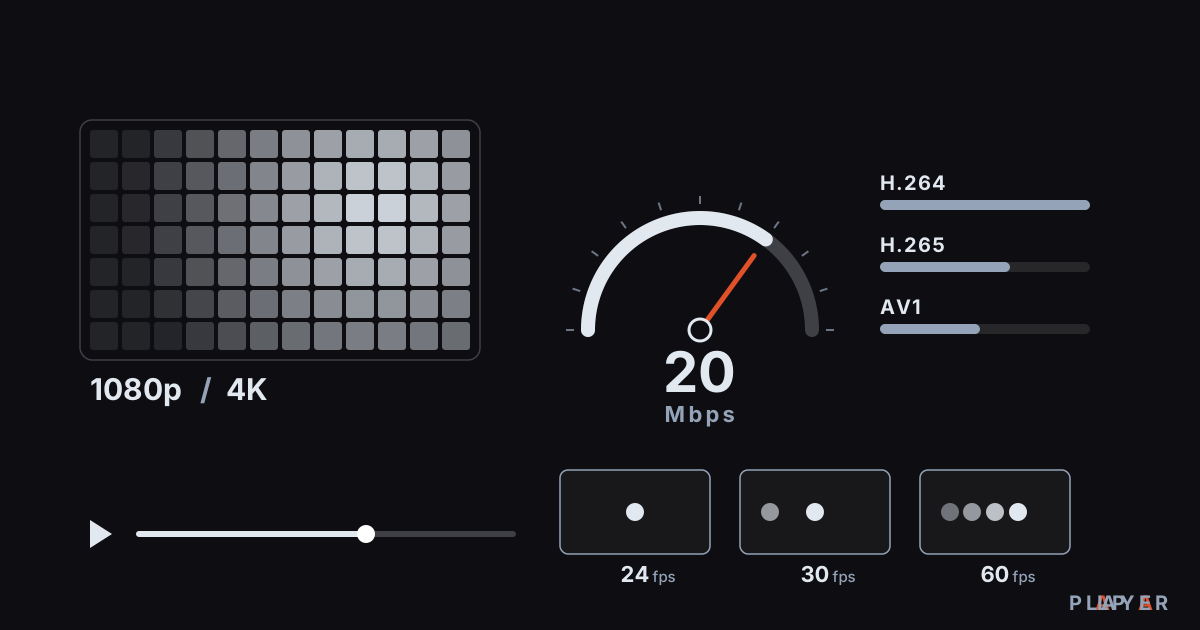
Bitrate vs Resolution: What Decides Video Quality?
Bitrate vs resolution explained: see how frame rate and codec also shape video quality, with clear tables and a file size formula. Try Alpa Player.
 Quality & network
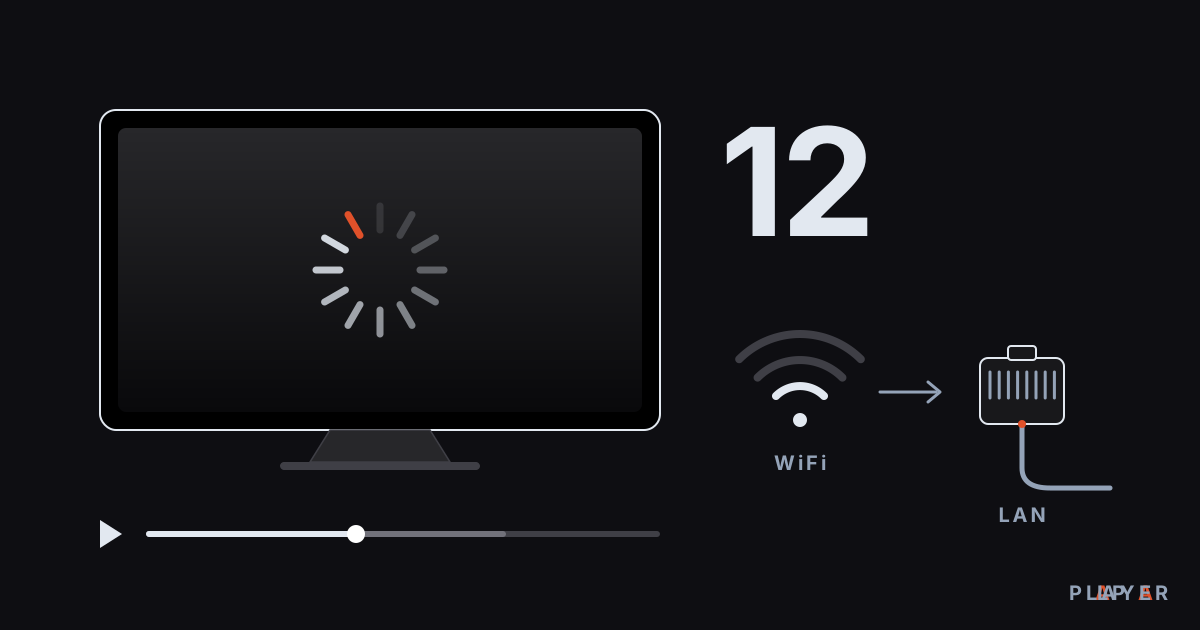
Fix Video Buffering: 12 Solutions That Work
Fix video buffering on your TV, phone or PC with 12 practical solutions covering network, WiFi, device, source and playback engine. Alpa Player tips included.