
WiFi vs Ethernet for streaming: which connection is best for your TV
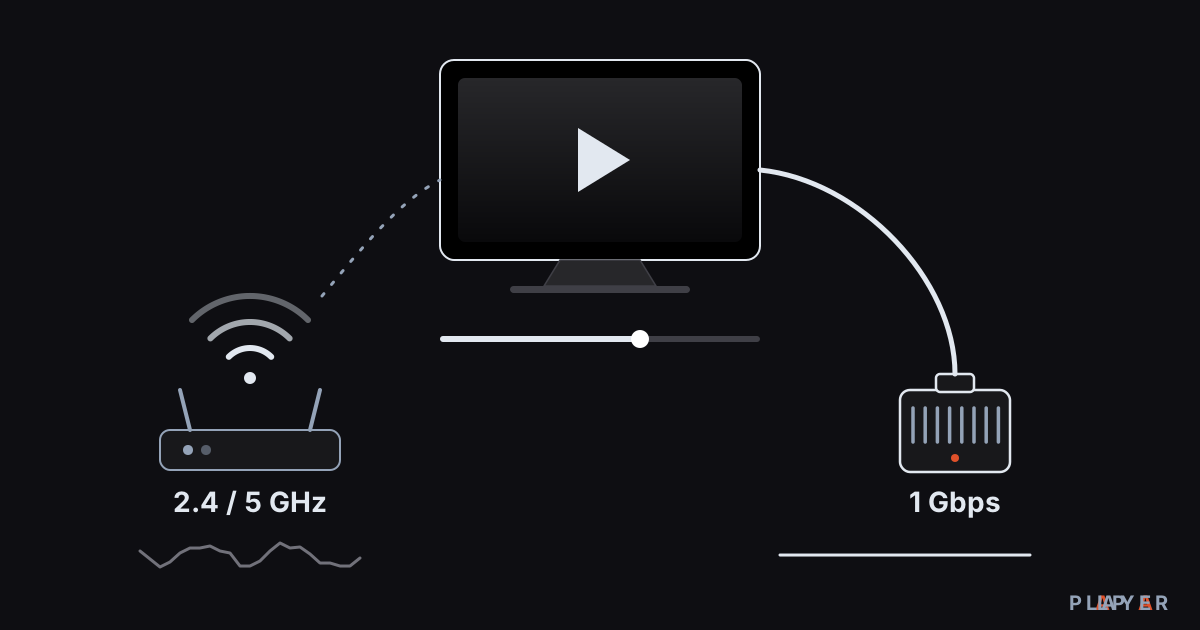
Short answer: For streaming on a fixed device such as a TV or TV box, Ethernet is usually the better choice, because a cable is more stable, has lower and steadier latency and is immune to wireless interference. WiFi is more convenient and often enough for 1080p near the router, but 4K, live streams and network storage are safer on a cable.
Key takeaways
- For a fixed TV or TV box, Ethernet is usually the best choice for stability and low latency.
- The 5 GHz WiFi band is faster than 2.4 GHz but has a shorter range and is more affected by walls.
- A Cat5e or better cable is enough for Gigabit Ethernet, though some TVs only have a 100 Mbps port.
- If you cannot run a cable, a mesh system with a wired backhaul usually beats powerline adapters and repeaters.
- Ethernet does not raise your plan speed; it removes wireless losses and fluctuation.
WiFi vs Ethernet for streaming is a choice almost everyone faces when connecting a TV to the internet. Both can play video; the difference shows up in stability, convenience and how much speed you need. Running a cable takes effort, but if you want a trouble-free stream it is usually the safest route.
This guide compares wired and wireless connections in a table, explains the 2.4 and 5 GHz bands, covers mesh, powerline and repeater options, and shows which to choose in which situation. At the end are notes on Alpa Player, a free media player developed by Alpa Yazılım.
WiFi vs Ethernet: which is better for streaming?
For video, Ethernet is generally better because a wired link is more stable, has lower latency and does not suffer interference, while WiFi wins on convenience and often delivers enough speed for most video in good conditions. The table below compares three common connection types.
| Criterion | Ethernet (cable) | WiFi 5 GHz | WiFi 2.4 GHz |
|---|---|---|---|
| Stability | Very high | Medium to high, depends on distance | Low to medium, crowded band |
| Speed | Closest to your plan speed | High in good conditions, drops quickly with distance and walls | Lowest, in exchange for wide range |
| Latency | Low and steady | Low to medium | More variable |
| Interference | None | Moderate | High: microwaves, Bluetooth, neighboring networks |
| Setup | Needs a cable run | None | None |
| Best for | Fixed TV, 4K, live streams, network storage | TV close to the router, 1080p | Far rooms, lower quality |
These entries describe general tendencies; real results depend on your floor plan, walls and the networks around you. To find out how much speed you need, see internet speed for streaming.
What is the difference between the 2.4, 5 and 6 GHz bands?
WiFi bands trade range against speed: a lower frequency travels farther and passes through walls better, while a higher frequency is faster but works over shorter distances.
| Band | Range | Speed | Congestion | Note |
|---|---|---|---|---|
| 2.4 GHz | Widest | Lowest | Very crowded | Usually only three non-overlapping channels; Bluetooth and microwaves interfere |
| 5 GHz | Medium | High | Moderate | More channels; affected more by walls |
| 6 GHz | Shortest | Highest | Low | WiFi 6E and later; both router and device must support it |
The practical rule is simple: if the TV is in the same room as the router or one wall away, use 5 GHz; if it is far away, 2.4 GHz will connect but video quality may suffer. Many routers broadcast both bands under one name; if your TV sticks to the wrong band, giving the bands different names and joining 5 GHz by hand helps. Newer standards such as WiFi 6 (802.11ax) improve efficiency, especially on crowded networks with many devices.
How much speed does an Ethernet cable and port give you?
Ethernet offers 100 Mbps with Fast Ethernet and 1,000 Mbps with Gigabit Ethernet, which is more than enough for most video. A Cat5e or better cable handles Gigabit for up to 100 meters, so you do not need an expensive cable for a TV; a sound, properly seated cable is enough.
What to check is the port on the TV or box. Some TVs and boxes limit their Ethernet port to 100 Mbps. That is plenty for 4K streaming services, which ask for 15 to 25 Mbps, but it can become a bottleneck for high-bitrate files on your home network that peak above 80 Mbps. For those files, our 4K HDR playback guide is worth a read.
After plugging in, look at the TV's network status screen; many devices show the link speed, such as 100 Mbps or 1 Gbps. If your port is Gigabit but you see 100 Mbps, replace the cable, because a damaged cable can make the link fall back to the lower speed.
Ethernet does not raise your plan speed. If your line is 50 Mbps, the cable gives you 50 Mbps; the gain is that wireless losses and fluctuations disappear.
How can you improve a WiFi connection?
If you cannot run a cable, a few changes can improve WiFi noticeably. Many network vendors suggest a signal of about -67 dBm or stronger for video; if your TV's network screen shows signal strength, you can compare it with that value.
- Place the router well: Keep it central, in the open and up high, with as few walls as possible between it and the TV.
- Use the 5 GHz band: If the TV is close to the router, join the 5 GHz network.
- Reduce interference: Keep away from microwave ovens, cordless phones and Bluetooth devices. In crowded buildings, changing the router channel by hand can help.
- Update firmware: Keep both the router and the TV software current.
- Cut the load: Simultaneous downloads and other streams split the WiFi capacity.
- Consider a newer router: A WiFi 6 router is more efficient in crowded networks.
If video still stutters after that, see our 12 fixes for video buffering.
What are the alternatives if you cannot run a cable?
If a cable is impossible, you can use mesh systems, powerline adapters, MoCA adapters that run over existing coaxial wiring, or repeaters, and each has its own advantage and limit.
| Option | Pro | Con |
|---|---|---|
| Mesh (wired backhaul) | Covers the whole home and keeps speed best | Needs a cable between the main units |
| Mesh (wireless backhaul) | Easy to set up | The link between units also shares WiFi capacity, so speed can drop |
| Powerline adapter | Uses the existing electrical wiring | Real speed can fall far below the label; affected by wiring and noisy appliances |
| MoCA (coaxial) | No new cable if you have coax in the walls | Needs special adapters and suitable wiring |
| WiFi repeater | Cheap and quick to set up | Can cut speed noticeably when it works wirelessly |
With a mesh system, the best result usually comes from wiring one unit to the router and connecting the TV to the nearest unit by Ethernet. Powerline performance varies a lot from house to house, so choose a model that you can return if it does not work well.
Does the connection type matter in Alpa Player?
Alpa Player is a free media player developed by Alpa Yazılım that plays sources such as MP4, MKV, HLS, M3U and M3U8 and simply uses whatever connection the device has. Whichever you choose, smooth playback needs a stable network that can carry the source's bitrate. You can download Alpa Player for free; options exist for Android, Android TV, Samsung and LG TVs, and Windows.
On Android, if a source stutters even on a good network, try switching the playback engine in Alpa Player: the default ExoPlayer-based engine, a VLC engine or an external player. When shopping for a TV box, also check the speed of its Ethernet port; our Android TV box buying guide covers what to look for. The app ships with no channels, movies or playlists, and you are responsible for having the right to use any source you play.
Which connection should you choose in which situation?
The rule is simple: the more fixed, distant and demanding your use, the more you should lean toward a cable. The list below helps you decide.
- 4K, live streams, playback from network storage: Ethernet.
- TV close to the router at 1080p: 5 GHz WiFi is often enough.
- Phones and tablets: WiFi, since it suits devices that move around.
- Far room, no cable possible: Mesh, MoCA or a powerline kit you can return.
- Guest or temporary setup: WiFi now, with a cable later.
Step by step: How to connect your TV to the internet with an Ethernet cable
- Get a Cat5e or better Ethernet cable and find a free LAN port on your router.
- Plug one end into the router and the other into the LAN port of the TV or TV box.
- Open the TV's network settings, choose the wired connection and confirm that its status shows as connected.
- If you want to stop the device from switching back, turn off its WiFi connection.
- Play a video to check smoothness and, if you like, compare a speed test with your WiFi result.
Frequently asked questions
Does WiFi 6 match Ethernet?
WiFi 6 improves speed and efficiency on crowded networks compared with WiFi 5, but it generally cannot match the stability and low latency of a wired link. Wireless speed changes with distance and walls, while a cable is constant. For a fixed TV, a cable is still the safest choice.
Is a 100 Mbps Ethernet port on my TV a problem?
For most streaming services it is not; 4K content asks for about 15 to 25 Mbps. High-bitrate local files can peak above 80 Mbps, though, and then a 100 Mbps port can become a bottleneck. If you play such files, choose a device with a Gigabit port.
Should I choose 2.4 GHz or 5 GHz?
If the TV is close to the router, choose 5 GHz, which is faster and less crowded. If it is far away or there is a thick wall in between, 2.4 GHz connects better but speed and stability may drop. Trying both and comparing the video is the surest way to decide.
Is a powerline adapter good enough for video?
In some homes yes, in others no. Real speed can be far below the figure on the box and depends on the quality of the electrical wiring and on noisy appliances. Before buying, check whether you can return it if it does not work.
Can I use Alpa Player the same way on wired and wireless connections?
Yes. Alpa Player plays the source over whichever network connection the device uses. Smoothness depends on the stability of the link and the bitrate of the source. On Android, if you see stutter, you can also try switching the playback engine in Alpa Player.
Sources
Related articles
 Quality & network
4K HDR Playback: What You Need and How to Set It Up
4K HDR playback needs the right TV, HDMI cable, codec support and bandwidth. Learn how HDR10, Dolby Vision and HLG differ and fix washed-out colors.
 Quality & network
Bitrate vs Resolution: What Decides Video Quality?
Bitrate vs resolution explained: see how frame rate and codec also shape video quality, with clear tables and a file size formula. Try Alpa Player.
 Quality & network
Fix Video Buffering: 12 Solutions That Work
Fix video buffering on your TV, phone or PC with 12 practical solutions covering network, WiFi, device, source and playback engine. Alpa Player tips included.