
Resume playback and favorites: a practical way to watch without searching
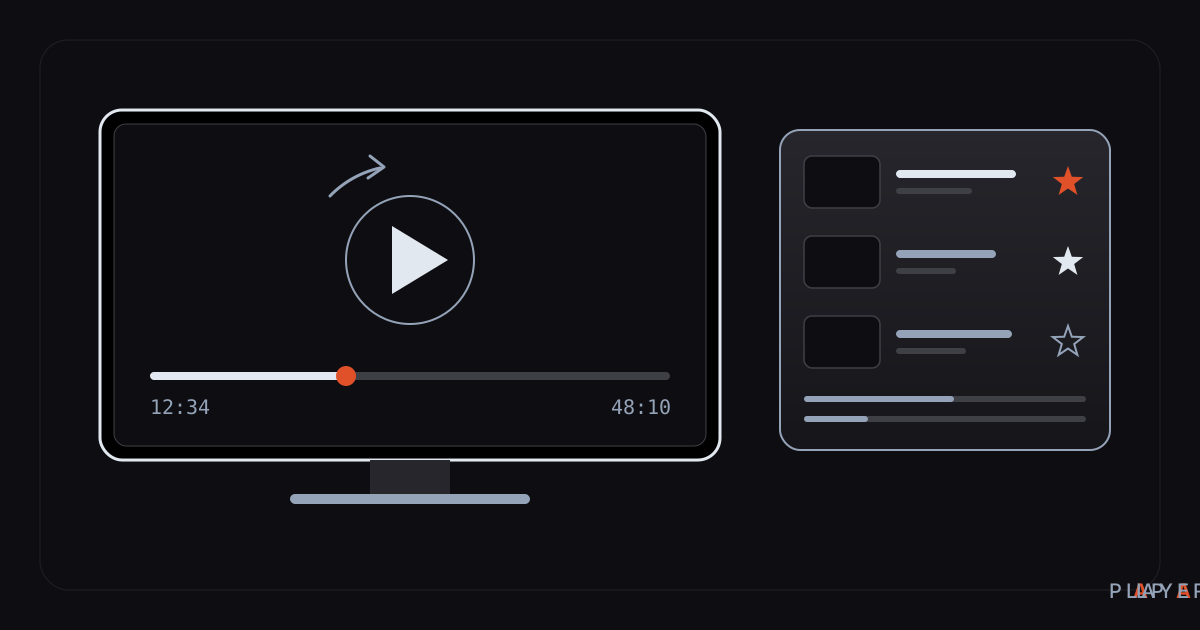
Short answer: Resume playback means the player remembers where you stopped a video and starts again from that minute the next time you open it. Alpa Player offers resume playback, favorites, recently watched items and a program guide: resume brings back a half-finished video, favorites keep what you watch often within reach, and recently watched shows your latest history. Live streams have no fixed position, so resuming does not apply to them.
Key takeaways
- Resume playback lets you pick up a half-watched video from the same minute you left it.
- Favorites turn the things you watch often into a short list, so you skip the search through long playlists.
- Recently watched shows your latest history, and the program guide shows when programs are scheduled.
- Live streams have no fixed position, so resume playback mainly makes sense for videos with a set length.
- Alpa Player has no accounts, so do not assume your watch records move between devices automatically.
Being able to stop a movie halfway and pick it up the next evening from the same minute is one of the most basic comforts a modern player offers. Resume playback, favorites and recently watched items work best together: even a crowded list lets you reach what you want within seconds. This article explains how these features work in Alpa Player, how they differ, and a routine that keeps your viewing tidy.
Alpa Player is a free media player developed by Alpa Yazılım. It contains no content of its own and plays only sources you have the right to use. If you have not installed it yet, download Alpa Player for free and add your first list.
What is resume playback and how does it work?
Resume playback is when a player saves the point where you left a video and starts from that point the next time you open the same video.
The general idea is simple: the player remembers both which item you were watching and how far into it you were. When you open it again, it jumps to the saved point instead of starting over. That makes it especially valuable for long films, multi-part lectures and series episodes.
It does not mean the same thing for every kind of content:
| Content type | Does resume make sense? | Why |
|---|---|---|
| Film or series episode | Yes | It has a fixed length, so where you stopped is well defined |
| Long lecture or conference recording | Yes | People usually watch it over several sittings |
| Short clip | Rarely needed | It ends in a few minutes anyway |
| Live stream | No | There is no fixed position; the broadcast keeps moving |
With a live stream you simply rejoin the broadcast, and the time information in the program guide shows what you missed. To learn more about how streams are delivered, see what is HLS streaming.
How do favorites work, and how do you keep them useful?
Favorites are shortcuts: you mark what you watch often once, and from then on you open it without hunting through a long list.
When a playlist holds hundreds of entries, finding one with a remote is tiring. Favorites remove that search. If you have ever counted how many arrow presses it takes to scroll a long list, you know this is the biggest speed-up available. We collected other ways to move quickly in smart TV remote tips.
A few rules keep a favorites list worth having:
- Keep it short. If favorites grow into a second copy of the full list, the shortcut loses its point. Ten or twenty items are enough for most people.
- Prune regularly. Once a month, take out what you no longer watch.
- Use meaningful names. When you add a source, a short, distinctive on-screen name is a lifesaver if you have several.
The steps for adding and removing a favorite can vary by app version and device, and this article does not claim any particular button assignment. Look for the favorite option offered while an item is selected on your device.
How do recently watched and the program guide differ from resume?
Resume, favorites, recently watched and the program guide are four complementary tools, and each answers a different question.
| Feature | What it gives you | When to use it |
|---|---|---|
| Resume playback | Continues a half-finished video from the same minute | When you split a film or lecture across sessions |
| Favorites | Collects the items you chose on purpose | For content you watch every week |
| Recently watched | Shows your latest history | When you ask yourself "what was I watching yesterday?" |
| Program guide | Shows when programs are broadcast | When planning around live streams |
The difference in a sentence: favorites are your deliberate choice, while recently watched is a short copy of the past. Resume remembers the progress of one video, and the program guide is about time. Keeping them apart makes it clear which one to open and when.
Which tool fits which viewing habit?
The right tool depends on how you watch, and the same person often needs different tools on different days.
| Viewing style | Most useful tool | Why |
|---|---|---|
| Splitting a long film over two evenings | Resume playback | You do not have to remember the minute |
| Following something every week | Favorites | You reach it in one step each time |
| "What did I watch the other day?" | Recently watched | It shows the recent past quickly |
| Planning around a live stream | Program guide | You see the schedule in advance |
| A long lecture recording | Resume playback | It is easier to finish across sessions |
Instead of forcing one tool to do everything, use them together: weekly content sits in favorites, a half-watched film continues with resume, and you look back through recently watched.
A seven-step routine for tidy viewing
Tidy viewing takes one setup session, and after that everything runs through shortcuts.
- Add your source. Add your first list through Add Source; see how to add an M3U playlist for the steps.
- Give it a short name. Keep the on-screen name clear and distinctive.
- Favorite what you watch. Mark your weekly content right away.
- Stop wherever you like. Leave a half-finished video at any point; the player remembers where you left it.
- Continue the next day. Open the same video and pick up from where you stopped.
- Check the history. If you forgot what you watched, look at recently watched.
- Prune monthly. Remove favorites you no longer watch and keep the list fresh.
If you would rather not type the list on the TV remote, you can send it from your phone with the MAC address and 6-digit key; the details are in how to upload a playlist to your TV. When you upload again to the same device, the new list replaces the old one, so think about which records depend on the old list before you swap it.
How do you keep your place without resume?
Even when no position is saved, a few small habits let you find your place again with little effort.
- Note the time. Before you stop, jot the timestamp shown on screen into your phone.
- Skip in small steps. Tapping fast-forward in short bursts is safer than holding the key and overshooting.
- Use natural breaks. Stopping at the end of an episode makes it obvious where to start tomorrow.
These habits matter most when you continue on a different device, because you should not assume records travel between devices.
Why did my place disappear?
If your position is not where you expect it, the cause is usually that the content changed, the list was refreshed, or you switched devices.
| Situation | Likely cause | What to do |
|---|---|---|
| The video starts from the beginning | The item's address may have changed, so the player treats it as different content | Make sure you open it from the same address |
| No position after the list was refreshed | In general, players tie records to an item's address, and if addresses change the match can be lost | Avoid needless list changes and keep important list addresses in your own notes |
| I cannot find my place on another device | Alpa Player has no accounts, so do not assume records sync across devices | Note the minute and fast-forward to it |
| I deleted the app and my history is gone | Removing an app usually removes its local data as well | Keep the addresses of important lists in your own notes |
| No resume on a live stream | A live stream has no fixed position | Rejoin the broadcast |
Stuttering and freezing are separate from resume playback. For those, follow the steps in how to fix video buffering.
What about watch history and privacy?
Your viewing habits are personal, so it matters to know what is stored and where.
In Alpa Player, the addresses and passwords you add are stored encrypted with AES-256 in the device's secure storage, are never shown on screen, and are not sent to Alpa Yazılım. This article makes no claim about how watch history is stored in detail; for exact information, read the privacy policy. For the general security approach, see media player privacy and security.
On a TV that several people share, treat privacy as a habit: do not watch sensitive things on shared devices, and keep your lists and addresses on your own devices.
Frequently asked questions
Does resume playback work for every video?
In general it makes sense for videos with a fixed length, such as films, series episodes and lectures. Live streams have no fixed position, so resuming does not apply to them and you simply rejoin the broadcast. For very short clips it is rarely needed.
What is the difference between favorites and recently watched?
Favorites are items you deliberately choose and watch often. Recently watched is a short summary of your latest history, created without you choosing anything. Alpa Player offers both: one is a lasting shortcut, the other a temporary reminder.
If I open the same video on another device, will it remember my place?
Do not assume so. Alpa Player has no membership or account, and this article makes no claim about syncing between devices. You may have to start again; note the minute you reached and fast-forward to it.
Will I lose my favorites and position if I upload a list again?
When you upload again to the same device, the new list replaces the old one. How your records are affected can depend on whether the items keep the same addresses, and we make no firm promise. Before replacing an important list, keep its address in your own notes.
What is the program guide for?
The program guide shows when programs are broadcast. It is among the features Alpa Player offers and is used for planning around live streams. It is based on time, unlike resume playback, which is based on your own history.
Do these features cost anything?
No. Alpa Player is free, with no membership, subscription or purchase, and it is a non-profit project. For the current download status, see the download section.
Sources
Related articles
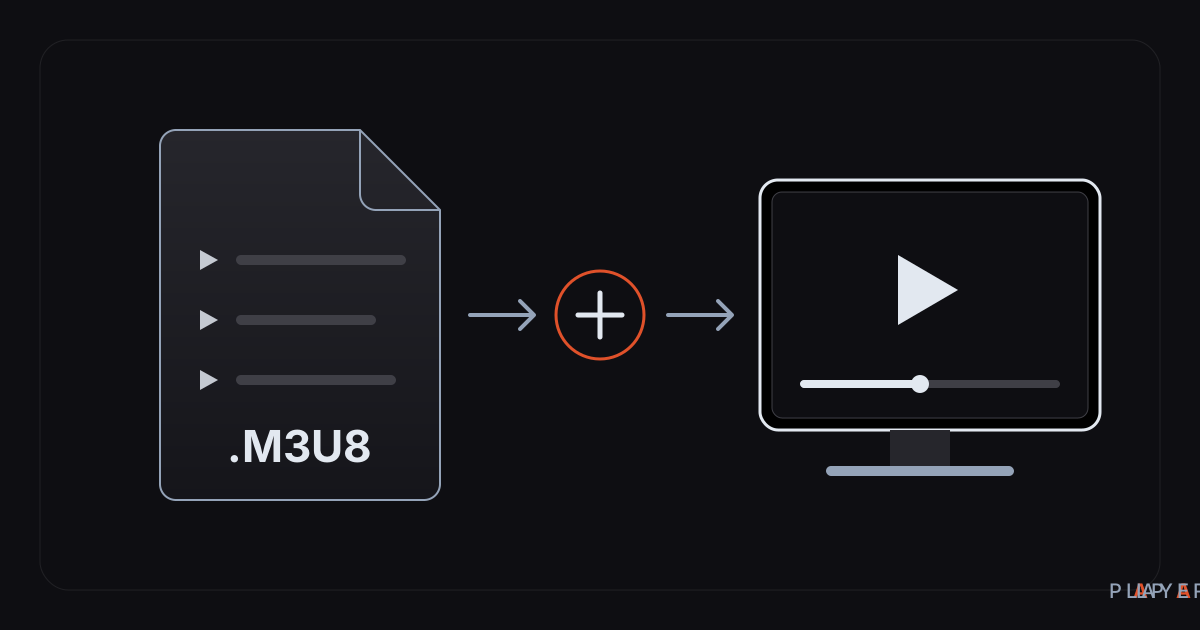 How-to
How to add an M3U playlist: step-by-step guide
How to add an M3U playlist in Alpa Player: the exact steps in Add Source, the mistakes that break a list, and a way to skip typing on your TV remote.
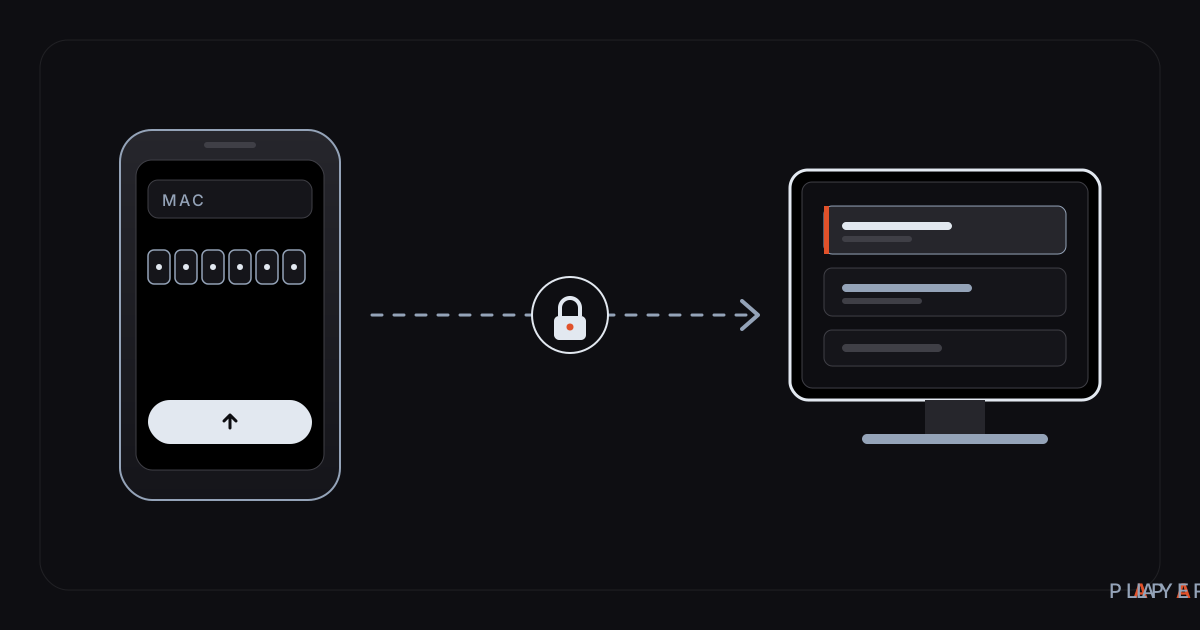 How-to
Upload a playlist to your smart TV from your phone
Upload a playlist to your smart TV without typing on the remote: enter the MAC address and 6-digit key on your phone and the list arrives. Steps and fixes.
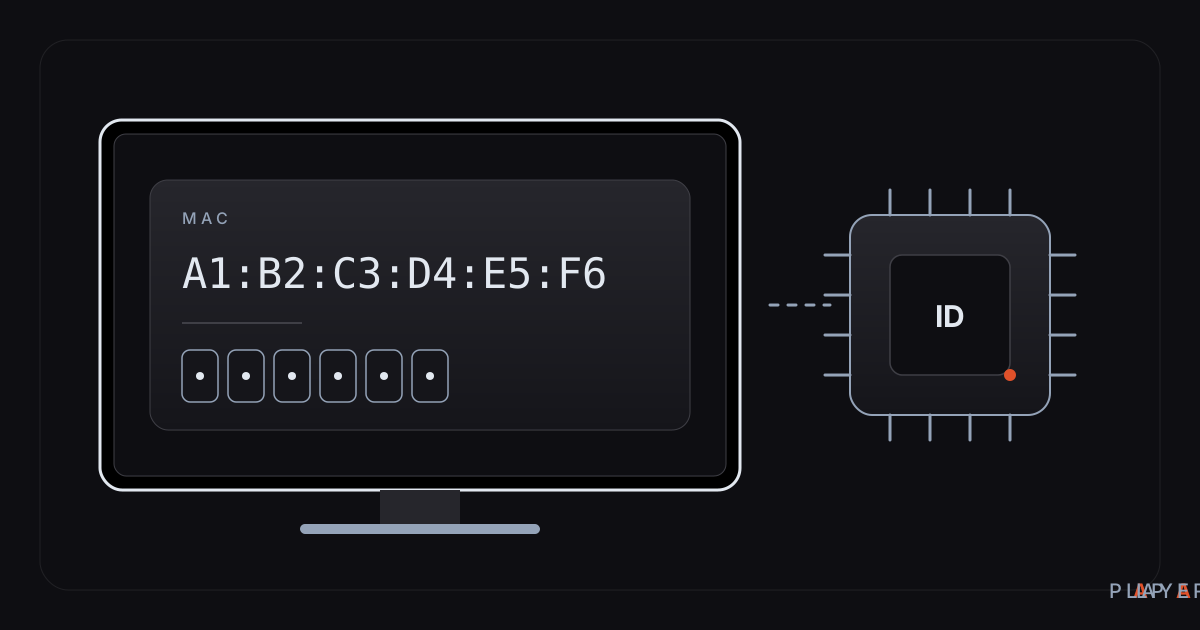 How-to
How to find the MAC address on a smart TV
Find the MAC address on your smart TV: where the network menu hides it, what the device ID in Alpa Player shows, and what a MAC address is actually used for.