
How to find a MAC address on your smart TV, and what a device ID means
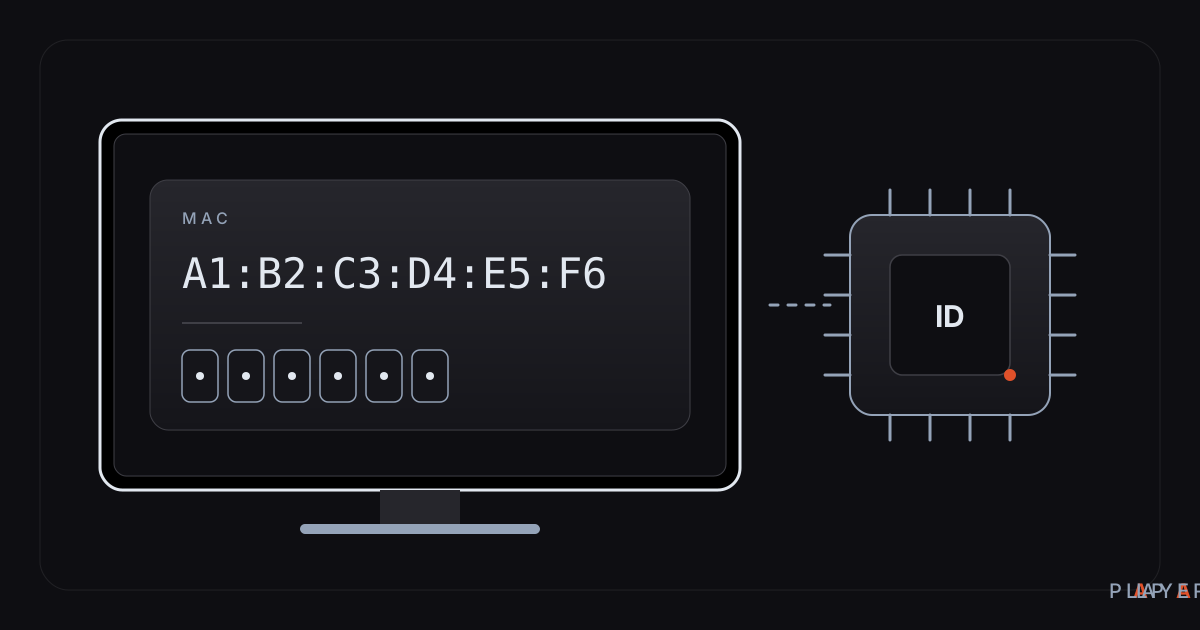
Short answer: To find the MAC address on a smart TV, open the Settings menu and look under Network, Connection, About or Status; menu names vary by brand and model. In Alpa Player, the MAC tab of Add Source (Device ID on phones) shows the app's MAC address together with a 6-digit device key, and those are the values you enter when you upload a playlist remotely.
Key takeaways
- A MAC address is a 48-bit identifier for a network interface, written as six pairs of characters such as A1:B2:C3:D4:E5:F6.
- On a TV it usually sits under Network, Connection, About or Status in Settings, but the exact menu names depend on the brand and model.
- In Alpa Player, the MAC address and a 6-digit device key are shown on the MAC tab of Add Source (Device ID on phones).
- Use the values shown in the app for remote upload; they are not guaranteed to match the address in the TV's network menu.
- A MAC address is an identifier, not a password, but you should still share it sparingly and never share the 6-digit key.
Where to find the MAC address on a smart TV depends on which address you mean. Your TV's own menu lists a hardware MAC address in its network or about section, while Alpa Player shows the app's device ID on the MAC tab of Add Source. This article covers both, explains how they relate, and shows what a MAC address is actually good for.
Alpa Player is a free media player developed by Alpa Yazılım. If you want to follow along on your own TV, download Alpa Player for free first; the second half of this guide shows what the on-screen MAC details are used for.
What is a MAC address?
A MAC address is a 48-bit identifier assigned to a network interface, such as a Wi-Fi or Ethernet adapter, and it is usually written as six pairs of hexadecimal characters, for example A1:B2:C3:D4:E5:F6.
The first three pairs generally identify the manufacturer, and the last three are a number that the manufacturer assigns, which keeps two devices on the same local network from sharing an address. For a precise definition, see the MAC address article on Wikipedia; here we stay with everyday use.
People often mix MAC and IP addresses up, but they do different jobs:
| Property | MAC address | IP address |
|---|---|---|
| What it identifies | The network interface (a hardware ID) | The device's position on a network |
| Example | A1:B2:C3:D4:E5:F6 | 192.168.1.20 |
| How stable it is | Usually fixed | Handed out by the router, so it can change |
| Where it matters | On the local network | On the local network and the internet |
A TV that supports both Wi-Fi and Ethernet normally has two MAC addresses, one per interface. Which one applies depends on the connection the TV is using right now. If you are deciding between the two, our comparison of Wi-Fi and Ethernet for streaming may help.
Where is the MAC address in a smart TV's menu?
In a TV's menu, the MAC address normally lives in a network status, connection or about section, although the exact names depend on the brand, the model and the software version.
| Device | Where to look first |
|---|---|
| Samsung TV (Tizen) | Settings, then General → Network → Network Status, or Support → About This TV |
| LG TV (webOS) | Settings → All Settings, then General → About This TV, or the Connection section |
| Android TV / Google TV | Settings, then System or Device Preferences → About → Status |
| Fire TV | Settings → My Fire TV → About → Network |
| Windows PC | Run ipconfig /all in a command prompt and read the "Physical Address" line |
Treat these as general pointers. The wording can differ on your model, so if you cannot find it, search the settings for "network", "connection", "about" or "status". If you want a Samsung or LG specific overview, see our articles on Samsung smart TV media players and LG webOS media players.
One thing worth knowing up front: to upload a list to Alpa Player you do not need the address from the TV's menu at all. The upload page asks for the value that the app itself displays.
Where do you find the MAC address and device key in Alpa Player?
In Alpa Player, the MAC address and the device key appear together on the MAC tab of the Add Source screen, which is called Device ID on phones and tablets.
Open the app, select Add Source on the home screen, and switch to the MAC tab at the top. You will see two large lines: your device's MAC address and a 6-digit device key.
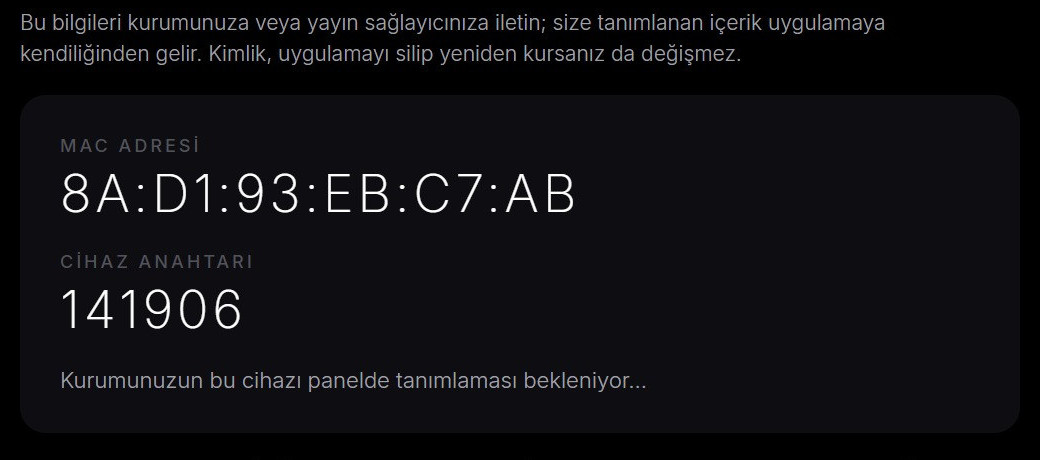
The note on that screen makes one useful point: the ID does not change even if you delete the app and install it again. So the same device is recognized by the same ID after a reinstall. On devices that belong to an organization, the same screen can also say that the organization still has to register the device in its panel.
What you do with these two values is a separate topic. We explain how to send a list from your phone to the TV in how to upload a playlist to your TV.
Is the app's MAC address the same as the one in the TV menu?
Do not assume that the two are identical; when you upload a list, always use the value the app displays.
The Alpa Player screen shows the device ID the app uses for this purpose, and we do not guarantee that it matches your TV's network menu character for character. Read the value for the upload page from the app's MAC tab, not from the TV settings.
The upload page asks for two things at once: the MAC address and the 6-digit device key. Knowing the address alone is not enough, because the key is needed too. That is why you should keep the key to yourself.
What is a MAC address used for?
A MAC address is a practical identifier that lets networks and apps tell one device from another.
- Remote list upload: in Alpa Player, the upload page uses the MAC address and key to decide which device receives the list.
- Organization devices: schools, hotels and municipalities can register classroom, conference or room TVs in a panel by MAC ID. We cover this in how a hotel TV system works.
- Router settings: routers use MAC addresses to hand the same IP address to the same device every time or to allow only known devices onto the network.
- Troubleshooting: in a router's list of connected devices, the MAC address is the easiest way to recognize your TV.
Phones are a little different. On recent versions, some phones join Wi-Fi networks with a random or per-network MAC address as a privacy measure. You are more likely to run into that on a phone than on a TV.
How do you recognize your TV in the router's device list?
The most reliable way to spot your TV in a router's device list is by its MAC address, because device names are often meaningless.
Open the router's admin page (the address is usually printed on a label on the router). You will find a list called something like "connected devices" or "DHCP clients". Compare the MAC address you read from the TV's menu with the rows in that list, and you can see which IP address the TV was given. If you want, you can also create a reservation there so that the TV always gets the same IP address, which helps if you set up your network by hand.
The same list helps when you chase connection problems: you can see whether the TV is on wired or wireless, and on most routers its signal status. For general fixes to stuttering, read how to fix video buffering.
Is it safe to share a MAC address?
A MAC address is an identifier and not a password, so it does not let anyone into your TV on its own, but it is still sensible not to post it in public places.
Someone knowing your MAC address does not get direct access to your TV. Still, it is wise to hide it when you share screenshots or post on forums. The 6-digit key in Alpa Player is different: it is a value you should not share with anyone.
There are other safety points for remote upload. The addresses and passwords you add are encrypted with AES-256 in the device's secure storage, never displayed in the app, and not sent to Alpa Yazılım. Every upload from the website is recorded with the IP address and the MAC address, and the person who uploads the list, meaning the user, is responsible for its lawfulness. For more, see media player privacy and security.
What if you cannot find the MAC address?
When the MAC address is not where you expect it, the cause is usually the wrong menu, a different interface, or a device that is not connected.
| Situation | What to do |
|---|---|
| No address in the TV menu | Open Network, Connection, About and Status in turn; on some models it sits inside advanced network settings |
| Two different addresses | One is for Wi-Fi and the other for Ethernet; read the row for the connection you use |
| The MAC tab will not open in the app | Close and restart the app, then open Add Source again |
| The upload page rejects the address | Check that it matches the app screen exactly and that the key is 6 digits |
If you are still stuck, compare every character on the screen one by one. Mixing up a letter and a digit, such as 0 and O or 8 and B, is a classic mistake. A MAC address contains only the digits 0-9 and the letters A-F, so an "O" can never be correct.
Frequently asked questions
Where do I find the MAC address on a smart TV?
On most TVs it is in Settings under Network, Connection, About or Status; names vary by brand, model and software. In Alpa Player, open Add Source and the MAC tab (Device ID on phones), where the app shows its MAC address together with a 6-digit device key.
What is the difference between a MAC address and an IP address?
A MAC address is the hardware identifier of a network interface and is usually fixed, while an IP address says where the device sits on a network and is handed out by the router, so it can change. The same TV keeps its MAC address even if its IP address differs from day to day.
Why might the MAC address in Alpa Player differ from the one in my TV menu?
The value in the app is the device ID Alpa Player shows for this purpose, and it is not guaranteed to match the address in the TV's network menu. When you upload a list, always enter the MAC address and key from the app's MAC tab.
Does the MAC ID change if I reinstall the app?
No. According to the note on the app's MAC screen, the ID stays the same even if you delete the app and install it again, so the same device is recognized by the same ID. A different device, of course, shows its own ID.
Can I share the 6-digit device key with someone?
You should not. The upload page needs the MAC address and the key together to send a list to a device, so the key protects against someone who has only learned the address. If you upload from your own phone, only you need to type the key.
How do I use the MAC address to add a list in Alpa Player?
Open Add Source, switch to the MAC tab, and enter the MAC address and key on the list upload page. Add your server account or M3U address, accept the responsibility notice, and the list reaches the TV within seconds.
Sources
Related articles
 How-to
How to add an M3U playlist: step-by-step guide
How to add an M3U playlist in Alpa Player: the exact steps in Add Source, the mistakes that break a list, and a way to skip typing on your TV remote.
 How-to
Upload a playlist to your smart TV from your phone
Upload a playlist to your smart TV without typing on the remote: enter the MAC address and 6-digit key on your phone and the list arrives. Steps and fixes.
 How-to
Smart TV remote tips: navigate faster, type less
Smart TV remote tips for faster navigation, typing without a keyboard, uploading a playlist from your phone and fixing a misbehaving remote, with Alpa Player.