
How to set up a hotel TV system and manage room TVs from one panel
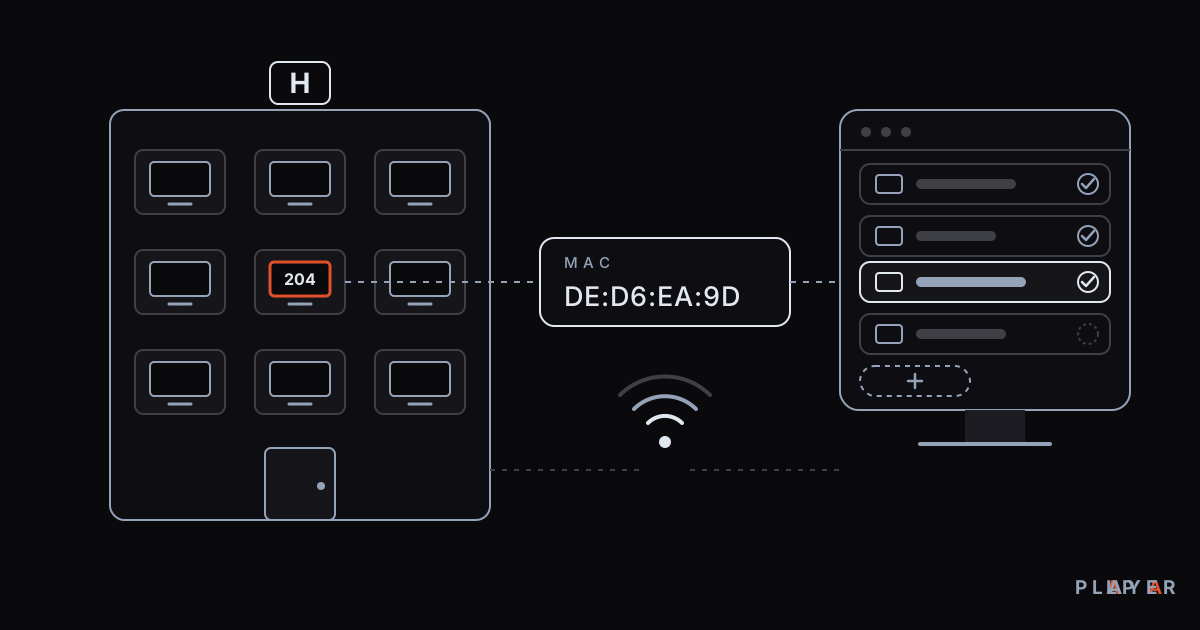
Short answer: A hotel TV system is the combination of room TVs, a player app, a management panel, content and a network that lets a hotel control what guests see on screen. The free Alpa Player institution panel lets you define room TVs by their MAC ID and applies your hotel's logo, name and colors to the app automatically. Alpa Player provides no content, so the hotel must hold the rights to everything it plays.
Key takeaways
- A hotel TV system has five parts: the TV, a player app, a management panel, content and a network. Alpa Player supplies the player app and the panel for free.
- Room TVs are defined in the panel by MAC ID, and the MAC address is shown on the MAC screen in the app.
- Your hotel's logo, name and colors are applied to the app automatically, so guests see your own screen.
- Alpa Player is not a content provider; the hotel must have the rights to everything it plays.
- The panel covers only the features described here, so ask up front if you need something like PMS integration.
One question comes up again and again for hotel operators: how do I manage dozens or even hundreds of room TVs without touching each one by hand? A hotel TV system exists to solve exactly that. When a guest turns on the TV, they should see your hotel's own screen, and you should be able to control what every room shows from one place.
This guide explains what the free institution panel from Alpa Yazılım does for hotels, what it does not do, and what to think about when you build a hotel TV system. To see the app that runs on the room TVs, you can download Alpa Player for free.
What is a hotel TV system and what does it include?
A hotel TV system is the set of hardware and software that delivers content to room TVs and lets you manage those TVs centrally. It is not a single product but five connected parts. The table below shows who provides each one.
| Component | What it does | Who provides it |
|---|---|---|
| TV or TV box | Shows picture and sound in the room | The hotel |
| Player app | Plays content on the TV | Alpa Player (free) |
| Management panel | Defines TVs by MAC ID and applies your branding | Alpa Player institution panel (free) |
| Content | The videos and streams guests see | The hotel or a licensed content provider |
| Network | Carries the content to the TVs | The hotel |
Alpa Player covers the player and panel layers. Content and network remain the hotel's responsibility, because Alpa Player is not a streaming service and does not supply ready-made channels, movies or series.
How are room TVs defined in the panel?
Room TVs are defined in the panel by the unique MAC ID of each device. A MAC address is a hardware identifier built into a network device, and no two devices share one. That is how the panel knows which TV it is talking to.
In the app, the MAC screen under Add Source shows this identity. Next to the MAC address it also displays a 6-digit device key. As the hotel, you record this ID and define the TV in the panel with it; the application page even lists "connect TVs by MAC" as one of the first steps.
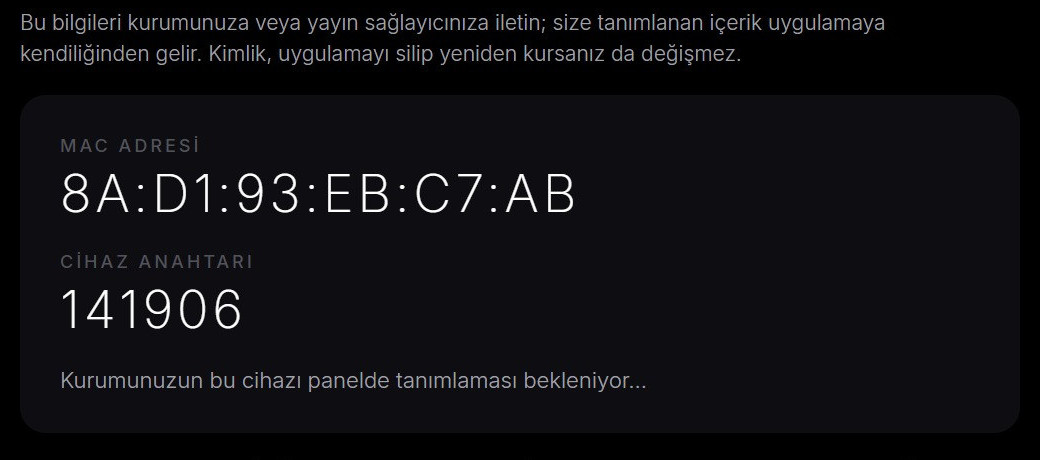
According to the app's on-screen note, the content assigned to you arrives in the app by itself, and the identity does not change even if you delete and reinstall the app. So if you ever have to reinstall on a room TV, you do not have to define it again. For help finding the address in a TV's menus, see how to find your TV's MAC address.
A practical tip: keep your own table of room numbers and MAC addresses. When a TV breaks or gets swapped, you can tell in seconds which ID belongs to which room.
Which TVs can a hotel use?
Alpa Player is built for Android TV and Google TV sets and boxes, Samsung and LG smart TVs, and Fire TV devices. The table shows where each platform stands today.
| Platform | Requirement | Status |
|---|---|---|
| Android TV, Google TV, TV boxes | Android-based device | Android APK available to download now |
| Samsung TV | Tizen 2020 or later | Store version in the publishing process |
| LG TV | webOS 2020 or later | Store version in the publishing process |
| Fire TV | Fire TV device | Supported; Amazon Appstore version coming soon |
Because the status can change, check the download section before you decide. For a hotel that wants to start right away, Android-based TVs or TV boxes are the shortest route; the steps are covered in how to install an APK on Android TV, and a guide to choosing an Android TV box helps with hardware. For the other platforms, see our pages on a Samsung TV media player and an LG TV media player.
What content should room TVs play?
Room TVs should play only content the hotel has made itself or has the right to use. Because Alpa Player supplies no content, this part depends entirely on your plan. Content that usually improves the guest experience includes:
- Welcome video: An introduction to the hotel, front desk hours, breakfast and pool information.
- Amenities: Restaurant, spa, meeting room and event promotions.
- Safety and emergencies: Short videos on exits and house rules.
- Local guide: Nearby attractions, transport and tips, filmed by you or used with permission.
Showing TV channels or music is a separate matter. In many countries, playing broadcasts or music in hotel rooms can require extra permission or a license. That responsibility is the hotel's, so check local rules and talk to your broadcast provider. To tell licensed services from unlicensed ones, read how to spot a licensed streaming service, and for rights in general see copyright and personal media.
How do you plan content for room TVs?
A content plan for room TVs follows the guest's stay, from check-in to check-out. A simple plan sorts content into three groups by timing:
- Arrival: A welcome video and short notes on Wi-Fi and room services.
- During the stay: Restaurant, spa and event promotions, plus the local guide.
- Departure: Check-out time, transport and a thank-you message.
Keep videos short, put large text inside the video itself and assume the sound may be off. Before you upload anything, confirm that you have the rights and that no personal data appears on screen.
How does hotel branding show up in the app?
Your hotel's logo, name and colors are applied to the app automatically, so guests see your own screen instead of a generic app. You do not set this up TV by TV.
A little preparation is enough: have a clean, simple logo file, the correct spelling of the hotel's name and your brand colors ready. The first screen a guest meets on entering the room is as much a part of your brand as the lobby signage.
What should you plan for the network and installation?
The most important thing for reliable room TVs is a solid network. Use wired connections where you can, and measure Wi-Fi signal strength in the rooms before you commit. We compare the options in Wi-Fi vs Ethernet for streaming.
Do a rough bandwidth calculation. As a general guide, a Full HD video stream needs about 5 to 8 Mbps and 4K about 15 to 25 Mbps. If 100 rooms stream Full HD at the same moment, that is a peak load of roughly 500 to 800 Mbps. Not every room will watch at once, but planning for the peak prevents buffering complaints on busy evenings. Read internet speed for streaming for more detail.
Where the videos are served from, whether your local network or the internet, shapes the bandwidth plan, so settle that before installation. Finally, do not switch the whole hotel at once. Test in three to five rooms first, then roll out.
What does the institution panel not do for hotels?
The Alpa Player institution panel is limited to the features described here: video upload, defining TVs by MAC ID and carrying your branding into the app. Hotel management system (PMS) integration, room service or ordering, digital signage scheduling and viewing statistics are not among the features described in this article.
If you need something like that, say so plainly in the optional note on the application form, and contact Alpa Yazılım directly for a definite answer. Clarifying expectations before you start avoids disappointment after the rollout.
How does a hotel apply for the institution panel?
Applying is free and takes one form. You choose "Hotel" as the institution type, then enter your hotel's name, a contact person, an email address, a phone number and the approximate number of screens or TVs. Using an email address from your hotel's own domain speeds up approval.
Once your institution is verified, your login email, a temporary password and your institution code arrive by email; the application page says this usually takes about one business day. To begin, open the institution panel application page. If you are weighing a similar setup for lobbies, read about a waiting room TV display as well.
Step by step: How to define hotel room TVs in the panel
- Fill in the institution panel application form, choosing "Hotel" as the type, and wait for verification.
- Collect the panel login details and institution code sent to your email.
- Install Alpa Player on each room TV or TV box.
- Open the MAC screen under Add Source in the app and note the MAC address.
- Record each room number and its MAC address in your own table.
- Define the TVs in the panel by their MAC IDs.
- Test in a few rooms first, then roll out to the whole hotel.
Frequently asked questions
Is the Alpa Player institution panel free for hotels?
Yes. The application and the panel are free, and hotels, schools, course centers, hospitals and municipalities can fill in the application form. Your panel opens after your institution is verified. Alpa Player provides no content, so the hotel must have the rights to whatever it plays on room TVs.
Where does a room TV's MAC address appear?
It appears on the MAC screen under Add Source in the app, with a 6-digit device key beside it. You can usually also find the MAC address in the TV's own network settings, although the location varies by brand.
What should I do when I replace a room TV?
Every device has a unique MAC ID, so a new TV will have a different one from the old TV. Install Alpa Player on the new device, read the ID from the MAC screen, define it in the panel and update that room's row in your own table. Remove the old device's entry from your table as well, to avoid confusion.
Can guests watch TV channels on the room TVs?
Alpa Player supplies no channels, movies or series, and it is not a streaming service. If you have a licensed source, playing it is your hotel's responsibility. In many countries, showing broadcasts or music in hotel rooms can require extra licenses, so check local rules and your broadcast provider.
Does it integrate with hotel management software (PMS)?
PMS integration is not among the features described in this article, which covers video upload, MAC-based TV definition and branding. If you need it, mention it in the note field of the application form and get a direct answer from Alpa Yazılım before you decide.
Which TVs are supported?
Android TV, Google TV and TV boxes, Samsung TV (Tizen 2020 and later), LG TV (webOS 2020 and later) and Fire TV are supported. The Android APK can be downloaded now, while the Samsung, LG and Amazon store versions are in the publishing process. Check the download section for the latest status.
Related articles
 For organizations
Secure Video Sharing for Schools: A Guide
Secure video sharing for schools made practical: short-lived signed links, student-number watermarks and device locks keep lecture videos from leaking.
 For organizations
What Is Video Watermarking? Types and Uses
Video watermarking explained: visible versus invisible marks, how a moving student-number watermark deters leaks, and where watermarks fall short.
 For organizations
Video Platform for Schools: A Free Option
How to choose a video platform for schools: student sign-in, protected links, Excel import and classroom TVs, plus the free Alpa Player institution panel.