
A safe, step-by-step way to sideload an APK on Android TV and TV boxes
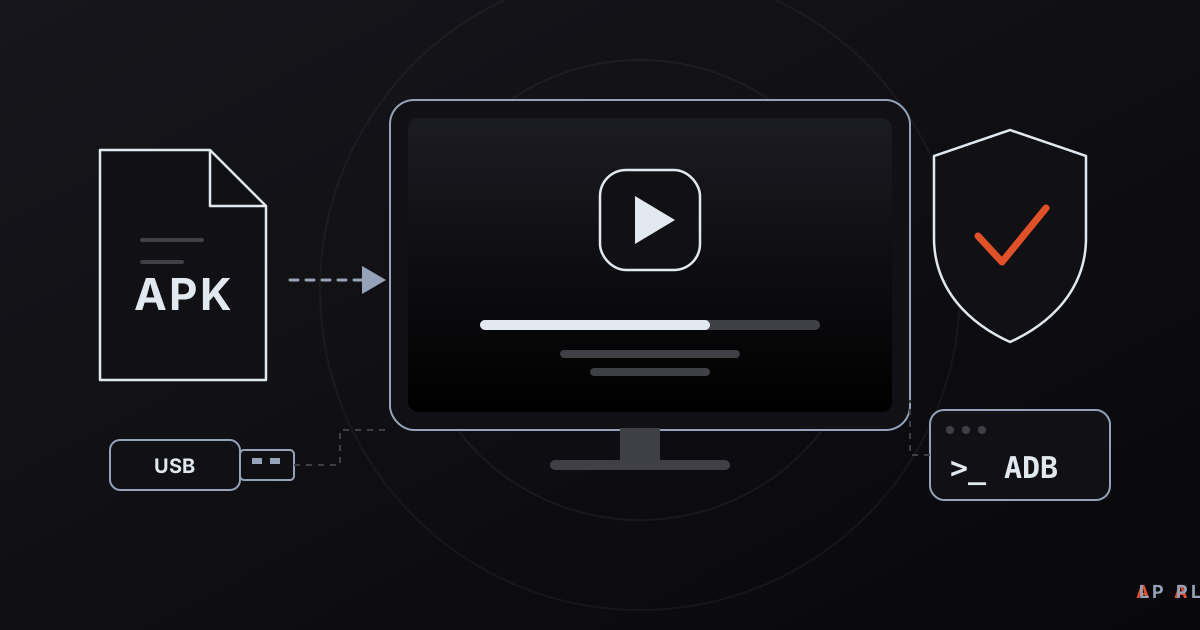
Short answer: To install an APK on Android TV, first get the file only from the official source, then install it with a helper app such as Downloader, a USB drive or ADB. Allow "install unknown apps" only for the single app you are using, and switch the permission off again once the install is done. The Alpa Player APK is available from alpaplayer.com; avoid third-party APK sites.
Key takeaways
- Download an APK only from the developer's official site or an official store; for Alpa Player that means alpaplayer.com.
- There are four practical ways to sideload on Android TV: a helper app like Downloader, a USB drive, sending the file from a phone, and ADB.
- Grant "install unknown apps" only to the app you are using, and turn it off again when the installation is finished.
- Third-party APK mirrors can serve repackaged or tampered files, and a copy signed with a different key cannot receive the official updates.
- If the install fails, check free storage, download integrity, signature conflicts and version compatibility, in that order.
An APK is the installation file for an Android app, and the question "how to install an APK on Android TV" usually comes from people who want an app that is missing from the TV's app store or has not reached it yet. The method is simple, but it deserves care: an APK from the wrong place can carry malware onto your TV. This guide covers four installation methods, the unknown sources setting and what to do when the install fails.
We will use Alpa Player as the running example. It is a free media player developed by Alpa Yazılım. Its Android APK can be downloaded from alpaplayer.com today, while the Google Play version is in the release process and coming soon. The same steps work for other apps.
What is an APK, and why install one on Android TV?
An APK (Android Package) is a single file that bundles an Android app's code, images and configuration. When you install from a store, the system handles the package for you; with an APK you bring the package yourself, which is why the practice is called sideloading.
People sideload on Android TV for three main reasons:
- The store version may not be out yet. That is the case with Alpa Player: the APK is available now, and store versions are coming soon.
- Some TV boxes run a plain Android build without Google's certified Android TV software or its store, and on those devices an APK is often the only route. Our Android TV box buying guide explains how to tell the difference.
- You may want to install or update a specific version by hand.
What should you prepare before installing an APK?
Four quick checks prevent most failed attempts: free storage, a stable connection, an installation method and a trustworthy source. Each takes only a few minutes.
- Free space: The file itself needs room, and the installer needs temporary space on top. A nearly full TV box often fails to install.
- Network: If you download straight to the TV, use a stable connection. A cable is less trouble than Wi-Fi.
- Method: Pick one of the four ways described below.
- Source: Confirm that the address you download from belongs to the developer.
Where should you download the APK from?
Download an APK only from the app developer or an official store; this is the single most important safety rule of sideloading. Third-party "APK archive" sites may serve old, repackaged or modified builds with adware, trackers or malicious code added. A matching file name and icon do not prove the contents are the same.
Android adds a safeguard here. An update must be signed with the same key as the version already installed, so a copy signed with a different key cannot be installed over the official release or receive its updates. A lookalike that "seems to work" can therefore turn into a dead end that never gets fixed.
For Alpa Player, the right sources are the direct APK link and the download section. Do not download files presented as "Alpa Player APK" from any other site. For the bigger security picture, see whether media players are safe.
What are the four ways to install an APK on Android TV?
The four common ways to sideload on Android TV are a helper app such as Downloader, a USB drive, sending the file from a phone, and ADB. The table compares when each one fits.
| Method | What you need | Best when | Difficulty |
|---|---|---|---|
| Downloader app | Internet on the TV, Downloader from the store | You do not have a computer handy; the most practical route | Easy |
| USB drive | Computer, USB drive, a file manager app | The TV's connection is weak | Easy |
| Send from phone | Phone, a file transfer app | The APK is already on your phone | Medium |
| ADB | Computer on the same network, debugging enabled | Advanced users, repeated installs | Advanced |
Method 1: Install with Downloader
Downloader is a helper app available in the Android TV store, and it includes a browser you can steer with the remote. Install it from the store, open it and allow storage access if it asks. In its browser, go to alpaplayer.com and choose the Android APK link in the download section. When the download finishes, the installer opens; the first time, the system will ask you to let Downloader install unknown apps.
Method 2: Install from a USB drive
On a computer, download the APK from the official link on alpaplayer.com and copy it to the top folder of a USB drive. Format the drive as FAT32 or exFAT, because some TV boxes cannot read NTFS. Plug it into the TV, then locate and open the APK with a file manager app. The file manager will need the unknown apps permission too.
Method 3: Send the file from your phone
If the APK is already on your phone, a file transfer app can push it to a TV on the same Wi-Fi network. It works, but it needs two apps, so most people find Downloader easier.
Method 4: Install with ADB
ADB (Android Debug Bridge) is the official command-line tool for talking to Android devices from a computer; see the Android developer documentation for details. On the TV, open About in Settings and select the build entry seven times to unlock Developer options, then enable debugging. Find the TV's address on your network and run the following on the computer (the address and file name are examples):
adb connect 192.168.1.50:5555
adb install alpa-player.apk
On the first connection the TV shows a prompt asking you to allow the computer. To update an existing installation, use adb install -r. When you are done, turn debugging off again.
How do you enable unknown sources, and why switch it off afterwards?
Android blocks installs from outside a store by default, and the "install unknown apps" permission lifts that block. Since Android 8, the permission is granted to the app doing the installing, such as Downloader, a file manager or a browser, rather than to the whole device. The menu name and location vary by manufacturer and version, but you will typically find it in one of these places:
- Settings → Device Preferences → Security & restrictions → Unknown sources.
- Settings → Apps → Security & restrictions → Unknown sources.
- Settings → Apps → Special app access → Install unknown apps.
Once the installation is finished, go back to the same menu and switch the permission off. Why bother? A permission left on lets that app install further packages later without you noticing. Turning it off takes a minute and removes the risk.
What if the APK will not install?
Most installation errors come from a handful of known causes, and you can rule them out one by one. If you see "App not installed" or "There was a problem parsing the package", try the following:
- Check storage: Remove apps you no longer use and try again.
- Download the file again: A partial or corrupted download causes parsing errors.
- Consider a signature conflict: If a copy from another source is already installed, uninstall it first and then install the official file.
- Check version compatibility: A very old Android version may refuse a newer app.
- Verify the permission: Make sure the installing app really has the unknown apps permission.
What should you do after installing Alpa Player?
After installation, the first job is adding a source, because Alpa Player ships with no channels, movies, series or playlists. A source can be a playlist address, a single video link, a server account issued by your service provider or an organization account. Add only sources you have the right to use.
Typing a long address with a remote is tedious. Instead, open Add Source → Device ID (shown as MAC on a TV) in the app, then enter the MAC address and 6-digit key on the remote playlist upload page from a phone or computer. The address and password are never displayed in the app. Each upload is logged with the IP and MAC address, and the person who uploads is responsible for it. Our article on uploading a playlist to your TV explains the flow, and the Android TV media player guide covers the wider options on that platform.
Is sideloading on a Fire TV Stick different?
The logic is the same on Fire TV, but the menu names differ. On Fire TV you allow installing unknown apps under Developer options, and the Downloader app is also available in Amazon's store. Alpa Player supports Fire TV; the Amazon Appstore version is coming soon. For device-specific notes, read the Fire TV Stick media player article.
Step by step: How to install an APK on Android TV safely
- Decide where the APK comes from: for Alpa Player, use the download section or the direct APK link on alpaplayer.com and no other site.
- Choose an installation method: install Downloader from the store, prepare a USB drive and a file manager, or use ADB.
- Open the TV's "unknown sources" or "install unknown apps" menu and grant the permission only to the app you will use.
- Download the APK onto the TV or select it from the USB drive, read the permissions on the install screen and press Install.
- When the installation finishes, open the app and confirm that it runs.
- Return to Settings and switch the unknown sources permission off again.
- Delete the downloaded APK to free space, and if you used ADB, turn debugging off as well.
Frequently asked questions
What is an APK, and is it safe?
An APK is the installation file for an Android app. The file format is harmless, but safety depends entirely on where it comes from. An APK from the developer's official site or an official store is safe to use; copies from third-party sites may have been modified. For Alpa Player, use only the link on alpaplayer.com.
Where is the unknown sources setting on Android TV?
Usually in Settings under Device Preferences or Apps, in a section called Security & restrictions or Special app access. On recent versions the permission applies to the installing app, not to the whole device. Menu names vary by manufacturer, so if you cannot find it, search the settings for the word "unknown".
How do I install apps on a TV box without a Play Store?
On a device without a store, an APK is the way. Download the file from the official source on a computer, copy it to a USB drive, and open it on the box with a file manager. If the box has a browser, you can download the file there directly. Allow the unknown apps permission for the app you use first.
Should I turn off unknown sources after installing?
Yes. A permission left on lets that app install other packages later without your knowledge. After the installation, return to the same menu and switch it off for Downloader, the file manager or the browser. If you need to sideload again, simply turn it on again for that moment.
Why does "App not installed" appear?
The usual causes are too little free space, a partial or corrupted download, an older copy signed with a different key, and an app that needs a newer Android version. Free up space, download the file again from the official source and, if needed, uninstall the existing copy before retrying.
Sources
Related articles
 Device guides
Media Player for Android TV: How to Choose
Looking for a media player for Android TV? See what to look for, compare popular options and set up Alpa Player, a free app built for the remote.
 Device guides
Samsung Smart TV Media Player: Options for 2026
Need a Samsung smart TV media player? Learn how Tizen apps work, which models Alpa Player supports and how to watch your own videos today.
 Device guides
LG webOS Media Player: Compatibility and Setup
Looking for an LG webOS media player? See which models work, how the LG store route differs from APKs, and how to load a playlist without typing.