
Fire TV Stick media player: your options and how to install one safely
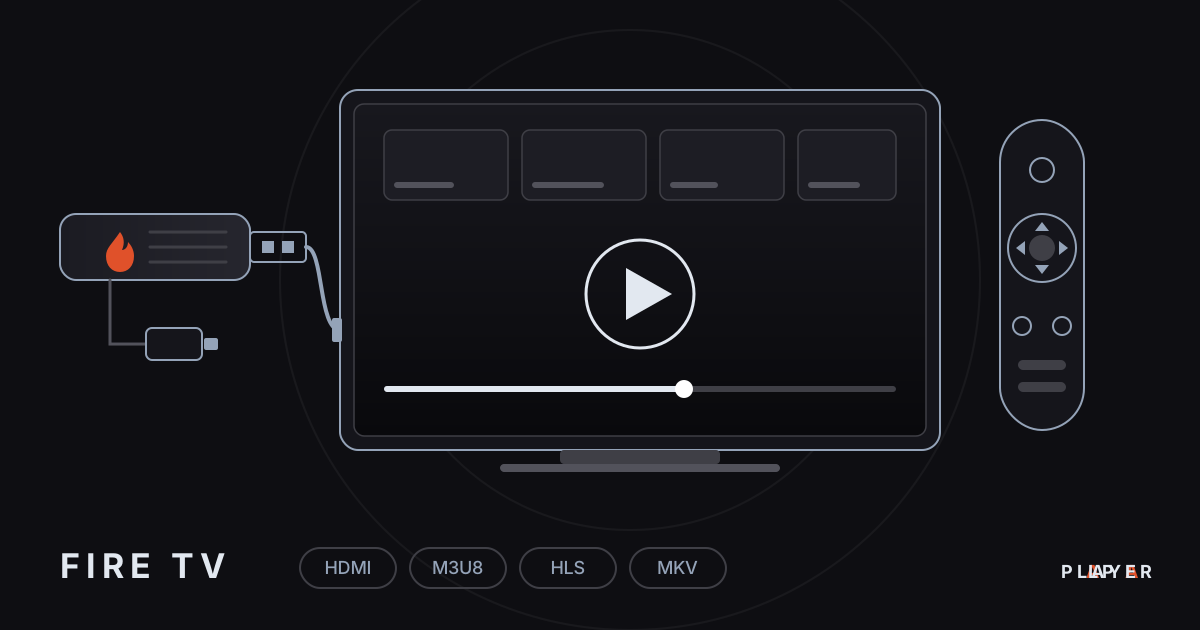
Short answer: A good media player for a Fire TV Stick is easy to drive with the remote, light on limited storage and lets you add sources without typing on the TV. Alpa Player, a free media player from Alpa Yazılım, supports Fire TV, and its Amazon Appstore version is in the review process and coming soon. Check the download section at alpaplayer.com for the current status and install options.
Key takeaways
- A Fire TV Stick runs Android-based Fire OS, so setup feels similar to Android TV, but apps come first from the Amazon Appstore.
- Alpa Player supports Fire TV; the Amazon Appstore version is in the review process and coming soon.
- Until the store version arrives, check the download section for the current status and install options.
- If you install a file from outside the store, download it only from the developer's official site and switch the unknown-sources permission off afterward.
- You can send a list to the stick from a phone or computer using the MAC address and a 6-digit key, with no typing on the small remote.
A Fire TV Stick media player is an app that plays your video files and network streams on Amazon's Fire TV stick and is controlled with its remote. The stick is small, inexpensive and convenient, but its storage is limited and its remote is minimal, so a light app with easy navigation matters more than usual. This guide covers the known options for Fire TV, the status of the free Alpa Player (developed by Alpa Yazılım) and the safety steps to follow when you install an app from outside the store.
What is a Fire TV Stick, and why might you need another player?
Fire TV is the general name for Amazon's TV-connected media devices, including sticks, boxes and the Fire TV Cube. Most models run Fire OS, an Android-based system, and apps are installed primarily from the Amazon Appstore.
Amazon's built-in apps and the services in its store cover plenty of needs. But if you want to watch your own videos, files on your home network or a playlist you have the right to use, you need a general-purpose media player. And since the Fire TV remote offers little more than arrow keys, OK and back, an app that does not make you type long addresses is a real relief.
Which media player options exist for a Fire TV Stick?
VLC, Plex, Kodi and Alpa Player are all used on Fire TV, and each suits a different need; none is right for everyone. The comparison relies on widely known facts. Store availability changes over time, so confirm in your own device's Appstore. For a broader view, read best media player apps.
| Player | Strength | Worth knowing |
|---|---|---|
| VLC | Open source, with wide format and network stream support. | The number of settings can feel like a lot for new users. |
| Plex | Opens your own library from a Plex server in an organized way. | It needs a server, and some features depend on a paid plan. |
| Kodi | An open-source media center that grows with add-ons. | Setup and learning take time. |
| Alpa Player | Free, with a TV-first clean interface, M3U/M3U8, HLS, MP4, MKV, RTSP and remote playlist upload. | It provides no content, so you add your own source. Amazon Appstore version coming soon. |
What does Alpa Player offer on Fire TV?
Alpa Player is a free media player developed by Alpa Yazılım, with an interface as clean as Apple TV and Netflix and smooth arrow-key navigation on a TV. Fire TV is supported, and the Amazon Appstore version is in the review process and listed as coming soon.
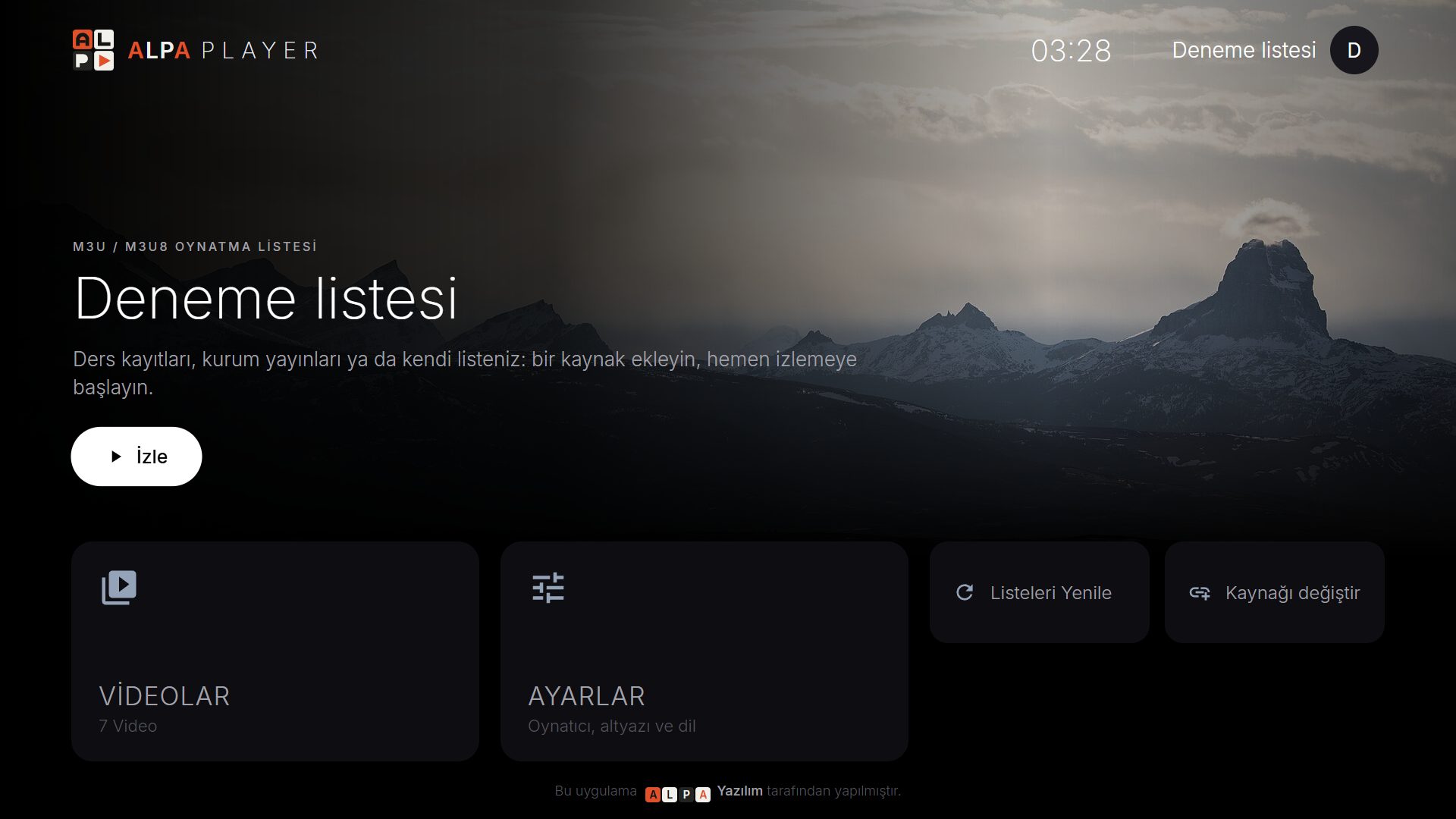
- Source types: an M3U/M3U8 playlist address, a single video or stream link, a server account from your service provider, and an organization account.
- What it plays: M3U and M3U8 playlists, HLS streams, MP4, MKV, RTSP and more.
- Everyday viewing: resume where you left off, favorites, recently watched and a program guide.
- Security: addresses and passwords you add are kept encrypted with AES-256, never shown on screen and never sent to Alpa Yazılım.
The app has no ready-made channels, movies, shows or playlists; it is not a streaming service. If you also use Android TV devices, see media player for Android TV.
How do you install an app on a Fire TV Stick safely?
The safest way to add an app to Fire TV is the Amazon Appstore. Because the Alpa Player store version is still in the review process, use the free Alpa Player download section to see the current status and any direct install option. Installing a file from outside the store (an APK) is possible on Fire OS, but do it only from the developer's official site and only when the download page offers a file suited to your device. For general safety habits, read is a media player safe.
If the download page offers a file for Fire TV, the steps look like this. Menu names vary with the Fire OS version.
- From the home screen, open Settings and then My Fire TV. If Developer Options is hidden, select the device name on the About screen seven times.
- In Developer Options, allow installs from unknown apps; on newer versions the permission is granted separately to the app that will download the file.
- Install a downloader-type app from the Appstore and type the developer's official address (alpaplayer.com) into its browser.
- Download the file from the download page and confirm the install prompt.
- When the installation finishes, delete the downloaded file and switch the unknown-sources permission back off.
For more detail, and the Android-device version of this process, see how to install an APK on Android TV. One important note: Amazon uses a different system called Vega OS on some newer Fire TV models, and Android APK files do not run on it. Check which operating system a model uses before buying, and see the download section for supported devices.
Which safety steps matter when you install from outside the store?
The key rule when installing a file from outside the store is to download it only from the developer's official site and to switch the permission off afterward. Do not trust shortened links in videos, comments or social posts; a modified copy can harm your device and accounts.
- Type the address yourself, and do not tap shortened links.
- Confirm the page opens over https and that the domain name is correct.
- Delete the downloaded file after installing so it does not clutter storage.
- Keep the unknown-sources permission, and debugging options unless you need them, switched off.
- After installing, check the app's name and developer.
Which Fire TV device is good enough for playback?
A good-enough Fire TV device supports the resolution you watch, connects reliably and has enough storage for your apps. Resolution, HDR support, memory and network options differ between models, so check Amazon's specification page for your exact model.
| Feature | Why it matters | Note |
|---|---|---|
| Resolution | 4K content needs a model with 4K output. | Some entry-level models output Full HD. |
| HDR support | Your TV must also support HDR for it to look right. | Supported HDR formats differ by model. |
| Storage | Apps and cache need free space. | Sticks have limited storage; remove apps you do not use. |
| Network connection | A wired link is steadier than Wi-Fi. | The Fire TV Cube has an Ethernet port; sticks usually need a separate adapter. |
| Operating system | APK installation only works on Fire OS. | Android APKs do not run on Vega OS models. |
How do you add a playlist on a Fire TV Stick without typing?
Typing a long address with the Fire TV remote is tedious, so upload the list remotely from a phone or computer instead. On the app's Add Source screen, the MAC tab shows the device's MAC address and a 6-digit device key.
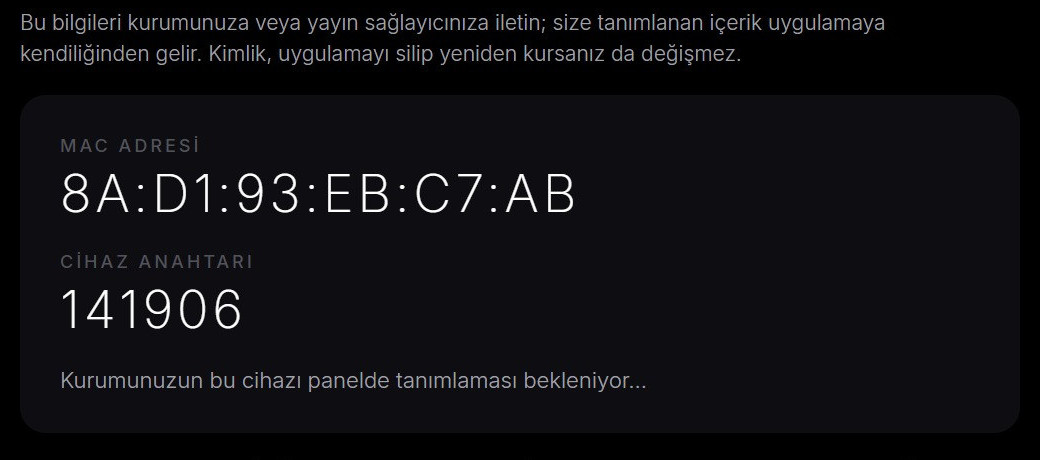
You enter both values on the remote playlist upload page, add your server account or M3U address and confirm the responsibility statement; the list arrives on the device. The address and password are not shown in the app. You are the one who performs the upload, and every upload is recorded with your IP and MAC address, so add only sources you have the right to use. The step-by-step version is upload a playlist to your TV, and find your TV's MAC address explains the ID.
What if video keeps stuttering on a Fire TV Stick?
On a Fire TV stick, stuttering usually comes from weak Wi-Fi, full storage or heat. Work through these in order:
- Use the 5 GHz Wi-Fi band, or switch to a cable with an Ethernet adapter; see Wi-Fi vs Ethernet for streaming.
- Use the HDMI extender that comes in the box instead of pushing the stick straight into the back of the TV; it can reduce both heat and Wi-Fi interference.
- Free up space by deleting apps you do not use, and clear the app's cache.
- Unplug the device, wait a minute and plug it back in.
- Compare your connection speed with the source's bitrate; internet speed for streaming gives the ranges.
The full checklist is in fix video buffering.
How do you keep Fire TV playback legal and safe?
Player software is legal; responsibility lies with the content. Alpa Player provides no content and plays only sources you have the right to use. The wider picture is in are media player apps legal. If you want to try the app in a browser first, the Alpa Player web demo uses open-license samples, and the legal notice has the details.
Step by step: Prepare Alpa Player on a Fire TV Stick and add your first source
- Make sure your device runs Fire OS; Android APK files do not run on Vega OS models.
- Check the Amazon Appstore status and any Fire TV install options in the download section at alpaplayer.com.
- If the Appstore version is live, search for it in the Appstore and install it; otherwise download only the suitable file from the official site.
- If you install a file, allow the permission in Developer Options temporarily and switch it off afterward.
- Open the app, select the MAC tab on the Add Source screen and note the MAC address and the 6-digit key.
- On a phone or computer, open the remote upload page, add a source you have the right to use and confirm the responsibility statement.
Frequently asked questions
Does Alpa Player work on a Fire TV Stick?
Yes, Fire TV is supported. The Amazon Appstore version is in the review process and listed as coming soon. You can follow the current status and any direct install options in the download section.
Is it safe to install an APK on a Fire TV Stick?
The risk is lower when the file comes from the developer's official site and you switch the unknown-sources permission off afterward. Modified copies from other sites can harm your device and accounts. When possible, wait for the Amazon Appstore version.
Do Android APK files run on Vega OS Fire TV models?
No. Some newer Amazon models use Vega OS instead of Fire OS, and Android APK files do not run on that system. Check the operating system of a model before buying, and see the download section for supported devices.
Is Alpa Player free on Fire TV?
Yes. Alpa Player has no account requirement, subscription or purchase, and it is a non-profit project by Alpa Yazılım. The app has no ready-made channels, movies, shows or playlists.
Do I have to type long addresses with the Fire TV remote?
No. Enter the MAC address and 6-digit key shown on the MAC tab of the Add Source screen on the remote upload page, and add your list from a phone or computer. The address and password are not displayed on the TV.
Why does video stutter on my Fire TV Stick?
The usual causes are weak Wi-Fi, full storage and heat. Try the 5 GHz band or an Ethernet adapter, use the HDMI extender from the box and delete apps you do not use. If it continues, test another video to separate the source from the connection.
Sources
Related articles
 Device guides
Media Player for Android TV: How to Choose
Looking for a media player for Android TV? See what to look for, compare popular options and set up Alpa Player, a free app built for the remote.
 Device guides
Samsung Smart TV Media Player: Options for 2026
Need a Samsung smart TV media player? Learn how Tizen apps work, which models Alpa Player supports and how to watch your own videos today.
 Device guides
LG webOS Media Player: Compatibility and Setup
Looking for an LG webOS media player? See which models work, how the LG store route differs from APKs, and how to load a playlist without typing.