
Best Media Player: How to Choose Between VLC, Kodi, Plex and More
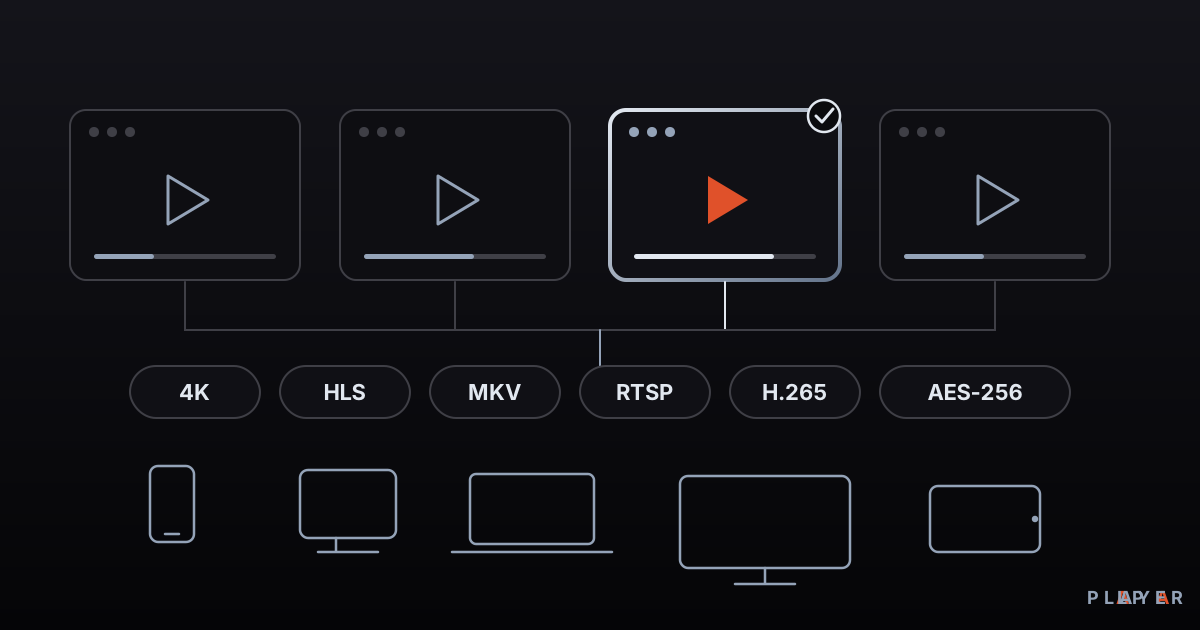
Short answer: The best media player depends on your device, your sources and what you expect from it. VLC is a strong general-purpose choice on desktops, Kodi and Plex excel at organizing libraries, and MX Player is popular on Android. For free, remote-friendly playback on TVs, Alpa Player from Alpa Yazılım is also worth a look.
Key takeaways
- No single app is the best media player for everyone; the right pick depends on your device, formats, sources and budget.
- Judge players on device support, format support, remote-control interface, cost model, privacy, playback engine, setup effort and update habits.
- VLC is known for broad format support, Kodi and Plex for library organization, and MX Player for gesture controls on Android.
- Alpa Player is free, built for TVs and remotes, and stores credentials with AES-256, but it is a player, not a media server or a content service.
- Make the final call by trying two or three candidates with your own files and sources for a few minutes.
Ask ten people for the best media player and you will hear at least five different answers, and most of them will be right for the person giving them. Someone who opens files on a desktop all day needs something different from a person who wants to relax on the couch with a TV remote. So this guide does not hand you a ranking. It lays out the criteria that matter, puts well-known players side by side with what they are genuinely good at, and helps you match them to your situation. If you are new to the topic, start with what a media player is.
How do you decide which media player is best?
The best media player is the one that plays your sources, on your devices, in the way you like to use them. That makes the criteria more useful than any ranking. The table below lists eight of them, each with the question to ask yourself.
| Criterion | Why it matters | Ask yourself |
|---|---|---|
| Device support | A phone, a laptop and a TV may not run the same app | Is there a version for every screen I use? |
| Format support | MKV, HLS and RTSP do not open in every player | Do my files and streams play without trouble? |
| Remote-control interface | Navigating a TV with arrow keys is nothing like using a mouse | Can I use it comfortably from the couch? |
| Cost model | Free, ad-supported, one-time purchase or subscription | What do I get for free, and what costs extra? |
| Privacy and security | Passwords and addresses are sensitive data | How are my details stored, and where do I download the app? |
| Playback engine | Hardware decoding and engine choice affect smoothness | Does heavy content stutter, and can I switch engines? |
| Setup effort | Some systems need a server and a library to be built | How much time do I want to spend? |
| Maintenance | An app that is not updated brings bugs and security risk | Is it updated regularly? |
For a longer breakdown of individual capabilities, use our video player features checklist.
How do the well-known media players compare?
Each well-known player focuses on a different need, and every one of them is strong somewhere. The table summarizes publicly known facts; versions and pricing change over time, so confirm current details on the official pages.
| Player | Platforms | Cost model | Known for | Keep in mind |
|---|---|---|---|---|
| VLC | Windows, macOS, Linux, Android, iOS and more | Free, open source | Opens a huge range of formats without extra packs and runs almost everywhere | General-purpose by design; a TV-first experience is not its main goal |
| Kodi | Windows, macOS, Linux, Android and more | Free, open source | A flexible media center with library organization, skins and add-ons | Takes effort to set up; choose third-party add-ons only from sources you trust |
| MX Player | Android | Free to install; ads or paid options may apply depending on version | Gesture controls and flexible decoding options | Ads and bundled content can vary by version and region |
| Plex | Many mobile and TV platforms | Free tier plus paid subscription | Organizes your own collection on a server and streams it to other devices | Needs a server; some features sit behind a paid plan |
| Jellyfin | Server plus many clients | Free, open source | Plex-style library organization, community-driven | You install and maintain the server yourself |
| Built-in Windows player | Windows | Comes with Windows | No install needed, opens common formats | Less common containers may need another player |
| Infuse | iPhone, iPad, Apple TV, Mac | Free version plus paid upgrade | A polished interface on Apple devices | Works only in the Apple ecosystem |
| Alpa Player | Android, Android TV, Google TV, Samsung (Tizen 2020+), LG (webOS 2020+), Windows; iPhone and iPad coming soon | Free; no account, subscription or purchase | A TV-first remote interface, remote playlist upload, AES-256 encrypted credentials | A player, not a server or content service; some store versions are still being published |
Read this as a map, not a leaderboard. A strength in one row can be a limitation in another situation. VLC's general-purpose design is a big plus on a desktop, but on a living-room TV some people look for something shaped around the remote. We cover that angle respectfully in VLC alternatives.
Which media player should you pick for your situation?
For most people, the situation decides. The pairings below are rough guides rather than rules.
- Opening any file quickly on a desktop: a general-purpose player such as VLC or mpv.
- Organizing a personal movie and music collection with posters and details: a library-focused system such as Plex, Jellyfin or Kodi.
- Controlling volume, brightness and seeking with swipes on an Android phone: an Android-focused app such as MX Player.
- Apple devices: an Apple-specific player such as Infuse.
- Playing your own playlists, links or server account on a TV with a remote, in a free and clean interface: a TV-first player such as Alpa Player.
If you never want to run a server and do not keep your collection elsewhere, adding a source in a single app is the least effort. If you enjoy tinkering, the structure Plex or Jellyfin gives you can be worth the extra work.
Where is Alpa Player strong?
Alpa Player is a free media player developed by Alpa Yazılım, and its strongest area is comfortable TV use with a remote. These are its known features.
- Free: There is no account, subscription or purchase, and the project is non-profit.
- TV-first interface: Clean, in the spirit of Apple TV and Netflix, with equal ease on remote, touch or mouse and fluid arrow-key navigation on a TV.
- Wide platform reach: Android, Android TV and Google TV, Samsung TV (Tizen 2020 and later), LG TV (webOS 2020 and later) and Windows. See our guides to the Android TV media player, the Samsung TV media player and the LG TV media player.
- Remote playlist upload: Instead of typing a long address with the remote, you read the MAC address and 6-digit key shown in the app and upload your source from the website using your phone or computer. Every upload is logged with the IP and MAC address, and the uploader is responsible for it.
- Encrypted credentials: Addresses and passwords are kept in the device's secure storage with AES-256, never shown on screen, and never sent to Alpa Yazılım.
- Formats and engines: M3U, M3U8, HLS, MP4, MKV and RTSP among others. On Android, the default engine is based on ExoPlayer (Media3), with a VLC engine and an external player option as well.
- Everyday comfort: Resume playback, favorites, recently watched items and a program guide.
Its limits are just as clear. Alpa Player supplies no content: there are no ready-made channels, movies, shows or lists, and it is not a streaming service. It only plays sources the user has the right to use. It is also not a server like Plex or Jellyfin that organizes a home archive for other devices. Google Play, Samsung, LG and Amazon store versions are still being published, while the Android APK and Windows installer can be downloaded today. You can download Alpa Player for free and see the current status in the download section.
How do you test a media player before committing?
Testing a media player takes about five minutes with your own files. This short routine speeds up the decision.
- Open the file you consider the hardest, such as a large MKV or a high-bitrate video.
- Seek forward and back, and try switching audio and subtitle tracks.
- Add your own source and count the steps. On a TV, does it force you to type with the remote?
- Read which permissions the app requests and how it protects your passwords. Our article on media player privacy and security shows what to look for.
- Clarify the cost model. What "free" really covers is explained in free video players.
Before installing Alpa Player you can also try the browser-based demo with openly licensed sample videos. It does not allow adding your own list; it exists only to show the interface and playback.
What should you watch for to stay safe and legal?
To stay safe, download a player only from its developer's official source and play only content you have the right to use. Player software itself is generally legal; responsibility lies with the content you play. Bundles that promise ready-made channels and movies, or hide where their content comes from, carry both legal and security risks.
For more detail, see are media player apps legal and the risks of pirate streaming. This article is not legal advice, and copyright rules vary from country to country.
Frequently asked questions
What is the most used media player in the world?
There is no reliable, current ranking we can point to, so we will not name one. VLC, Kodi, Plex and MX Player are all widely known, but we do not publish usage figures without a verifiable source. Choose by device and need rather than popularity.
Is VLC, Kodi or Plex better?
They are built for different jobs. VLC is a simple general-purpose player. Kodi is a media center that grows through add-ons. Plex streams your own collection from a server to other devices. For opening a single file, VLC is handy; for an organized library, Kodi or Plex may fit better.
What is the best media player for a TV?
What matters on a TV is comfortable remote use and compatibility with your set. Android TV and Google TV have many options, while Samsung and LG TVs depend on their own app stores. Alpa Player is a TV-first option for Android TV, Samsung (Tizen 2020+) and LG (webOS 2020+).
Are free media players safe?
Safety depends on the developer, the download source and the update habits, not on the price. A regularly updated player from its official site or store is generally safe. Avoid modified or "cracked" packages from unknown websites.
Is Alpa Player the best media player?
We make no such claim. Alpa Player suits particular needs well: it is free, designed for TVs and remotes, supports remote playlist upload and encrypts credentials. For other needs, other players may fit better.
Can I install more than one media player?
Yes, several players can live side by side on one device. Many people keep a general-purpose player on their computer and a separate TV-first app on the television. Just check which app is set as the default for each file type.
Sources
Related articles
 Media player guide
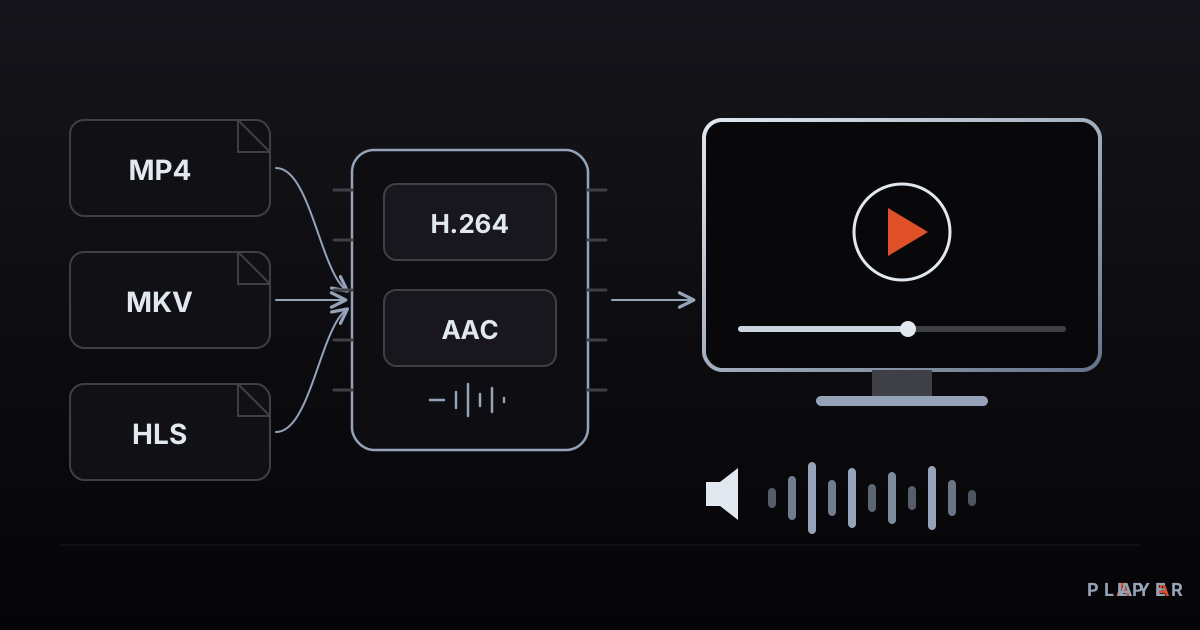
What Is a Media Player? How It Works
What is a media player and how does it turn files and streams into picture and sound? Learn how it works, the main types, and how to choose one.
 Media player guide
Free Video Player: What "Free" Really Means
What does a free video player really cost? See how open source, ad-supported and freemium models differ, which hidden costs to expect, and how to choose safely.
 Media player guide
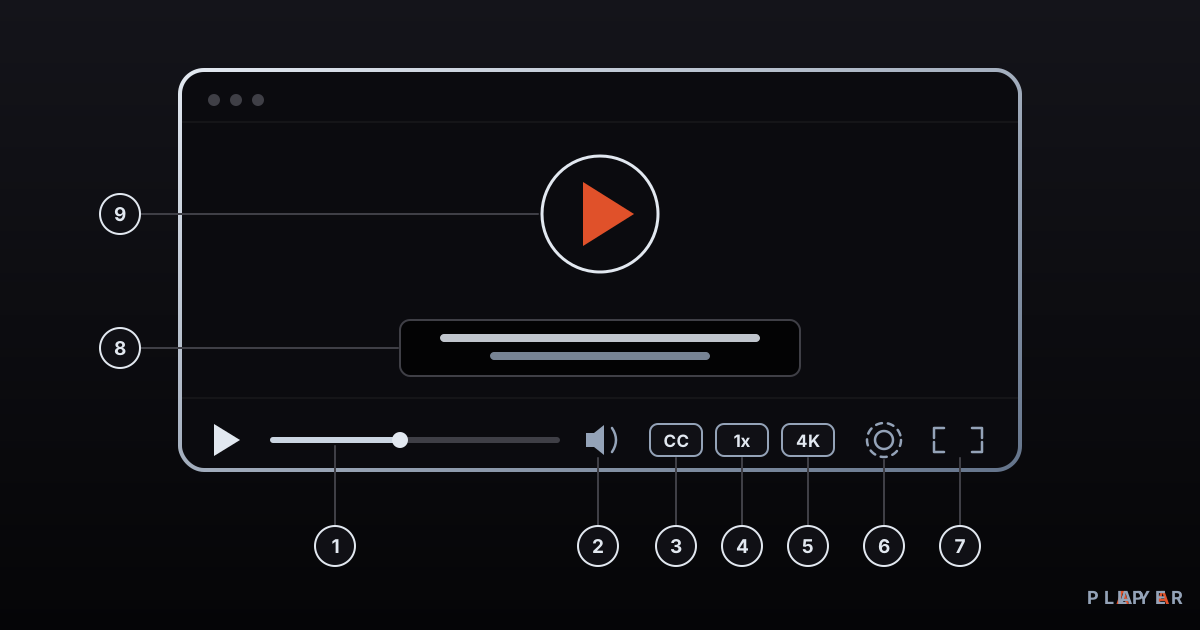
Video Player Features: A 12-Point Checklist
Which video player features matter? This 12-point checklist covers formats, subtitles, streaming, remote-friendly design and security so you can choose well.