
How to plan a waiting room TV display for hospitals and city offices
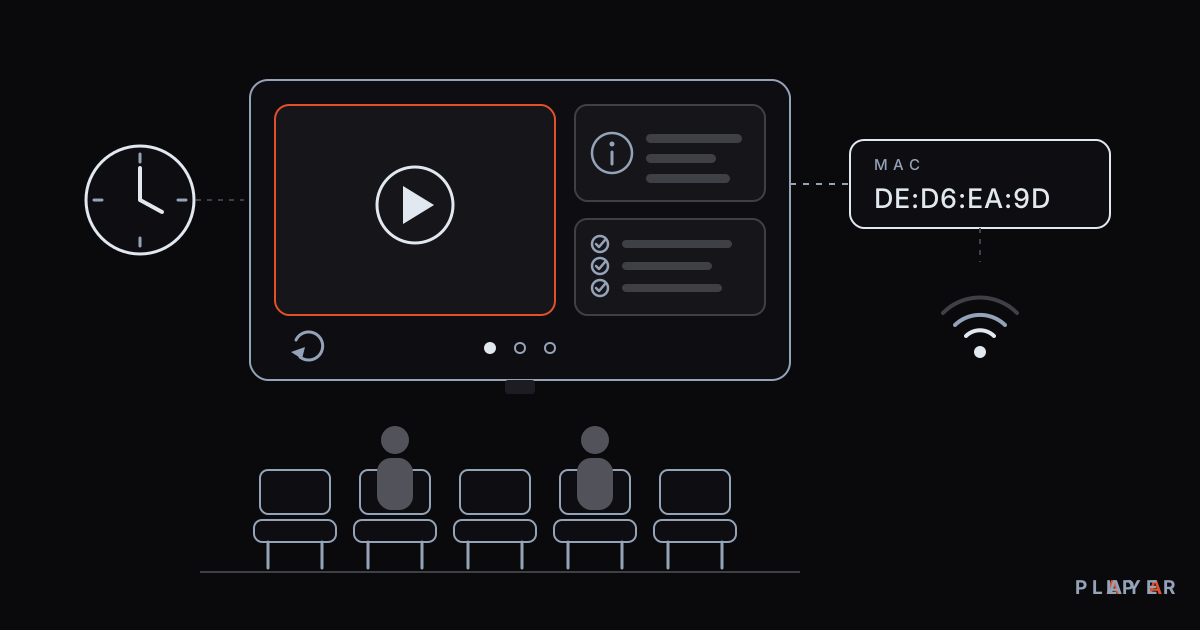
Short answer: A waiting room TV is a screen that gives people waiting for their turn useful and calming content. A good waiting room TV display needs a content plan made of short videos, content that makes sense without sound, material whose rights are clear, and devices managed from one place. The free Alpa Player institution panel lets you define TVs by MAC ID and carries your institution's logo into the app.
Key takeaways
- A waiting room TV works best with short content that informs visitors and makes the wait easier.
- Good content includes institution overviews, service steps, health information and calm visuals, and it should make sense without sound.
- In the Alpa Player institution panel, TVs are defined by MAC ID, and your logo, name and colors carry into the app.
- Alpa Player supplies no content, so a hospital or municipality needs the rights to everything it shows.
- Personal data such as patient information must never appear on a public waiting room screen.
A hospital clinic corridor, a municipal service desk, a public office lobby: what these places share is that people wait for their turn. What the screen on the wall shows is a real part of a visitor's first impression of your institution. A waiting room TV that is set up well informs people and makes the wait easier to bear; one that is not becomes background noise.
This guide shows hospitals and municipalities how to plan content, manage the TVs and avoid common pitfalls. Our example is the free institution panel built by Alpa Yazılım; to see the app that runs on the screen, you can download Alpa Player for free.
What is a waiting room TV for?
A waiting room TV is a screen that informs, occupies and reassures people who are waiting, and it showcases the institution's services. It does not have to be an entertainment channel; the best examples show content that makes the wait easier and the institution's work easier too.
It has three main benefits. The first is information: visitors learn the steps of a process, the documents they need or the service hours from the screen, so they ask staff fewer repeat questions. The second is reassurance: especially in a hospital, calm and orderly content can take some of the tension out of the room. The third is image: a tidy, current screen signals that the institution is careful about its work.
What content should a waiting room TV show?
A waiting room TV should show short, clear content that your institution made itself or has the right to use. The table summarizes common content types for hospitals and municipalities.
| Content type | Example | Suggested length | Watch out for |
|---|---|---|---|
| Institution overview | Departments, services, opening hours | 30–60 seconds | Keep the information current |
| Service steps | Documents needed to apply, process steps | 45–90 seconds | Use numbered steps in large type |
| Health information | Hand hygiene, vaccination schedules, healthy living | 45–90 seconds | Have a qualified person approve the content |
| Calming visuals | Nature scenes, quiet music | 30–60 seconds | Rights to footage and music must be clear |
| Announcements | Events, temporary changes | 15–30 seconds | Remove anything past its date |
The lengths are general suggestions; adjust them to your typical wait times and visitor flow. Everything in the table should be material you create or are licensed to use, because Alpa Player does not provide ready-made content.
How do you build a content plan for a waiting room?
A content plan is a simple schedule that decides which videos play, how often and who keeps them current. Without one, a screen fills up with stale information within months. These steps are enough to start:
- Write down the goal: What problem should the screen solve? Giving information, or easing crowding?
- Take inventory: List the videos you have and the topics you are missing.
- Build a loop: Combine short segments into a loop so the same video does not repeat back to back.
- Design for silence: In waiting rooms the sound is often off or drowned out by noise. Put large text inside the video.
- Name an owner: Decide who updates the content and how often; a monthly review is enough for most institutions.
What the panel offers for playback order and timing is something you will see after you apply; this article does not promise a scheduling feature. Be ready to adapt your plan to what the panel provides.
How do you manage the TVs from the panel?
Waiting room TVs are defined in the institution panel by each device's unique MAC ID. A MAC address is a hardware identifier built into a network device. The MAC screen under Add Source in the app displays it, together with a 6-digit device key.
You record that ID, then define the TV in the panel with it. The "How it works" list on the application page puts it simply: upload your videos, connect the TVs by MAC, add your people. Because every device's ID is unique, a replaced TV needs a new entry, so keep your table up to date.
The optional note field on the application form lists "classroom / lobby TVs" among its example uses. Match each TV to its location, for example "Clinic A corridor", with its MAC address in your own table. To learn where the address appears, read how to find your TV's MAC address; for a similar rollout in hotels, see hotel TV system.
Your institution's logo, name and colors are applied to the app automatically. Visitors see your hospital's or municipality's own identity on the screen instead of a generic app.
What TV and network setup do you need?
The two most important things for a waiting room TV are a compatible device and a steady network. Alpa Player is built for Android TV, Google TV and TV boxes, Samsung TV (Tizen 2020 and later), LG TV (webOS 2020 and later) and Fire TV. The Android APK can be downloaded now, while Samsung, LG and Amazon store versions are in the publishing process; see the download section for the current status.
- Device: If the wall TV is already smart, you can install directly; if not, add an Android TV box or a Fire TV Stick. For help choosing, read how to choose an Android TV box and Fire TV Stick media player.
- Network: Use a wired connection where possible; Wi-Fi vs Ethernet explains the difference.
- Power and placement: If TVs stay on all day, think about screen lifespan and brightness, and place the screen where people waiting can see it comfortably.
What legal and privacy points matter for hospitals and municipalities?
The three most important topics are rights, personal data and accuracy. A waiting room is a public space, so the margin for error is small.
- Rights: Show only footage, music and text that you made or have permission to use. Alpa Player provides no content; responsibility rests with the institution. See copyright and personal media for background. In many countries, playing music or broadcasts in a public area can require extra permission, so check local rules.
- Personal data: Patient names, queue-number matches or test results must never appear on a public screen. If identifiable people appear in a video, get explicit permission.
- Accuracy: Have a qualified person check health information content. Wrong or outdated information can cause harm.
This article is general information, not legal or medical advice.
How do you keep waiting room screens in good shape?
A short monthly check keeps waiting room screens current and working. Setup happens once, but content and devices age. Your checklist might include:
- Does every TV turn on and play the content loop without problems?
- Has an expired announcement, campaign or opening-hours notice been left on screen?
- Do the videos reflect any new service or process change?
- Are the MAC addresses of replaced or broken TVs up to date in your table?
- Has feedback from staff and visitors been reviewed?
Giving this list to one named person keeps the screen from becoming nobody's job.
What does the institution panel not cover for waiting rooms?
The Alpa Player institution panel is limited to the features described here: video upload, defining TVs by MAC ID and carrying your branding into the app. Queue-number system integration, hospital information system links, digital signage scheduling and viewing statistics are not among the features described in this article.
If you need any of these, say so in the optional note on the application form and contact Alpa Yazılım for a definite answer. Setting expectations up front prevents surprises after installation.
How do you get started with waiting room TVs?
The safest way to start is a small pilot in one waiting room. Try your content loop on a single TV first; check readability, whether sound is needed and whether the information is current. Then extend to other rooms.
Applying is free. On the institution panel application page, you choose the institution type ("Hospital / health" or "Municipality / public") and enter your approximate number of screens. An email address from your institution's own domain speeds up approval. After verification, your login details, a temporary password and your institution code arrive by email.
Step by step: How to connect waiting room TVs to the panel
- Fill in the institution panel application form with the "Hospital / health" or "Municipality / public" type.
- After verification, sign in to the panel with the login details and institution code sent to your email.
- Install Alpa Player on each TV or TV box.
- Open the MAC screen under Add Source in the app and note the MAC address.
- Record each waiting room's name and its MAC address in your own table.
- Define the TVs in the panel by their MAC IDs.
- Test in one waiting room first, check the content loop, then roll out.
Frequently asked questions
Is Alpa Player free for a waiting room TV?
Yes. The application and the institution panel are free, and hospitals, municipalities, schools, hotels and course centers can apply. Your panel opens after your institution is verified. Alpa Player provides no content, so your institution must have the rights to everything it shows.
Can I show TV channels in a waiting room?
Alpa Player supplies no channels, movies or series, and it is not a streaming service. If you have a licensed source, playing it is your institution's responsibility. In many countries, showing broadcasts or music in public areas can require extra licenses, so check local rules and your broadcast provider.
How do I define each TV in the panel?
Each TV is defined by its unique MAC ID. The MAC screen under Add Source in the app shows the ID and a 6-digit device key. Your institution then defines the device in the panel with that ID, so you do not have to guess which screen is which.
Can the screen show queue numbers or patient information?
Queue-number integration is not among the features described in this article. Patient names or test results should also never appear on a public waiting room screen. If you have such a need, mention it in the application note and get a direct answer from Alpa Yazılım.
How do I make a video that works without sound?
Put large text inside the video, use short sentences with one idea per screen and give the key message in the first seconds. Waiting rooms are often noisy or muted. Before uploading, watch the video with the sound off and check that it still makes sense on its own.
Which TVs are supported?
Android TV, Google TV and TV boxes, Samsung TV (Tizen 2020 and later), LG TV (webOS 2020 and later) and Fire TV are supported. The Android APK can be downloaded now, while Samsung, LG and Amazon store versions are in the publishing process. Check the download section for the latest status.
Related articles
 For organizations
Secure Video Sharing for Schools: A Guide
Secure video sharing for schools made practical: short-lived signed links, student-number watermarks and device locks keep lecture videos from leaking.
 For organizations
What Is Video Watermarking? Types and Uses
Video watermarking explained: visible versus invisible marks, how a moving student-number watermark deters leaks, and where watermarks fall short.
 For organizations
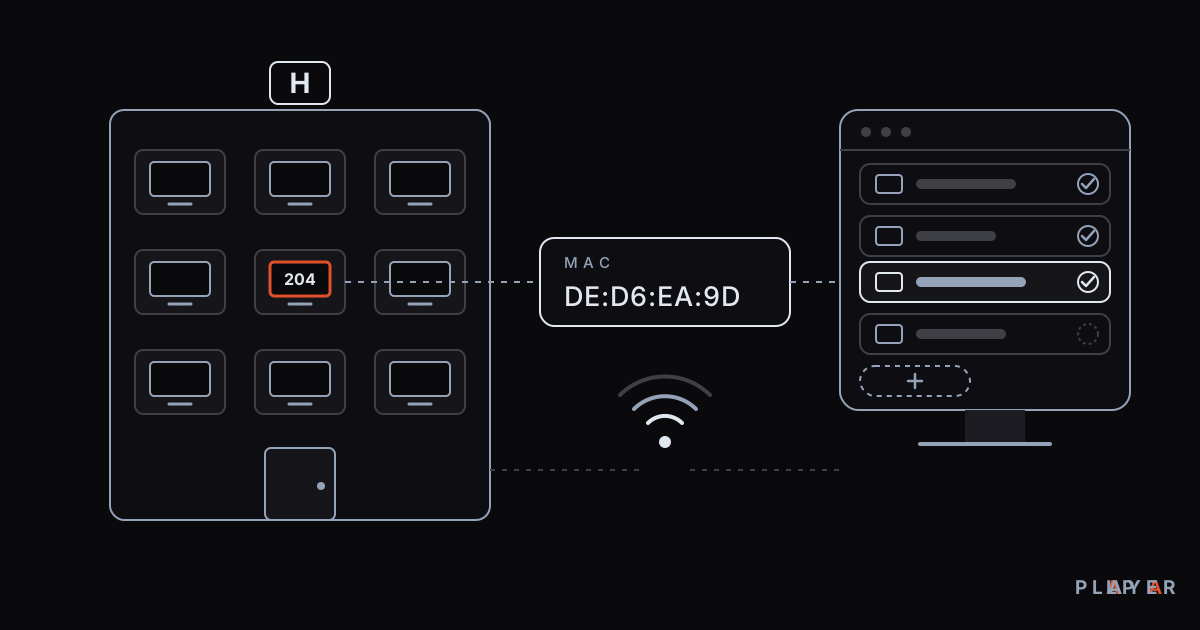
Hotel TV System: Manage Room TVs from One Panel
Set up a hotel TV system by defining room TVs with their MAC ID in the free Alpa Player institution panel, with your hotel's logo, name and colors applied.