
How to share lecture videos securely: three layers that work together
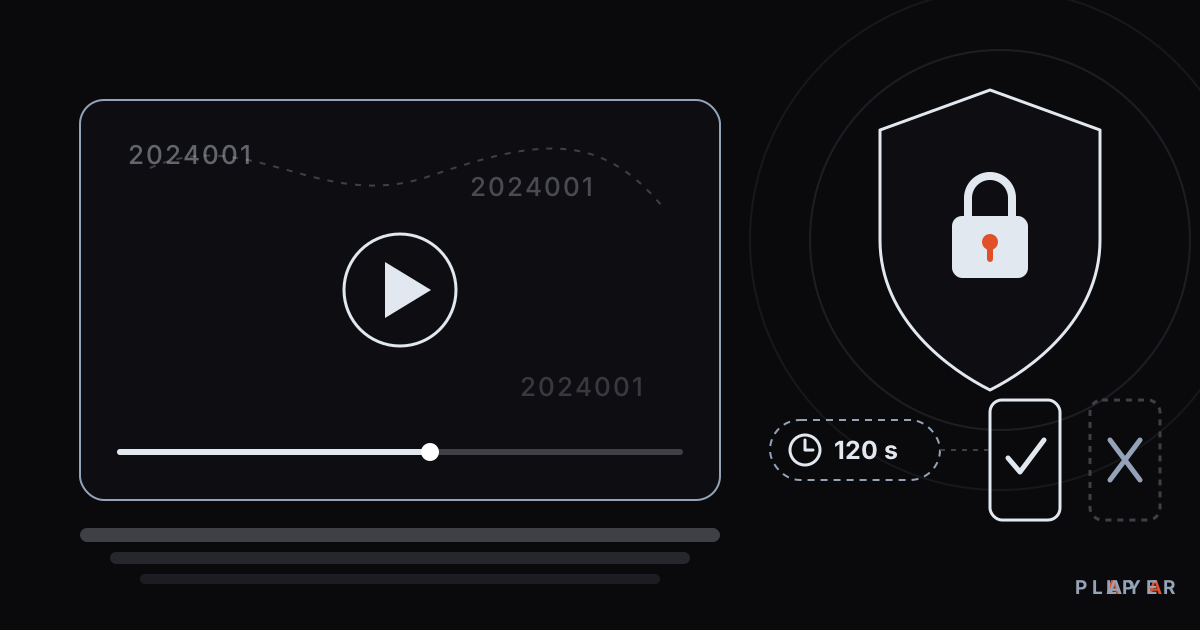
Short answer: Secure video sharing for schools means never putting a lecture video behind a permanent public address. Instead, combine three layers: a signed link that expires in 120 seconds and will not open on another device, a moving watermark that shows the student number, and a device lock that caps devices per student. The free Alpa Player institution panel offers all three. None of them can fully stop screen recording, but together they deter sharing and make leaks traceable.
Key takeaways
- Secure sharing comes from layers (a signed link, a watermark and a device lock), not from one lock.
- In the Alpa Player institution panel, a video link expires after 120 seconds and will not open on a different device.
- The student number moves across the video; it cannot stop screen recording, but it deters sharing and points to the source of a leak.
- The device lock caps how many devices each student can use, and an administrator can reset it with one click for a new phone.
- The panel is free, but the institution is responsible for having the rights to every video it uploads.
A teacher uploads a recorded lesson. A few hours later the same video is circulating in a social media group she has never heard of. For schools, course centers and universities, secure video sharing for schools comes down to exactly this problem: content that took real effort to produce can slip out of your control through a single copied link.
The good news is that most of the problem can be managed with three simple safeguards. In this guide we explain how the free institution panel from Alpa Yazılım applies them, what each one solves, and where each one falls short. If you want to see the student side, you can download Alpa Player for free.
Why do lecture videos leak so easily?
Lecture videos usually leak in one of three ways: a forwarded link, a copied file or a shared account. None of them needs an advanced attack. An ordinary student and a few seconds are enough.
- Link sharing: A video address that works forever works for anyone who receives it.
- Account sharing: When one student hands a password to friends, a single enrollment turns into dozens of viewers.
- Recording and filming: Capturing the screen or pointing a phone at it cannot be fully blocked by any software.
You can make the first two seriously difficult. With the third, the realistic goal is not to make it impossible but to discourage it and to make it traceable. That is why you need several layers that complement each other instead of one big lock.
Which three layers does secure sharing need?
Secure sharing needs three layers working together: a short-lived signed link, a student-number watermark and a device lock. The Alpa Player institution panel provides all three in one setup. The table below shows which leak each layer targets.
| Layer | Leak it targets | How it works | Its limit |
|---|---|---|---|
| Short-lived signed link | Forwarding the address | The link expires in 120 seconds and will not open on another device | Does not stop screen recording during playback |
| Student-number watermark | Screen recording and filming | The student's number moves across the video | Does not stop recording; deters and identifies the source |
| Device lock | Password sharing | Each student gets a fixed maximum number of devices | A new device needs a reset |
Any single layer can be worked around. Used together, they raise both the effort required to leak a video and the chance of being identified.
How does a short-lived signed link work?
A signed link is a video address that carries a digital signature and an expiry time; if the signature is invalid or the time has passed, the server refuses to serve the video. Major cloud platforms use the same idea, and Google Cloud's documentation on signed URLs explains it in detail.
In the Alpa Player institution panel the idea is tightened around the student:
- The link is valid for only 120 seconds. After that, the same address is useless.
- The link will not open on a different device; it works only on the device where the student signed in.
In practice, if a student copies the address and texts it to a friend, the friend gets either an address that expired two minutes later or one that simply does not work on their phone.
How does a student-number watermark deter leaks?
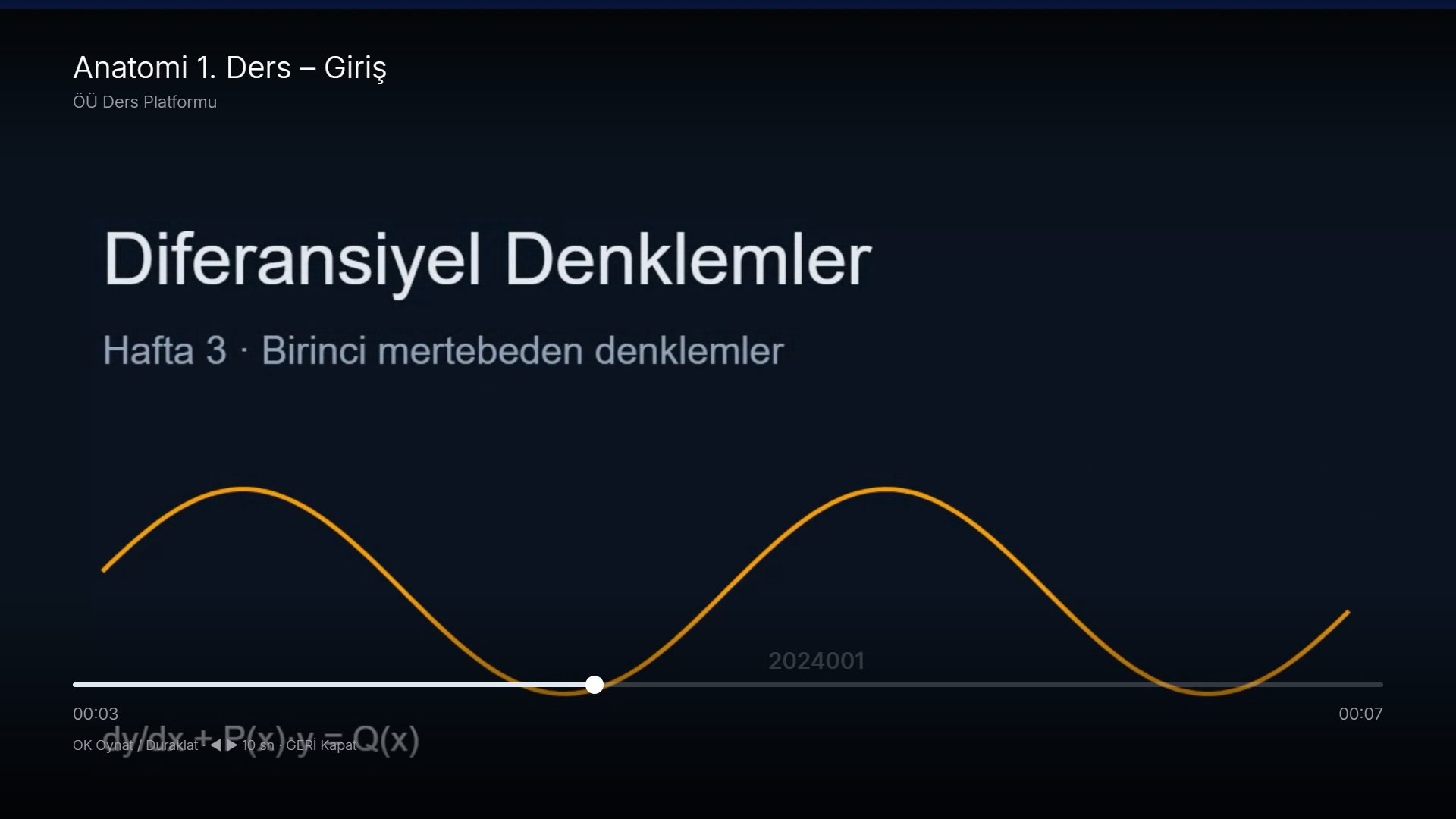
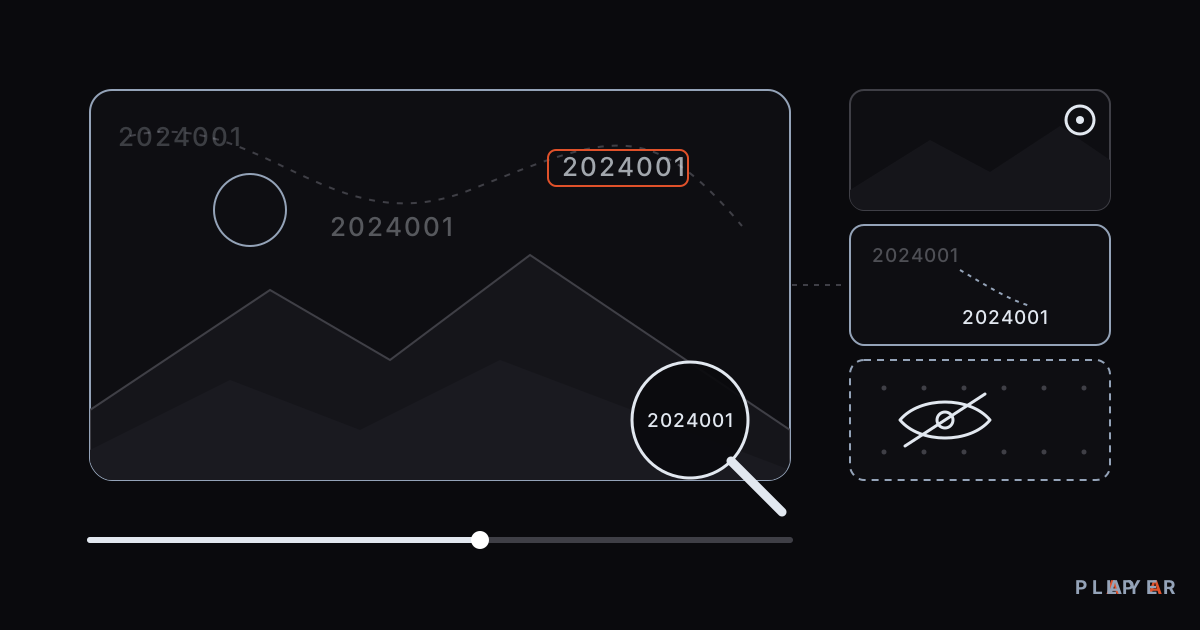
A watermark is a mark shown over a video that identifies the viewer. In Alpa Player that mark is the student's own number, and it moves around the picture. A fixed corner logo can be cropped out; a number that keeps changing position is much harder to remove.
The real effect is psychological. A student who is thinking about recording and posting a lesson knows that their own number is on screen the whole time. If a leaked copy does surface, the number tells you which account it came from. For the full background, see our article on what video watermarking is.
To be honest, a watermark does not block screen recording. A phone camera pointed at the screen will capture the number too, although a determined person might try to blur it. The watermark's value lies in deterrence and traceability, not in prevention.
How does a device lock limit account sharing?
A device lock caps the number of devices a student's account can be used on. Your institution sets the maximum number of devices per student, and once that limit is reached, a new device cannot sign in.
Even if a student gives a password to five friends, they cannot all use the account; the first devices fill the quota. Legitimate cases are covered too: when a student replaces a phone or a device breaks, an administrator can reset the lock with one click in the panel, and the student starts using the new device.
Setting the limit takes some balance. If the quota is too low, a student who uses a phone, a laptop and a TV at home gets locked out; if it is too high, the lock means little. Count the devices your students really use and set the limit from there.
How do students sign in to Alpa Player?
Students sign in to Alpa Player with an institution code, a student number and a password. The institution code identifies your organization; the number and password belong to each student. Once your application is approved, your institution code and panel login details arrive by email.
After signing in, students see an app that carries your institution's logo, name and colors, and these are applied to the app automatically. They are not dealing with a stranger's app but with their own institution's platform.
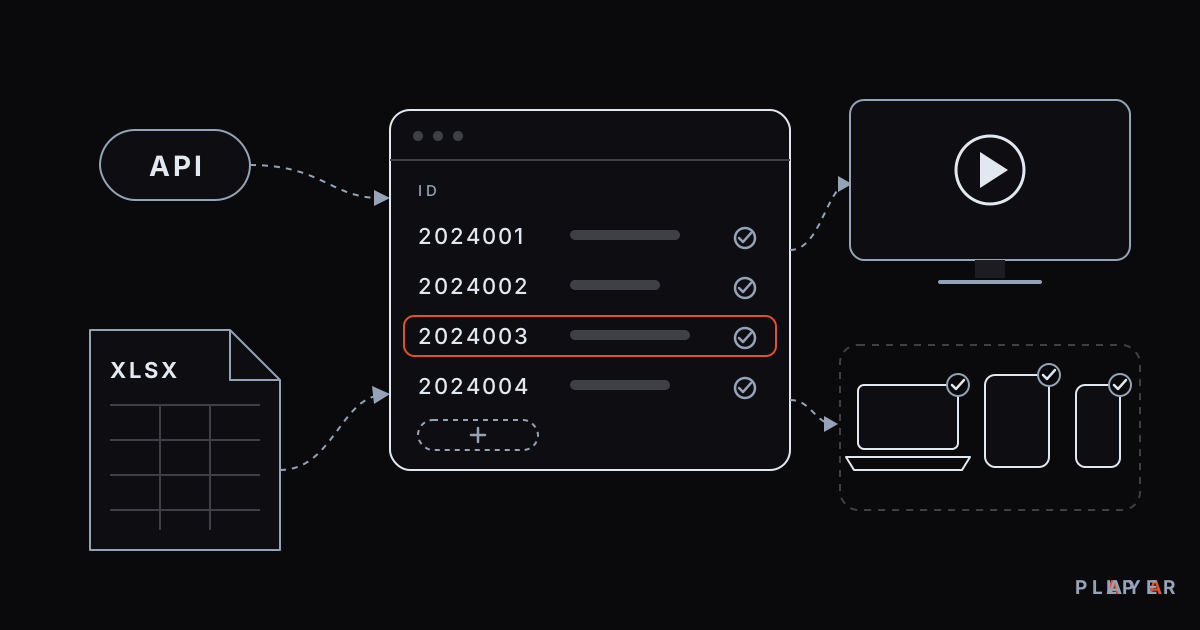
You do not have to add hundreds of students one by one. The student list can be imported in bulk from an Excel file or through an API; use the API if you have a student information system, and Excel if you do not. The app runs on Android phones and tablets, Android TV, Samsung and LG TVs and Windows, with an iPhone and iPad version coming soon.
What should you check before uploading a video?
Before you upload a video, check three things: rights, personal data and file compatibility.
- Rights: Upload only material you filmed yourself, bought or have permission to use. Alpa Player provides no content, and responsibility rests with the institution that uploads. See copyright and personal media for background.
- Personal data: If a recording shows students' names, faces or exam information, make sure you have the permissions you need.
- File compatibility: MP4 is the most widely compatible format; MP4 versus MKV explains the difference.
What are the limits of secure lecture video sharing?
No technical measure can fully prevent screen recording or filming with a phone; a watermark and a signed link reduce the risk but do not eliminate it. Knowing this up front helps you set the right expectations.
- The watermark deters and identifies; it does not physically stop a recording.
- This article does not describe DRM (hardware-backed content protection) or viewing analytics; it covers only the three safeguards above.
- The student number is visible on screen. Tell students and parents clearly why, and follow the data protection rules that apply to you.
- Addresses and passwords added to the app are stored encrypted with AES-256 in the device's secure storage; for the app's own security, read media player privacy and security.
This article is general information, not legal advice.
How do you set up secure sharing at your institution?
Setup runs in four stages: application, video upload, student import and testing. On the application form you enter your institution details and a contact person; once your institution is verified, your login email, a temporary password and your institution code arrive by email. Using an email address from your institution's own domain speeds up approval.
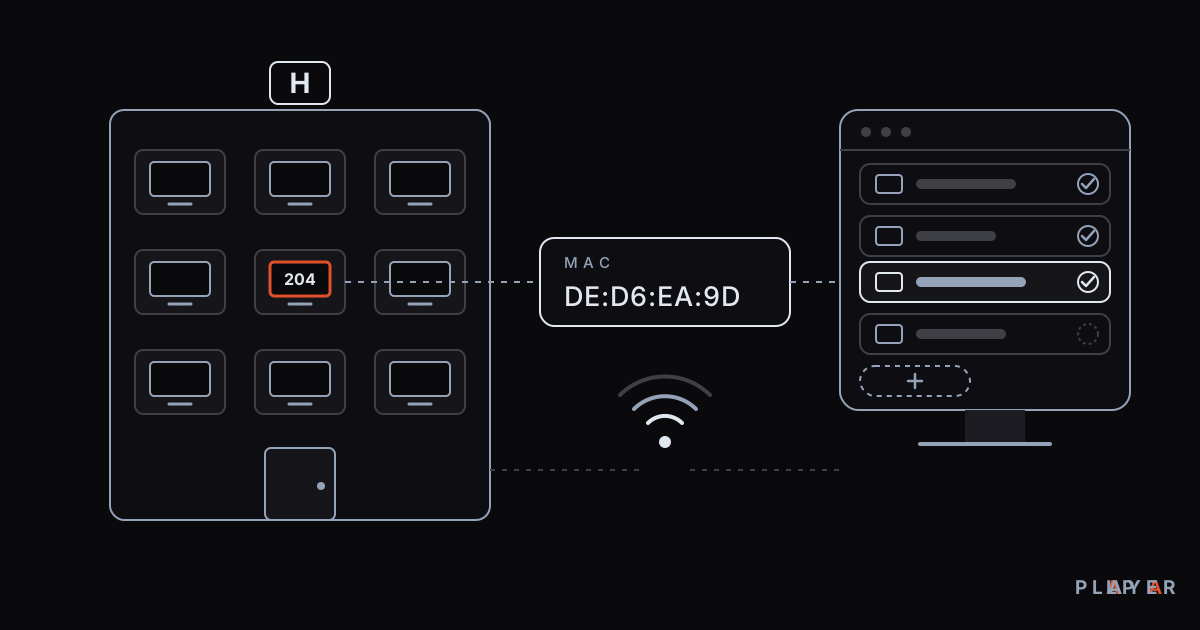
To start, open the institution panel application page. If you have TVs in classrooms or conference rooms, you can define them in the panel by their MAC identity; how to find your TV's MAC address shows where it appears. For general selection criteria for a school or course center, read our guide to a video platform for schools.
Before going live, create a test student: open a video, look at the watermark, try moving the link to another device and test the device limit. Do not open the platform to a class until you have seen the behavior with your own eyes.
Step by step: How to start secure lecture video sharing at your institution
- Fill in the institution panel application form and wait for your institution to be verified.
- Sign in to the panel with the login details and institution code sent to your email.
- Upload your lecture videos, making sure you have the right to share them.
- Import the student list in bulk from an Excel file or through the API.
- Set the maximum number of devices allowed per student.
- Give students the institution code, their numbers and passwords, and ask them to download Alpa Player.
- Open a video as a test student and check the watermark and the device lock.
Frequently asked questions
Is the Alpa Player institution panel free?
Yes. The application and the panel are free, and schools, course centers, hospitals, hotels and municipalities can fill in the application form. Your panel opens after your institution is verified. Alpa Player provides no content, so your institution must have the rights to every video it uploads.
What happens to a signed link after 120 seconds?
The link expires and the same address no longer opens the video. The link also does not work on a different device. So when a student copies an address and sends it to a friend, the friend cannot use it to watch the video.
Does a watermark stop screen recording?
No. The watermark moves the student's number across the video. It cannot physically stop a recording, but it discourages sharing and shows which account a leaked copy came from. No method can fully prevent screen recording, which is why the watermark is combined with a signed link and a device lock.
What happens if a student gets a new phone?
The device lock caps the number of devices per student. If the limit is full, an administrator resets it with one click in the panel, and the student signs in on the new phone with the institution code, number and password. That way the new device is usable without raising the quota.
Which devices does Alpa Player run on?
Android phones and tablets, Android TV, Google TV and TV boxes, Samsung TV (Tizen 2020 and later), LG TV (webOS 2020 and later) and Windows are supported. An iPhone and iPad version is coming soon. The Android APK and Windows installer can be downloaded now; see the download section for the current status of store versions.
Do I have to add students one by one?
No. You can import the student list in bulk from an Excel file or through an API. Each student signs in with the institution code, their own number and a password.
Sources
Related articles
 For organizations
What Is Video Watermarking? Types and Uses
Video watermarking explained: visible versus invisible marks, how a moving student-number watermark deters leaks, and where watermarks fall short.
 For organizations
Hotel TV System: Manage Room TVs from One Panel
Set up a hotel TV system by defining room TVs with their MAC ID in the free Alpa Player institution panel, with your hotel's logo, name and colors applied.
 For organizations
Video Platform for Schools: A Free Option
How to choose a video platform for schools: student sign-in, protected links, Excel import and classroom TVs, plus the free Alpa Player institution panel.