
How to choose a video platform for schools and course centers
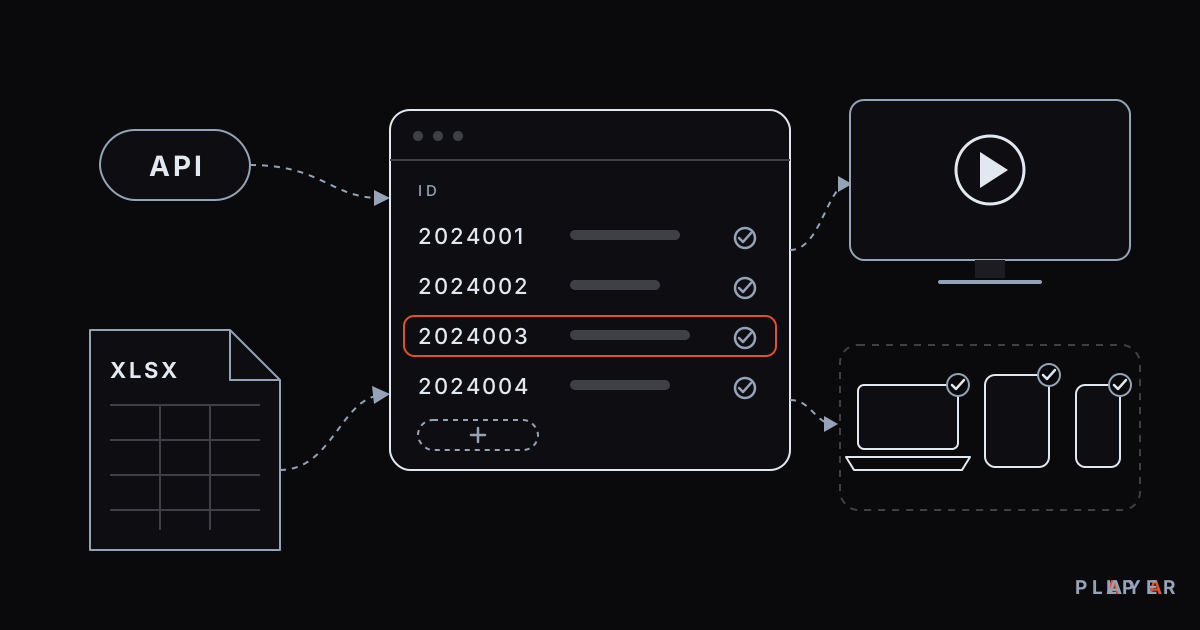
Short answer: A video platform for schools is a system that lets teachers upload lecture videos and lets only enrolled students watch them. A good one offers student sign-in, short-lived links, a watermark and bulk student import. The Alpa Player institution panel is free: students sign in with an institution code, a number and a password, you import the list from Excel or an API, and classroom TVs are defined by MAC ID in the panel.
Key takeaways
- A video platform for schools opens lecture videos only to enrolled students, not to everyone with a link.
- When choosing, compare student sign-in, anti-sharing safeguards, bulk import, device support and cost.
- The Alpa Player institution panel is free for schools and course centers; students sign in with an institution code, number and password.
- The student list is imported from Excel or an API, and classroom TVs are defined in the panel by MAC ID.
- The panel does not offer assignments, exams or grading, so your existing learning management system can stay in place.
A school's need to share lecture videos usually starts small: one teacher records a lesson and sends students a link. A few months later there are hundreds of videos, dozens of links and nobody knows who has watched what. A video platform for schools is the system that cleans up that sprawl and opens each video only to the right students.
This guide gives school and course center administrators a fair look at the selection criteria, the common approaches and one free option, the institution panel from Alpa Yazılım. You can try the student-side app by downloading Alpa Player for free.
What is a video platform for schools and why do you need one?
A video platform for schools is software that hosts recorded lessons, signs students in and controls who can watch. What separates it from an ordinary video site is that you decide who gets access.
Three problems create the need. The first is sprawl: videos get lost across apps and links. The second is lack of control: anyone who receives a link can watch. The third is effort: the material your teachers produce is a valuable asset for the school and deserves protection.
How do schools share lecture videos today?
Schools usually share lecture videos in one of four ways: public video sites, messaging and cloud links, learning management systems, or dedicated institution panels. Each has strengths and weak spots. The table offers a fair comparison.
| Approach | Strength | What to watch |
|---|---|---|
| Public video site (unlisted link) | Easy to set up, often free | Anyone with the link can watch; limited per-student access control |
| Messaging app or cloud drive link | Fast and familiar | Files and links are easy to forward; no structure or tracking |
| Learning management system (LMS) | Broad features such as assignments, quizzes and grades | Takes effort to set up and maintain; video protection varies by product |
| Institution panel and dedicated player (Alpa Player) | Focused on lecture video delivery: short-lived links, watermark, device lock | Assignments, exams and grading are not among the features described here |
These approaches do not have to compete. Many institutions keep their LMS for assignments and grades and distribute lecture videos from a separate panel.
What should you look for when choosing a video platform for schools?
Judge a platform on seven criteria: access control, student identity, anti-sharing measures, bulk user import, device support, institution branding and cost. For each one, ask yourself the following:
- Access control: Can only enrolled students watch the video?
- Student identity: Does each student sign in with their own number and password?
- Anti-sharing measures: Are links short-lived, and is there a watermark and a device limit?
- Bulk import: Can I add hundreds of students at once from Excel or an API?
- Device support: Can students watch on phones, computers and TVs?
- Institution branding: Does the app carry my school's name and logo?
- Cost: Is there a per-student or monthly fee?
The Alpa Player institution panel answers every item on this list; teaching-management features such as assignments and grades sit outside it. We explain how the safeguards work in our guide to secure video sharing for schools.
How are student accounts created in bulk?
Student accounts are created by importing the student list in bulk, either from an Excel file or through an API. Adding hundreds of students one by one is not practical for a school of any size.
If you have a student information system, an API can automate the import; if not, an Excel file does the job. You will see the format the panel expects inside the panel, and when you prepare the list, make sure student numbers are unique, because students sign in with their number. Students sign in to Alpa Player with an institution code, a student number and a password.
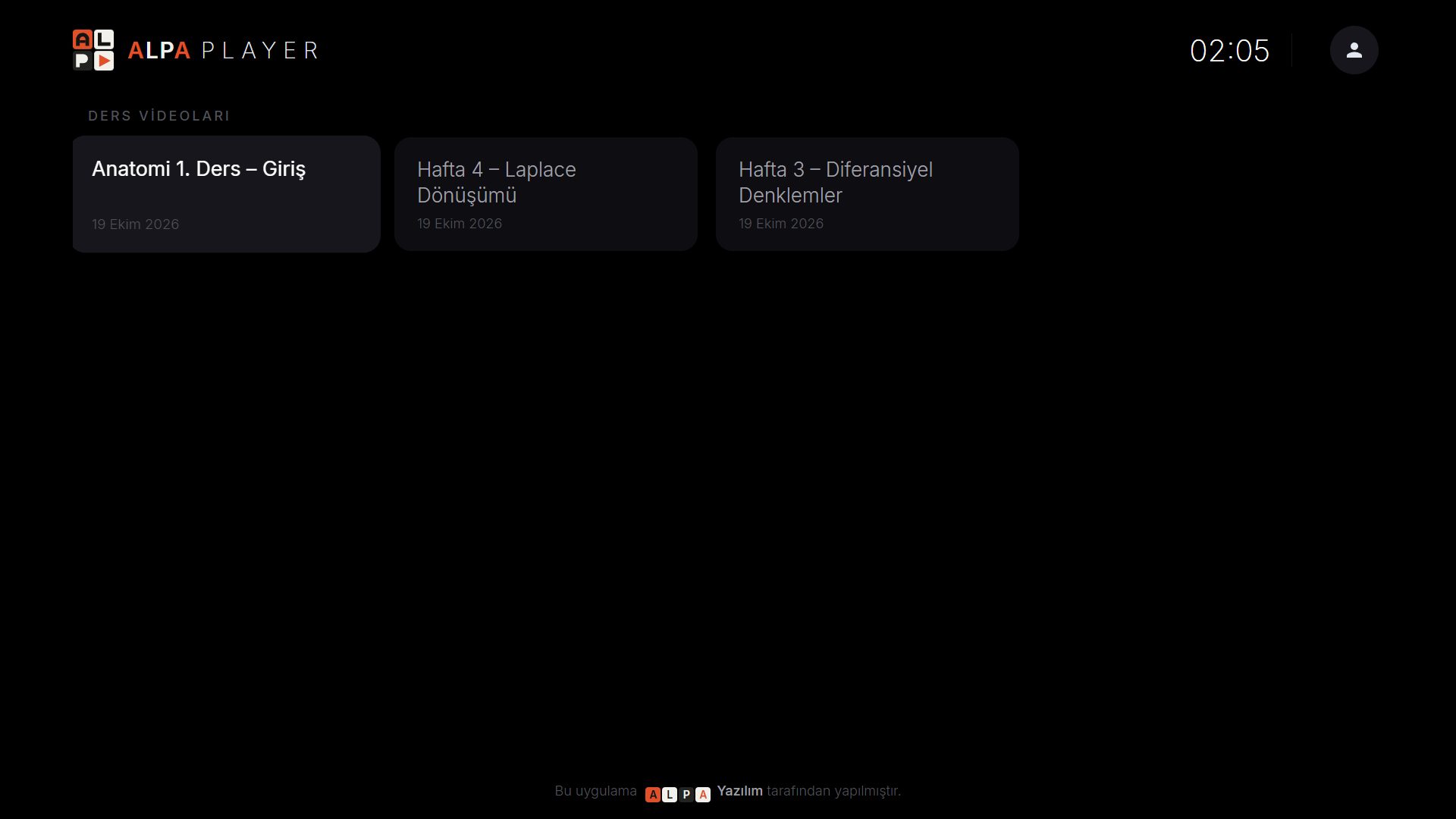
When a new student joins, you only need to update the list. When a student replaces a phone, an administrator resets the device lock with one click, and your school decides how many devices each student may use.
How do classroom TVs and student devices connect?
Students connect from their own phones, tablets and computers, while classroom TVs are defined in the panel by their MAC ID. That way the same lecture video can be watched at home or in the classroom.
The app runs on Android phones and tablets, Android TV and TV boxes, Samsung TV (Tizen 2020 and later), LG TV (webOS 2020 and later) and Windows. An iPhone and iPad version is coming soon. The Android APK and Windows installer can be downloaded now, while Samsung, LG and Google Play versions are in the publishing process. Check the download section for the latest status.
To connect a classroom TV to the panel, you first need its MAC ID, which we explain in how to find your TV's MAC address. If the classroom TV runs Android, our page on a media player for Android TV will help.
How should teachers prepare lecture videos?
A good lecture video is short, focused on one topic and named consistently. However good the platform, videos prepared haphazardly leave students unable to find what they need. Here are simple rules you can give teachers:
- Keep it short: Split a long lesson by topic so students can go back to the part they need.
- Name consistently: Pick one pattern such as "Class – Subject – Week – Topic" and have everyone follow it.
- Care about audio: Clear sound keeps students watching even when the picture is plain.
- Use a compatible format: MP4 is the most widely compatible; MP4 vs MKV explains when each one fits.
- Check before uploading: Does the video contain someone else's music or images, or students' personal details?
Putting these rules on a shared page helps new teachers settle into the platform quickly.
How do the school's logo and colors appear in the app?
Your school's logo, name and colors are applied to the app automatically, so students see their own institution's platform instead of an unfamiliar app. You do not need to publish a separate app or commission a design.
This small detail builds trust among students and parents, especially during a switch to a new platform. A familiar name and logo settle the "is this really our school's app?" question before anyone asks it.
What legal and ethical duties does a school carry?
Alpa Player provides no content, and your school is responsible for having the rights to every video it uploads. Upload only lessons your own teachers prepared or material you have permission to use; copyright and personal media covers the basics.
- Personal data: If a recording shows students' faces, names or voices, get the permissions you need.
- Parents: Explain the platform, the watermark and the device limit to parents in advance.
- Watermark: The student number is visible in the video; our article on what video watermarking is helps you explain it.
This article is general information, not legal advice.
What mistakes do schools make when switching platforms?
The most common mistake is switching everything on at once. A few simple precautions avoid most problems:
- Skipping a pilot: Try one class first; problems are cheap to fix while they are small.
- Setting the device limit wrongly: One device is too few for a student who uses a phone, a computer and a TV at home.
- Not informing parents: Explain the reasons for the watermark and the device limit beforehand.
- Forgetting old links: If public links were shared earlier, review them when you move to the new system.
- Skipping the rights check: Do not upload content your institution does not own.
How do you roll the platform out at your school?
You can run the rollout as a small four-stage project. The plan below is an example; adjust the timing to the size of your school.
| Stage | What to do |
|---|---|
| 1. Apply | Fill in the institution panel form; after verification, your login details and institution code arrive by email |
| 2. Prepare | Upload lecture videos with a few teachers and prepare the student list in Excel |
| 3. Pilot | Import a single class and test student sign-in and the device limit |
| 4. Roll out | Import all students, inform parents and define classroom TVs by MAC ID |
To begin, open the institution panel application page. On the form you choose "University / school / course" as the institution type, and an email address from your institution's own domain speeds up approval. If you wonder what connection speed video needs, read internet speed for streaming.
Step by step: How to roll out a lecture video platform at your school
- Fill in the institution panel application form with the "University / school / course" type.
- After verification, sign in to the panel with the login details and institution code sent to your email.
- Upload your lecture videos, making sure you have the rights to them.
- Import the student list in bulk from an Excel file or through the API.
- Set the maximum number of devices allowed per student.
- Define classroom TVs in the panel by their MAC IDs.
- Give students and parents the institution code, numbers and passwords, and run a pilot with one class first.
Frequently asked questions
Is Alpa Player free as a video platform for schools?
Yes. The application and the institution panel are free, and schools, course centers, hospitals, hotels and municipalities can apply. Your panel opens after your institution is verified. Alpa Player provides no content, so your school must have the rights to every video it uploads.
Can private course centers use it too?
Yes. The panel is built for schools and course centers, and on the application form you choose the "University / school / course" type. Students still sign in with the institution code, number and password, and your center's logo, name and colors are applied to the app automatically.
How do I import the student list?
You import the student list in bulk from an Excel file or through an API. If you have a student information system, the API gives you automatic imports; if not, Excel is the more practical route. Student numbers must be unique, because students sign in with their number.
Which devices can students watch on?
Android phones and tablets, Android TV and TV boxes, Samsung TV (Tizen 2020 and later), LG TV (webOS 2020 and later) and Windows are supported. An iPhone and iPad version is coming soon. See the download section for the current status of store versions.
How are classroom TVs connected?
Classroom TVs are defined in the panel by their MAC ID. The app's MAC screen shows the ID and a 6-digit device key; your institution then defines the TV in the panel with that ID. Keep a table of classroom names and MAC addresses so you can tell the TVs apart.
Does the panel include assignments and exams?
No. The features described here are lecture video upload, student sign-in, anti-sharing safeguards, bulk student import and classroom TV definition. For assignments, exams and grading, you can keep using your existing learning management system.
Related articles
 For organizations
Secure Video Sharing for Schools: A Guide
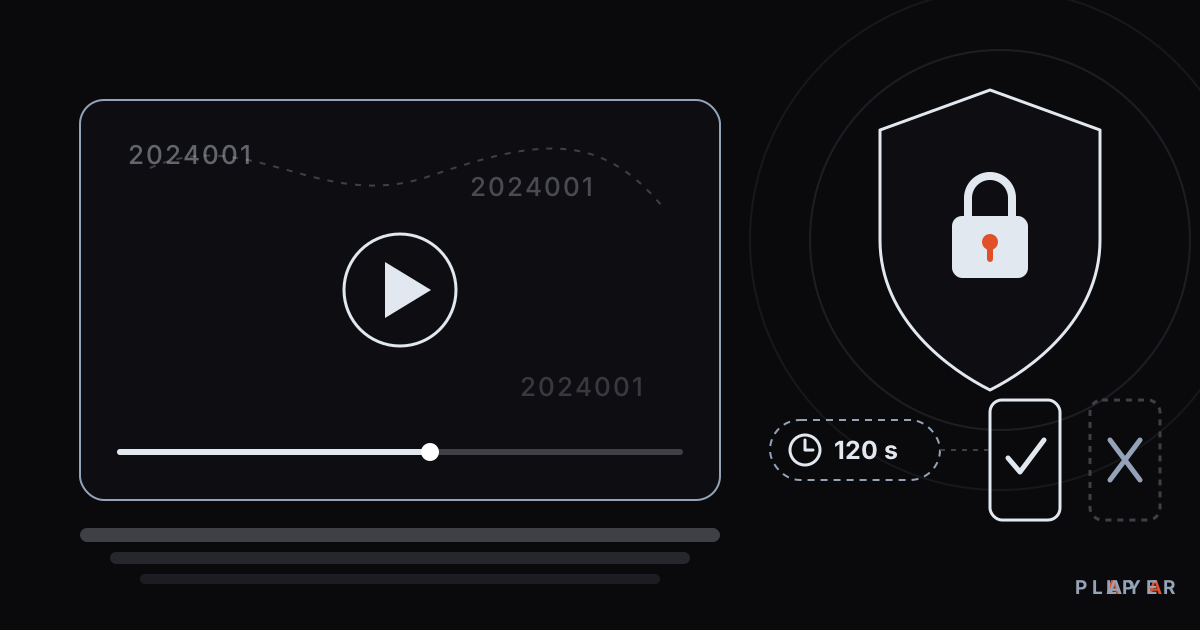
Secure video sharing for schools made practical: short-lived signed links, student-number watermarks and device locks keep lecture videos from leaking.
 For organizations
What Is Video Watermarking? Types and Uses
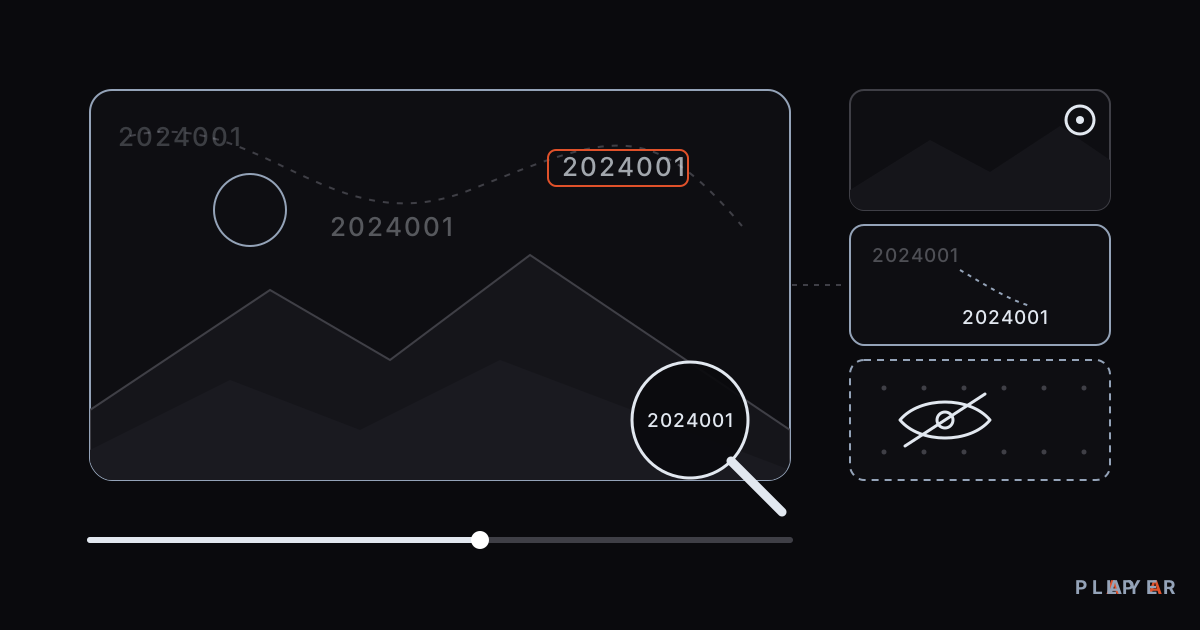
Video watermarking explained: visible versus invisible marks, how a moving student-number watermark deters leaks, and where watermarks fall short.
 For organizations
Hotel TV System: Manage Room TVs from One Panel
Set up a hotel TV system by defining room TVs with their MAC ID in the free Alpa Player institution panel, with your hotel's logo, name and colors applied.