
Audio out of sync? How to fix lip-sync delay on your TV and player
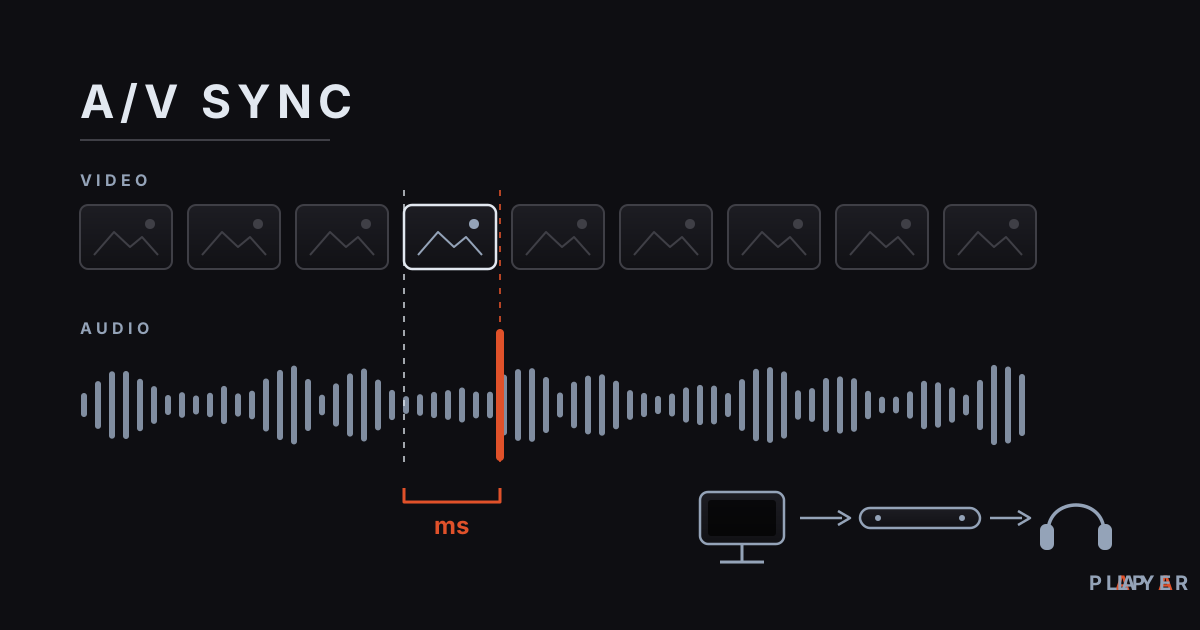
Short answer: Audio out of sync means the sound reaches you earlier or later than the picture. The usual culprits are TV picture processing, a soundbar, Bluetooth latency, or a badly muxed video file. To fix it, first check whether every video is affected or just one, then adjust the audio delay setting, switch the picture mode, simplify the connection, and try another playback engine.
Key takeaways
- Lip-sync error is a timing offset measured in milliseconds; in ITU tests, viewers began to notice sound about 45 ms early or about 125 ms late.
- Start with one question: is every video affected or only one file? All videos point to the device chain (TV, soundbar, Bluetooth); one file points to the source.
- If the sound leads the picture, delay the sound; if it lags, reduce picture processing or use a faster audio path.
- Bluetooth and soundbars are the most common sources of delay, and a wired or optical connection or the TV's audio delay setting usually fixes them.
- On Android, switching the playback engine in Alpa Player quickly shows whether the player or the device is responsible.
A character's lips close, but the voice keeps going. Or the voice arrives a beat before the mouth moves. That mismatch is the classic symptom of audio out of sync, and the good news is that most cases have a simple fix. This guide explains why sound and picture drift apart, how to find where the delay is introduced, and which setting solves each situation.
What is an audio video sync problem, and how much delay is noticeable?
An audio video sync problem, also called a lip-sync error, is any situation where a video's sound and picture are not presented at the same moment. The offset is measured in milliseconds (ms, thousandths of a second), and by convention it is positive when the audio leads the picture and negative when the audio lags behind it.
Not every offset bothers you. In controlled tests behind ITU-R BT.1359, the threshold where viewers begin to detect an error was about 45 ms of audio lead and about 125 ms of audio lag. For broadcasters, the ATSC recommends that audio lead the picture by no more than 15 ms and lag it by no more than 45 ms. In other words, people tolerate late sound better than early sound.
It also helps to think in video frames, because one frame lasts a different time at each frame rate:
| Frame rate | Duration of 1 frame | 3-frame offset |
|---|---|---|
| 24 fps (cinema) | about 42 ms | about 125 ms |
| 25 fps | 40 ms | 120 ms |
| 30 fps | about 33 ms | 100 ms |
| 60 fps | about 17 ms | 50 ms |
An offset of roughly three frames or more is visible to most people. When you adjust a setting, change it in small steps of 20 to 50 ms and re-check after each step.
What makes sound and picture drift apart?
Sound and picture drift apart because each travels through a different chain of electronics, and each stage takes a different amount of time. The main causes are:
- TV picture processing: Motion smoothing, noise reduction, and upscaling can hold the picture back by several frames while the sound plays immediately.
- Soundbars and AV receivers: Decoding Dolby Digital or DTS and applying sound effects takes time.
- Bluetooth: Compressing audio and sending it over radio adds tens of milliseconds, sometimes a few hundred.
- The HDMI chain: Receivers, switches, and adapters can delay picture and sound by different amounts. The automatic lip-sync correction introduced with HDMI 1.3 relies on devices reporting their own latency, so both the TV and the audio device must support it and have it turned on.
- The source file: A badly muxed file can have mismatched audio and video timestamps from the start.
- Weak hardware: If a device cannot keep up with high-resolution video, frames are dropped and the picture falls behind the sound.
The room itself is not the problem: a speaker three meters away adds only about 9 ms. The real delay is in the electronics.
How do you find out where the delay comes from?
The fastest way to locate the delay is to note under what conditions the offset appears. This table gives a first diagnosis.
| What you see | Likely cause | First thing to try |
|---|---|---|
| Every app and every video is off | TV processing, soundbar, or connection | Cinema mode, audio delay setting |
| Only Bluetooth headphones are off | Bluetooth codec latency | Wired connection, low-latency codec |
| TV speakers are fine, soundbar is off | Soundbar processing, ARC/eARC | Soundbar lip-sync setting, PCM output |
| Only one file is off | The file's timestamps | Another player or engine, fix the file |
| The offset grows over time | Frame-rate mismatch, damaged file | Re-export the file |
| Only busy scenes are off | Device cannot keep up | Lower resolution, hardware decoding |
The second step is a comparison. Play a known-good sample on the same device; the open-license videos in our guide to free test video streams are good for this. If the sample is also off, the problem is in your device chain. If the sample is fine, the problem is in your file.
How do you fix TV and soundbar audio delay?
To fix TV and soundbar delay, first decide which direction the error runs, because most devices can only delay the sound, not the picture. Is the audio early or late?
If the sound arrives before the picture
Delay the sound. TV sound menus usually have an option named something like "Audio Delay," "AV Sync Adjustment," or "Lip Sync," depending on the brand. Increase it in steps of 20 to 50 ms while watching mouth movements. Your soundbar may have its own lip-sync control; adjust one device at a time, never both together.
If the sound arrives after the picture
Here you need to lighten the picture's workload. Turn off motion smoothing, heavy noise reduction, and extra sharpening, or choose Cinema or Filmmaker mode. Game mode does the least processing and lowers latency the most, at some cost in picture quality. On the audio side, replace a wireless link with HDMI ARC/eARC or an optical cable. ARC arrived with HDMI 1.4 in 2009, and eARC is the higher-bandwidth successor introduced with HDMI 2.1.
Simplify the HDMI chain
Every device in the path adds delay. Connect the TV and soundbar directly if you can, try a different cable, and unplug everything for a minute to refresh the HDMI handshake. Switching the audio format (PCM versus compressed Dolby or DTS) can also help, because some soundbars process one with less delay. For a bigger-picture setup, see our home theater setup tips.
Why is Bluetooth audio late, and what can you do about it?
Bluetooth audio is late by nature, because it is compressed and sent wirelessly; on standard connections the delay can range from tens to a few hundred milliseconds. Low-latency codecs such as aptX Low Latency cut it noticeably, but only when the transmitter and the receiver both support the same codec.
In practice: use a wired or optical connection, use the TV's Bluetooth audio delay setting if it has one, and make sure the headphones and the TV share a low-latency codec. On a phone or tablet, most players try to compensate using the latency the device reports; if that is not enough, compare with another pair of headphones. For movies, a cable remains the most trouble-free choice.
How do you fix a sync problem inside a video file?
If only one file drifts, the file itself is most likely at fault, and there are two ways to deal with it: add a delay during playback, or repair the file permanently.
The desktop VLC player has a Track Synchronization window under its Tools menu that lets you shift audio live. For a permanent fix, FFmpeg can shift the audio stream. This command delays the audio by 0.3 seconds, which is what you need when the sound arrives too early:
ffmpeg -i movie.mkv -itsoffset 0.3 -i movie.mkv -map 0:v -map 1:a -c copy movie-fixed.mkvIf the sound lags instead, delay the picture by taking the video from the shifted input:
ffmpeg -i movie.mkv -itsoffset 0.3 -i movie.mkv -map 1:v -map 0:a -c copy movie-fixed.mkvThese commands map only the video and audio streams and do not re-encode, so they are fast and lossless. Use them only on files you own or have the right to edit. If the offset grows over time, a fixed shift will not help; there is usually a frame-rate or timestamp error and the file needs to be re-exported. For background on containers, read MP4 vs MKV, and see how to open MKV files if they give you trouble.
Can the player or playback engine cause sync problems?
A player aligns audio and video against a shared clock, so a healthy player rarely creates an offset itself, but a device that cannot decode fast enough may let the picture fall behind the sound.
In the Android app of Alpa Player, developed by Alpa Yazılım, the default playback engine is based on ExoPlayer (Media3); there is also a VLC engine option and an external player option. If the drift shows up in only one engine, switching engines shows within seconds whether the player or the device is responsible. We compare the two engines in ExoPlayer vs VLC. Stalls and freezes can be confused with drift; for those, follow the steps in how to fix video buffering.
You can download Alpa Player for free and test the same source with different engines. Alpa Player provides no content; it plays only sources you have the right to use.
How can you prevent sync problems in the first place?
The best prevention is a short, simple audio and video chain plus up-to-date firmware. These habits remove most drift:
- Update the firmware of your TV and soundbar; manufacturers often fix latency bugs in updates.
- Use a wired network for streams; our comparison of Wi-Fi vs Ethernet for streaming explains why.
Step by step: How to fix audio out of sync, step by step
- Find out whether every video is off or only one file; compare with a known-good sample video.
- Decide whether the sound arrives before or after the picture, because the fix depends on the direction.
- Choose Cinema mode on the TV and turn off motion smoothing.
- If the sound is early, raise the audio delay on the TV or soundbar in steps of 20 to 50 ms.
- If you use Bluetooth, try a wired or optical connection, simplify the HDMI chain, and restart all devices.
- On Android, switch the playback engine in Alpa Player; for a single bad file, adjust the delay in the player or repair it with FFmpeg.
Frequently asked questions
What should I do if the audio comes before the video?
Delay the audio. Look in your TV's sound settings for "Audio Delay," "AV Sync Adjustment," or a similar option and raise the value in steps of 20 to 50 ms. If you use a soundbar, it may have its own lip-sync control. Change only one device at a time so you can compare the results.
How many milliseconds of audio delay is normal?
In controlled ITU tests, viewers began to notice sound about 45 ms early or about 125 ms late. The ATSC recommends that broadcast audio lead by no more than 15 ms and lag by no more than 45 ms. In everyday viewing, anything below those values usually goes unnoticed.
What if only one video is out of sync?
The file is the most likely cause. Open it in another player or playback engine. If it still drifts, adjust the audio delay in the player or shift the audio stream with a tool such as FFmpeg to repair the file permanently.
Will Alpa Player fix audio video sync problems?
It can if the player is the source of the drift, but it cannot fix delay introduced by your TV, soundbar, or Bluetooth link. The Android app offers a default ExoPlayer-based engine, a VLC engine, and an external player option, which helps you tell whether the player is involved.
Sources
Related articles
 Quality & network
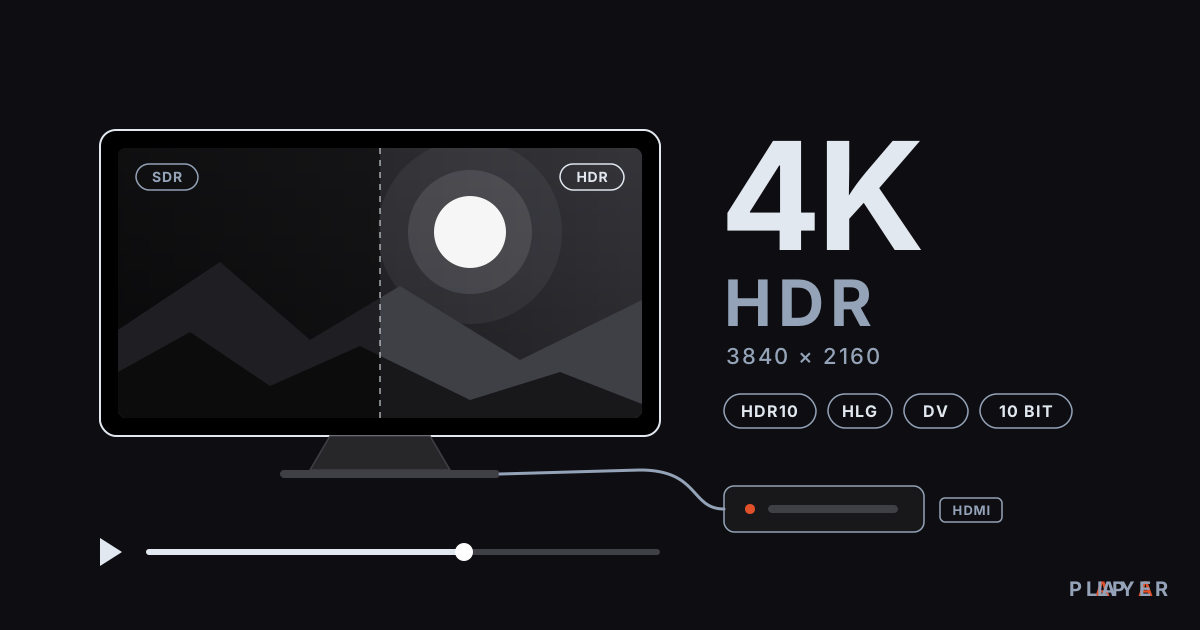
4K HDR Playback: What You Need and How to Set It Up
4K HDR playback needs the right TV, HDMI cable, codec support and bandwidth. Learn how HDR10, Dolby Vision and HLG differ and fix washed-out colors.
 Quality & network
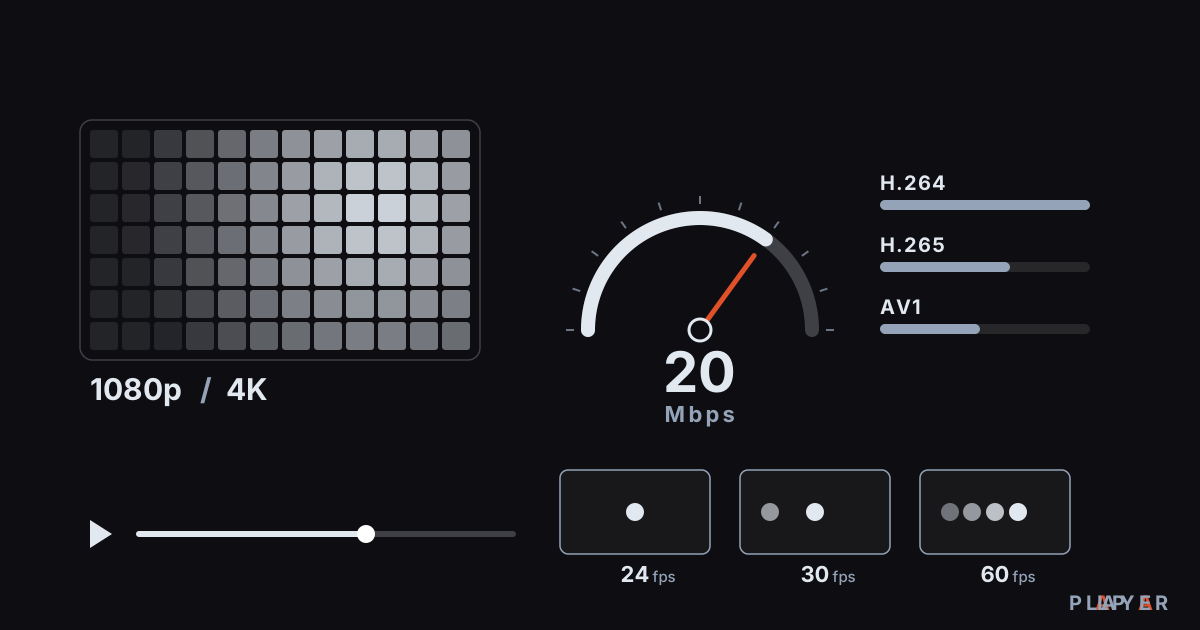
Bitrate vs Resolution: What Decides Video Quality?
Bitrate vs resolution explained: see how frame rate and codec also shape video quality, with clear tables and a file size formula. Try Alpa Player.
 Quality & network
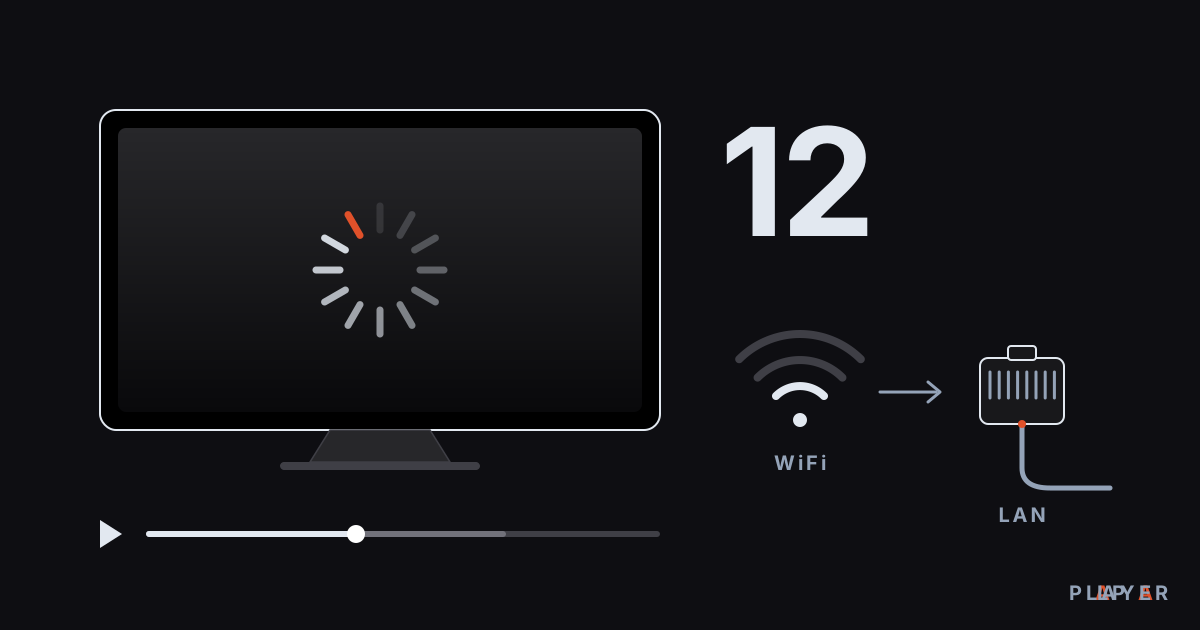
Fix Video Buffering: 12 Solutions That Work
Fix video buffering on your TV, phone or PC with 12 practical solutions covering network, WiFi, device, source and playback engine. Alpa Player tips included.