
How to Open MKV Files: A Practical Guide for TV, Phone and Windows
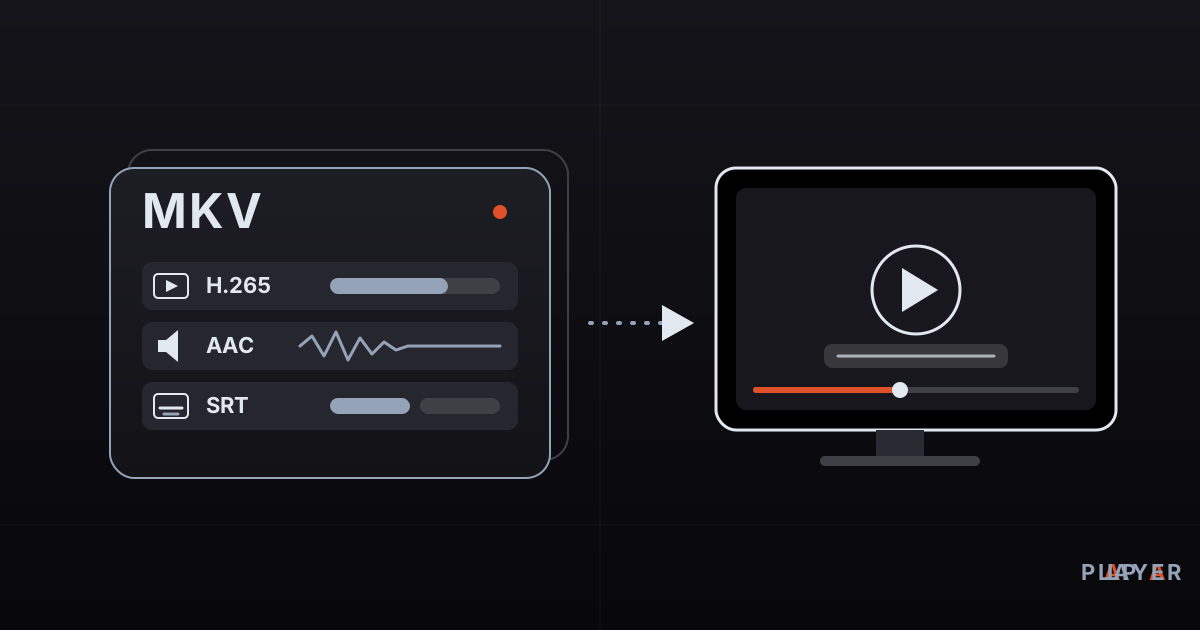
Short answer: An MKV file is a Matroska container: one file that bundles video, audio and subtitle tracks. To open it, use a player that can decode the codecs inside. VLC and Alpa Player both play MKV. If you get sound but no picture, or the reverse, the cause is usually a codec your device cannot decode, not a broken file.
Key takeaways
- MKV (Matroska) is an open, free container that bundles video, audio and subtitles into one file; picture quality depends on the codec inside, not the extension.
- A device opens an MKV only if it supports the container and the video and audio codecs inside it.
- On computers and phones the easiest fix is a player that ships its own decoders, such as VLC; iPhone and iPad need a third-party app for MKV.
- When copying large MKV files to a TV by USB stick, format the stick as exFAT or NTFS, because FAT32 cannot hold files over 4 GB.
- If sound or video is missing, try another playback engine or remux the file to MP4 without re-encoding.
You double-click a movie, the player opens, and then you get sound with a black screen, or a picture with no audio. If you have wondered how to open MKV files without this kind of trouble, the answer is simpler than it looks. This guide explains what an MKV file really is, how to open it on Windows, Mac, phones and TVs, and what to check when something goes wrong. We explain technical terms the first time they appear.
What is an MKV file?
MKV is the file extension of Matroska, an open container format that holds video, several audio tracks, subtitles, chapter markers and cover art together in a single file. The name comes from matryoshka, the Russian nesting dolls, because one file nests many streams. The project began in the early 2000s, and the format is now specified by the IETF in RFC 9559.
You may meet three extensions: .mkv for video, .mka for audio only and .mks for subtitles only. The WebM format is also built on a subset of Matroska. The official Matroska site has the full background.
The key idea is that MKV is a box, not the movie. Inside, the picture might be compressed with H.264, H.265 or AV1, and the sound might be AAC, AC-3 or DTS. Our posts on MP4 vs MKV and on video codecs compared go deeper into that split.
Why won't an MKV file open on some devices?
An MKV file fails to open when any link in a four-part chain is missing. The device must handle all of these at once:
- The container: it has to read Matroska at all. Some built-in TV players and Apple's own apps do not.
- The video codec: H.264 works almost everywhere, while H.265 (HEVC) and AV1 can fail on older hardware.
- The audio codec: DTS, TrueHD and some Dolby variants are not decoded by every device, which gives you picture without sound.
- The profile and resolution: 10-bit color or 4K can exceed what a hardware decoder is built for.
So "MKV won't play" is often a misdiagnosis. The real culprit is usually a codec inside the box.
How to open MKV files on Windows and Mac
On a computer, the simplest way is a player that brings its own codecs. The free, open-source VLC plays most MKV files with nothing else installed: right-click the file, choose open with, and pick VLC, or drag the file into its window.
Current versions of Windows also open many MKV files in the built-in player, though some codecs, HEVC in particular, may require a video extension from Microsoft. On a Mac, QuickTime Player does not open MKV directly, so a third-party player such as VLC is the usual answer.
You can also download the Alpa Player Windows installer directly. If you are comparing options for a PC, our guide to a free media player for Windows lays them out side by side.
How to open MKV files on a phone or tablet
On Android, most MKV files open from the gallery or a file manager; when they do not, a third-party player fixes it. Android's media stack understands the Matroska container, so the real limit is the phone's hardware decoder. An older phone asked to decode 4K HEVC in software will stutter and drain its battery.
iPhone and iPad are different. Apple's built-in apps do not play MKV, so you need a third-party player with MKV support or a conversion to MP4. An iPhone and iPad version of Alpa Player is coming soon; the Android version is available now.
How to open MKV files on a smart TV
There are three practical ways to play an MKV on a TV: a USB stick, your home network, or a player app.
From a USB stick
Copy the file to the stick and plug it into the TV. Watch for two traps. First, a FAT32 stick cannot store any single file over 4 GB, so a long movie fails to copy. Format the stick as exFAT or NTFS, after checking in your TV manual which one it reads. Second, built-in TV players differ from model to model, so look up the supported formats table for yours.
Over your home network
Run a DLNA/UPnP media server on a PC or NAS and browse it from the TV. The file is streamed rather than copied. A wired connection is more reliable than Wi-Fi here; see Wi-Fi vs Ethernet for streaming for the trade-offs.
With a player app
On Android TV, Google TV and TV boxes, installing a player app is the quickest way past a limited built-in player. Alpa Player runs on Android TV, Samsung TV (Tizen 2020 and later), LG TV (webOS 2020 and later) and Fire TV. The store versions are still in the release process, so check the Alpa Player download section for the current status. Device-specific steps are in our guides for Android TV, Samsung TV and LG TV.
What to do when an MKV has no sound or no picture
If an MKV opens but sound or picture is missing, you almost always have a codec mismatch. This table covers the usual symptoms.
| Symptom | Likely cause | Fix |
|---|---|---|
| Picture, no sound | Unsupported audio codec (DTS, TrueHD) | Try another player or engine; convert audio to AAC |
| Sound, black or frozen picture | Unsupported video codec or profile (10-bit HEVC, AV1) | Use a device with hardware support; re-encode the video |
| "Unsupported format" message | The built-in player does not recognize MKV | Install a player app or remux to MP4 |
| Stuttering playback | High bitrate, software decoding or weak Wi-Fi | Use Ethernet; see buffering fixes |
| No subtitles | Track is off or the format is unsupported | Pick the track in the menu; read about subtitle formats |
| Copy to USB fails | FAT32 4 GB file limit | Format as exFAT or NTFS |
To see which codecs a file uses, open VLC's Tools menu and choose Codec Information, or use the free MediaInfo program.
Should you convert MKV to MP4?
Usually no, but if your device cannot read the MKV container, a lossless remux helps. A remux moves the existing video and audio into a different container without recompressing them, so quality is unchanged and the job takes seconds. With the free FFmpeg tool it is one line:
ffmpeg -i movie.mkv -c copy movie.mp4This only works when the codecs are allowed inside MP4, such as H.264 or H.265 video with AAC or AC-3 audio. If the audio is the problem, convert only the audio and leave the picture alone:
ffmpeg -i movie.mkv -c:v copy -c:a aac movie.mp4Subtitle tracks do not always carry over into MP4. If FFmpeg reports an error, add -sn to leave subtitles out. Only convert videos you have the right to use.
How to play MKV files with Alpa Player
Alpa Player is a free media player developed by Alpa Yazılım. It plays M3U and M3U8 playlists, HLS streams, MP4 and MKV files, RTSP streams and more. If your MKV is reachable at an address, for example on your own home server, you add it as a single video link in the Kaynak Ekle (Add Source) screen. The steps are in our guide to adding a source to Alpa Player.
On Android, the default engine is based on ExoPlayer (Media3), and you can switch to a VLC engine or an external player. If one engine struggles with a file, trying the other is worth a minute. The ExoPlayer vs VLC comparison explains the differences. You can read more about the developer at Alpa Yazılım.
How to stay safe when opening MKV files
The MKV format itself is harmless, but not every downloaded file is. Three habits cover most of the risk:
- Show file extensions. Windows hides known extensions by default, so movie.mkv.exe looks like a video. Turn extensions on in File Explorer.
- Skip "special codec pack" downloads. A site that demands an odd installer to watch one video may be spreading malware. A trusted player is enough.
- Play only what you have the right to watch. Alpa Player supplies no content; it plays your own recordings, purchases and openly licensed videos. See the legal notice for details.
Step by step: How to open an MKV file, step by step
- Check that the file really ends in .mkv and comes from a source you trust.
- On a computer, open it with a player that ships its own codecs, such as VLC; on a phone, use the gallery or a third-party player.
- On a TV with a USB stick, make sure the stick is exFAT or NTFS and that your TV manual lists MKV among the supported formats.
- If sound or picture is missing, switch the player or playback engine; if the problem remains, remux the file to MP4 with FFmpeg.
- Choose the subtitle or audio language from the track menu of your player.
Frequently asked questions
Is an MKV file safe to open?
The MKV format is safe in itself, because it is only a container and does not run code. The risk comes from where the file came from. Double extensions such as movie.mkv.exe, or pages telling you to install a program to watch a video, can be malicious. Download from trusted sources, show file extensions in Windows, and keep your player up to date.
Is there a quality difference between MKV and MP4?
No. Quality comes from the video codec and bitrate inside, not from the container. The same H.264 video is identical in MKV and in MP4. The differences are compatibility and features, which our MP4 vs MKV comparison covers in detail.
Do I need an app to open MKV on my phone?
On Android you usually do not, since the gallery or file manager handles common codecs. Older phones, H.265 files and DTS audio may need a separate player. On iPhone and iPad no built-in app opens MKV directly, so you need a third-party app that supports it.
Why does my MKV play without sound on my TV?
The audio was most likely recorded with a codec the TV cannot decode, such as DTS or TrueHD. The picture decodes fine, but the sound does not. Try a different player app, pass the audio to an external receiver, or convert the audio track to AAC with FFmpeg.
Why can't I copy an MKV over 4 GB to a USB stick?
The stick is probably formatted as FAT32, which allows a maximum of 4 GB per file. Reformat it as exFAT or NTFS and the limit disappears. Formatting erases the stick, so back up your data first, and confirm your TV can read the file system you choose.
Can I convert MKV to MP4 without losing quality?
Yes, if the codecs inside are compatible with MP4. This lossless step is called remuxing: it moves the streams into a new container without recompressing them. With FFmpeg, ffmpeg -i movie.mkv -c copy movie.mp4 does it. Incompatible audio or subtitle tracks must be converted separately.
Sources
Related articles
 Formats & codecs
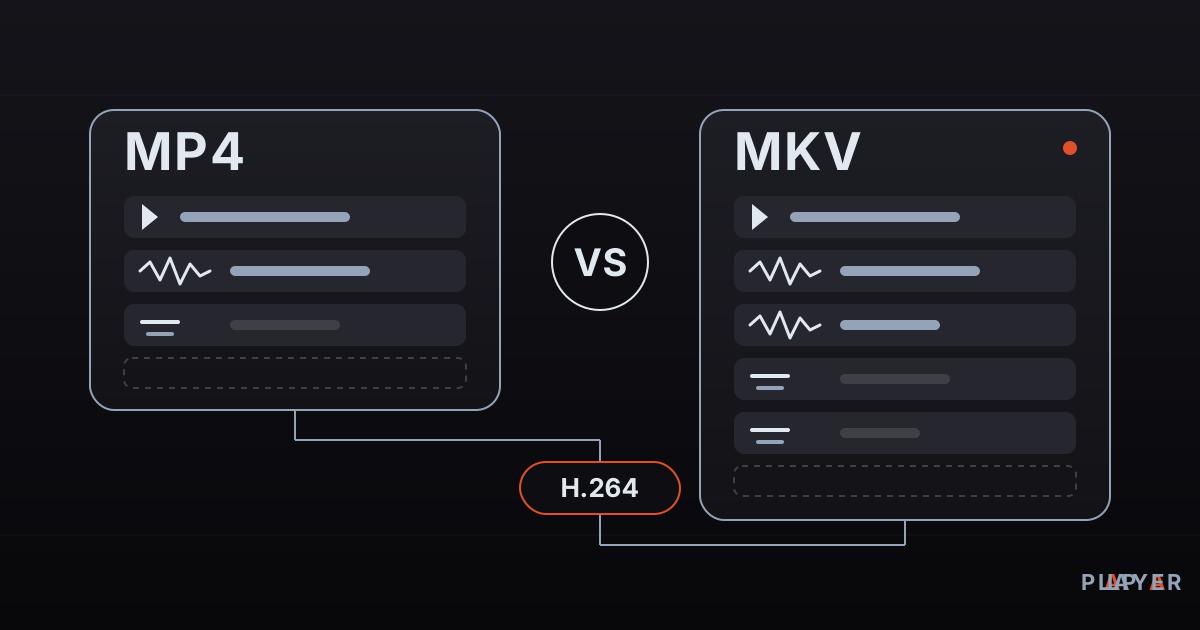
MP4 vs MKV: Differences and Which to Choose
MP4 vs MKV compared: container features, device compatibility, subtitles, audio tracks and quality. Find out which format fits your phone, TV or archive.
 Formats & codecs
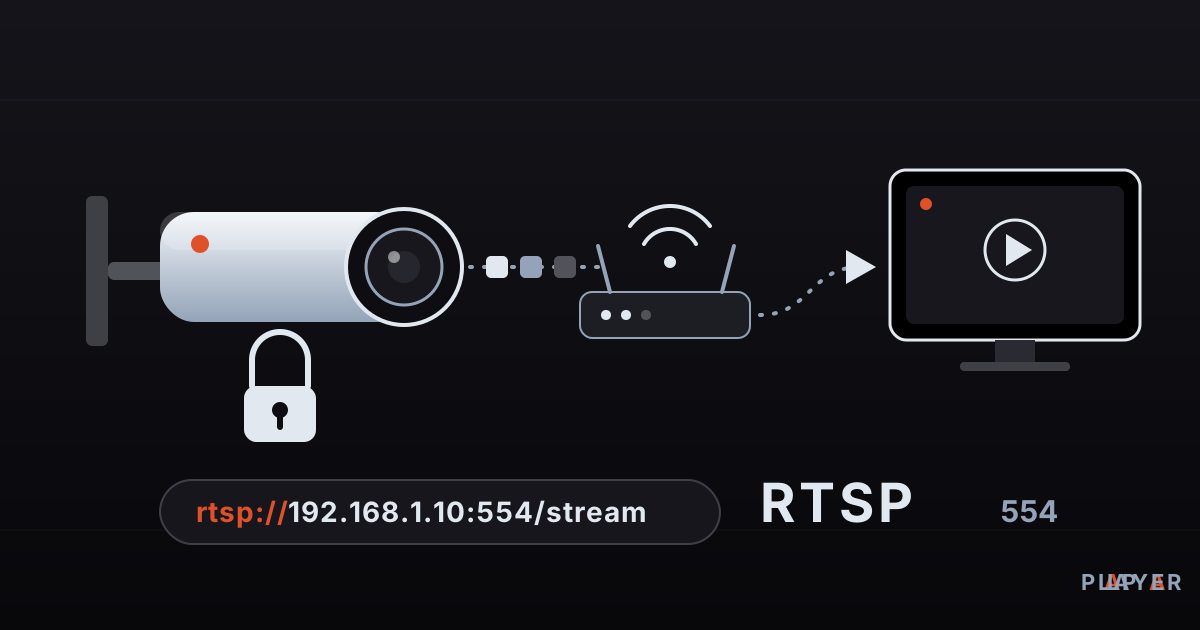
RTSP Stream Player Guide: Watch IP Camera Feeds
What is RTSP and how do you play an IP camera stream? Learn rtsp:// addresses, port 554, stream player setup, troubleshooting and why default passwords must go.
 Formats & codecs
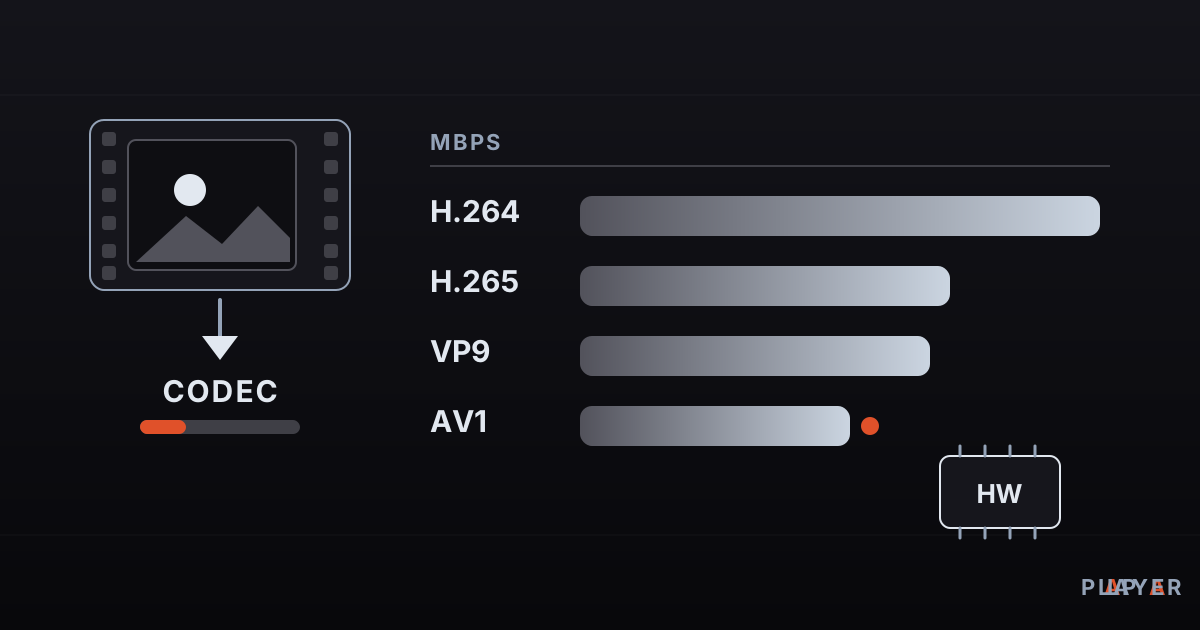
H264 vs H265 vs AV1: Video Codecs Compared
H264 vs H265 vs AV1 compared: what a video codec is, where VP9 fits, and how efficiency, device support and hardware decoding decide which codec to use.