
Free media player for Windows: how to choose, compare and install one
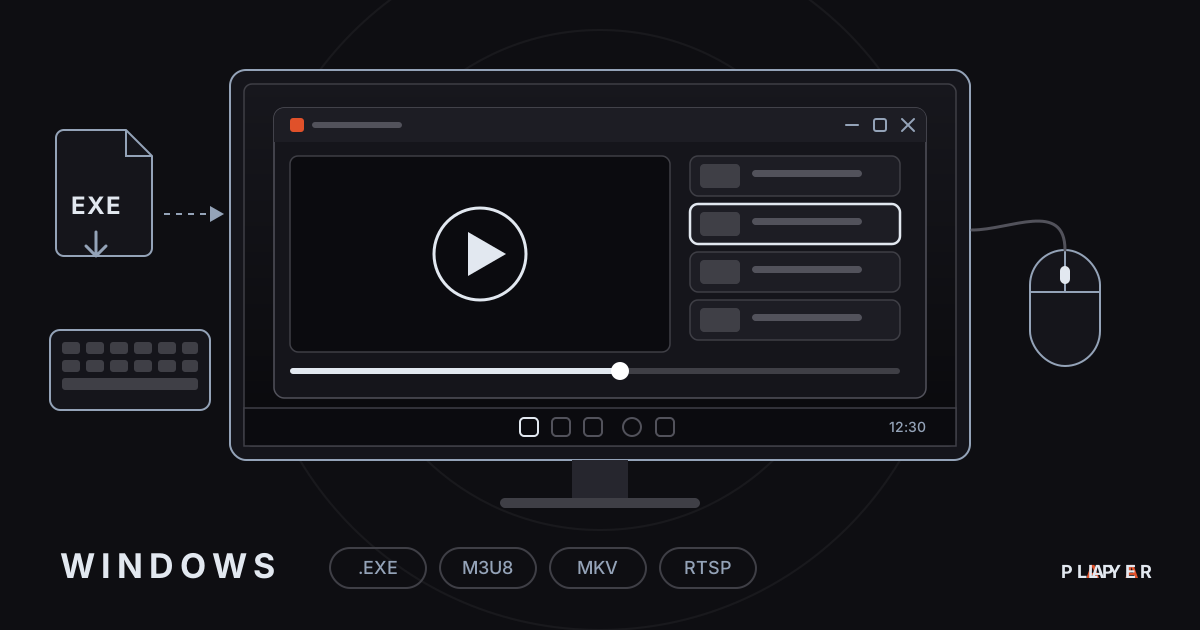
Short answer: A good media player for Windows opens common formats, supports network streams, works comfortably with keyboard and mouse, and comes from a trustworthy source. Alpa Player, a free media player from Alpa Yazılım, has a Windows installer you can download from alpaplayer.com, and it plays M3U/M3U8, HLS, MP4, MKV and RTSP sources. VLC, mpv and Windows' own apps are other well-known options.
Key takeaways
- No single Windows player is best for everyone: VLC or mpv suit a local video archive, while Alpa Player suits sources added by address or account.
- Alpa Player is free, with no account, subscription or purchase, and its Windows installer can be downloaded from alpaplayer.com.
- Download only from the official site, and check where the installer came from before you run it.
- For 4K and HEVC, keep your graphics driver current; Microsoft's own apps may need a codec extension.
- Connecting a PC to a TV over HDMI is a practical workaround for Samsung and LG TVs while their store versions are pending.
If you are looking for a free media player for Windows, there is no shortage of choices, and the right one depends on what you watch: a local video archive, network streams, playlists or organization videos can each call for a different tool. This guide compares the well-known free players for Windows in a fair table, explains how to install the free Alpa Player (developed by Alpa Yazılım) and answers common questions about codecs, 4K and HDR.
What media players come with Windows?
The apps built into Windows are often enough for everyday use, but they do not open every format. The classic Windows Media Player was the standard player for many years; Windows 11 puts a newer app called Media Player front and center and keeps the old one as Windows Media Player Legacy. Microsoft's Movies & TV app handles video too.
The shared limit of these apps is format and codec coverage. For example, some codecs such as H.265 (HEVC) may need an extra codec extension from the Microsoft Store. If an MKV file will not open, the problem is usually the player's codec list rather than the file; how to open MKV files explains it in detail.
Which free media players are available for Windows?
Free players such as VLC, mpv, PotPlayer, Kodi and Alpa Player each have different strengths on Windows, and none is the best for everybody. The table relies on widely known facts. For a wider look, read best media player apps and VLC alternatives.
| Player | Strength | Worth knowing |
|---|---|---|
| Windows Media Player / Media Player | Comes with Windows; simple and familiar. | Format coverage is limited, and some codecs need an extension. |
| VLC | Open source, with very wide format and network stream support; popular for local archives. | The number of settings can feel like a lot for new users. |
| mpv | An open-source, lightweight and highly configurable player. | The interface is minimal, and settings live in configuration files. |
| PotPlayer | A free, highly configurable player made for Windows. | It has many options, so watch what you choose during setup. |
| Kodi | An open-source media center with library tools and add-ons. | Learning and configuring it takes time. |
| Alpa Player | Free, with a clean interface, M3U/M3U8, HLS, MP4, MKV, RTSP, and the same ease with keyboard, mouse, touch and remote. | It provides no content; you add a source (address, link or account). |
In short: for a big local video archive, general-purpose players such as VLC, mpv or PotPlayer fit well; if you want to watch a playlist address or an account from your service provider through a clean interface, look at the last row of the table.
What should you look for in a Windows media player?
A good Windows player opens the formats you need, uses hardware acceleration and installs from a trustworthy source. You can ask yourself the following questions; the video player features checklist goes further.
- Format and codec support: does it open MP4, MKV, HLS and M3U8 without hunting for an extension?
- Hardware acceleration: when the graphics card decodes video, the processor stays cooler and a laptop battery lasts longer.
- Adding sources: is it easy to add an address, link or account, and can you paste long addresses?
- Ease of use: do keyboard, mouse, touch and, if needed, a remote all work comfortably?
- Security: does the installer come from the official site, and how are addresses and passwords stored? See is a media player safe.
Which player should you pick for which job?
The right player depends on the kind of content you watch, and you do not have to rely on one app for everything. This table gives a practical starting point for common situations.
| What do you want to watch? | Good starting point | Why |
|---|---|---|
| A video archive on your PC | VLC, mpv or PotPlayer | General-purpose players built for local files and broad codec coverage. |
| A quick movie or song | Windows' own app | Nothing to install, and enough for simple jobs. |
| A playlist address or an account | Alpa Player | You add the source as an address, link or account and watch it in a clean interface. |
| Organizing a large library | Kodi or Plex | Media centers with library, artwork and episode organization. |
| An IP camera stream | A player with RTSP support | You need to open the camera address directly. |
What does Alpa Player offer on Windows?
Alpa Player is a free media player developed by Alpa Yazılım, and its Windows version brings an interface as clean as Apple TV and Netflix to keyboard, touch and mouse with equal ease. One app lets you add and play different kinds of sources.
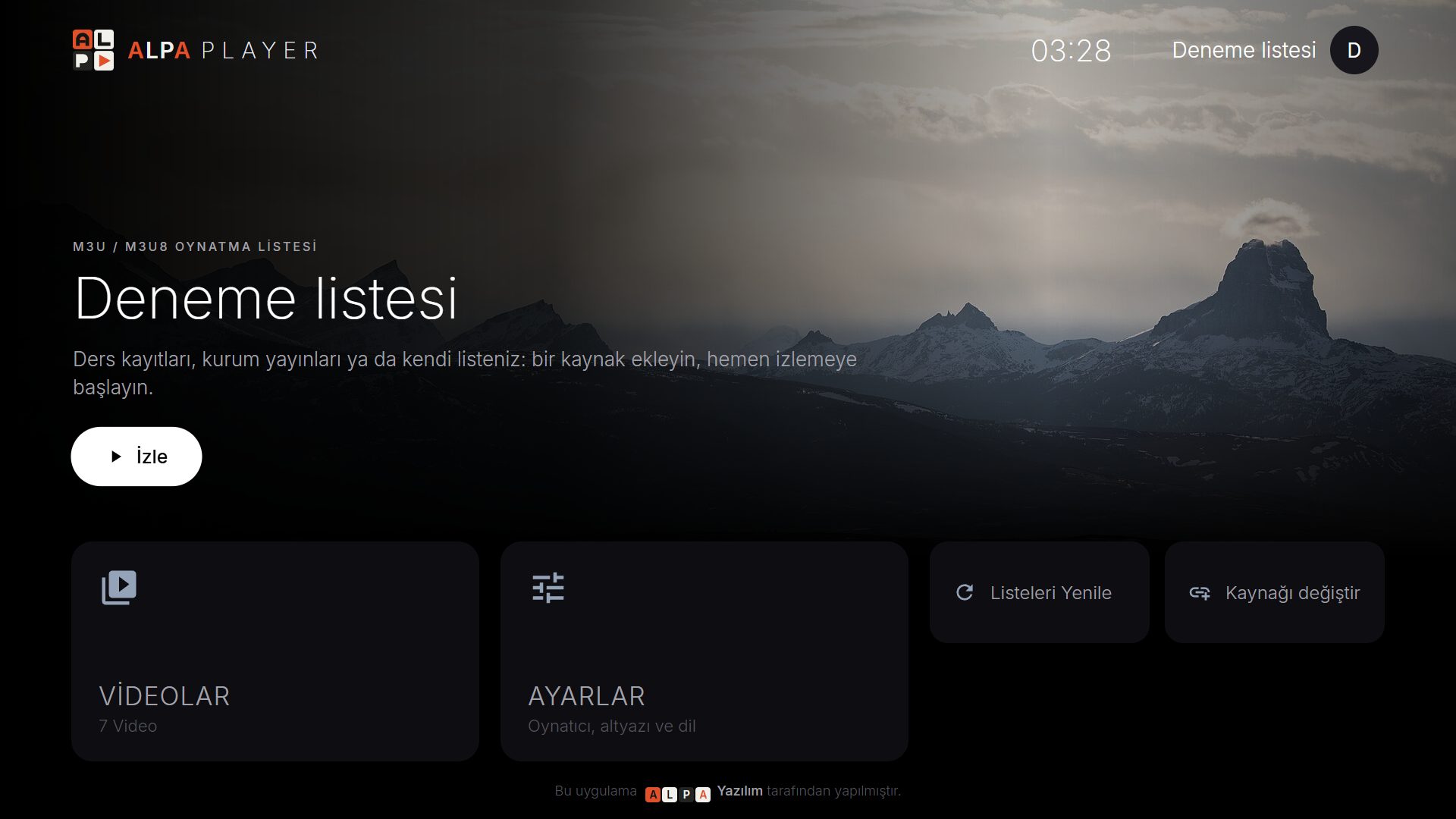
- Source types: an M3U/M3U8 playlist address, a single video or stream link, a server account from your service provider, and an organization account (organization code, number and password).
- What it plays: M3U and M3U8 playlists, HLS streams, MP4, MKV, RTSP and more. To watch an IP camera address, see what is RTSP.
- Everyday viewing: resume where you left off, favorites, recently watched and a program guide.
- Security: addresses and passwords you add are kept encrypted with AES-256 in the device's secure storage, never shown on screen and never sent to Alpa Yazılım.
The app has no ready-made channels, movies, shows or playlists; it is not a streaming service. It plays only sources you have the right to use. For a fuller introduction, read what is Alpa Player.
How do you install Alpa Player on Windows?
To install Alpa Player on Windows, download the installer from alpaplayer.com and run it; check the free Alpa Player download section for the current version and the status of other platforms. Download the installer only from the official site, because copies on other sites may have been modified.
- Download the Windows installer directly.
- Run the downloaded file. If Windows shows a security warning, pause and confirm that you really downloaded the file from the official site.
- Follow the instructions on the installer screen.
- When it finishes, open the app; you can search for it by name in the Start menu.
- Use the Add Source button on the home screen to add your first source.
To remove it, uninstall it like any other program from Apps in Settings. The app is also built for Android, Android TV, Samsung TV and LG TV; the store versions are in the release process, and the download section has the current status.
How do you add your first source on Windows?
To add your first source on Windows, open the Add Source screen, choose the source type and enter the address or account details. With a keyboard you can simply paste the address; how to add an M3U playlist walks through it step by step.
You can also use remote upload if you prefer: enter the ID and 6-digit key shown in the device ID section of the Add Source screen on the remote playlist upload page and add your source from a phone. That feature is mainly designed for TVs, and upload a playlist to your TV explains it. You are the one who performs an upload, and every upload is recorded with your IP address and device ID, so add only sources you have the right to use.
How do you fix 4K, HDR and codec problems on Windows?
Most 4K, HDR and codec problems on Windows come down to the graphics driver, a codec extension and display settings. Work through these in order:
- Update your graphics driver; hardware decoding depends on it.
- If HEVC (H.265) or AV1 will not open in Microsoft's apps, check that the matching codec extension is installed; H.264, HEVC and AV1 compared explains the difference.
- For HDR, turn it on under Settings, System, Display; it only makes sense on a monitor or TV that supports HDR. The terms are covered in 4K HDR playback.
- Check your connection; roughly 15-25 Mbps is the usual recommendation for 4K. See internet speed for streaming.
- If stuttering continues, follow the checklist in fix video buffering.
Can you use a Windows PC as a player for your TV?
Yes, you can turn a Windows PC into a big-screen player by connecting it to a TV with an HDMI cable. The PC either mirrors its screen or acts as a second display, and audio travels to the TV over HDMI too.
This is a practical bridge for TVs whose store versions are still pending. We describe the store status for Samsung and LG in Samsung smart TV media player and LG webOS media player. For picture and sound setup, see home theater setup tips, and if audio and video drift apart, try the fixes in audio out of sync.
How do you keep Windows playback legal and safe?
Player software is legal; responsibility lies with the content. The app provides no content and plays only sources you have the right to use. The wider picture is in are media player apps legal. If you want to try the app in a browser first, the Alpa Player web demo runs on open-license samples, and the legal notice has the details.
Step by step: Install Alpa Player on Windows and add your first source
- Download the Windows installer from alpaplayer.com.
- Run the downloaded file; if you see a security warning, confirm you downloaded it from the official site.
- Follow the instructions on the installer screen.
- When it finishes, open the app; you can search for it by name in the Start menu.
- On the home screen, select the Add Source button.
- Choose the source type and enter an address or account details you have the right to use.
- Save the source and start playing.
Frequently asked questions
What is the best free media player for Windows?
There is no single answer. General-purpose players such as VLC, mpv and PotPlayer are common for a large local video archive, while Alpa Player suits sources added by address or account through a clean interface. Decide what you will watch first, then pick the tool.
Is Alpa Player free on Windows?
Yes. Alpa Player has no account requirement, subscription or purchase, and it is a non-profit project by Alpa Yazılım. The app has no ready-made channels, movies, shows or playlists, so you add the source yourself.
Where can I download the Windows installer?
The Windows installer can be downloaded from alpaplayer.com, and the download section has the current link and the status of other platforms. Download only from the official site, because copies elsewhere may have been modified.
Which formats does Alpa Player play on Windows?
It plays M3U and M3U8 playlists, HLS streams, and MP4, MKV and RTSP sources, among others. Smooth playback also depends on your graphics card, drivers and connection speed.
What should I do if HEVC videos will not open on Windows?
Update your graphics driver first. Microsoft's own apps may need an extra codec extension for HEVC, so check the Microsoft Store. You can also try the same file in another player to tell whether the problem is the file or the app.
Does Alpa Player provide channels or movies?
No. Alpa Player is not a streaming service and offers no content. It plays only sources you have the right to use. Every upload made through the website is recorded with the IP address and device ID, and the person who uploads is responsible.
Sources
Related articles
 Device guides
Media Player for Android TV: How to Choose
Looking for a media player for Android TV? See what to look for, compare popular options and set up Alpa Player, a free app built for the remote.
 Device guides
Samsung Smart TV Media Player: Options for 2026
Need a Samsung smart TV media player? Learn how Tizen apps work, which models Alpa Player supports and how to watch your own videos today.
 Device guides
LG webOS Media Player: Compatibility and Setup
Looking for an LG webOS media player? See which models work, how the LG store route differs from APKs, and how to load a playlist without typing.