
H264 vs H265 vs AV1: Which Video Codec Should You Use?
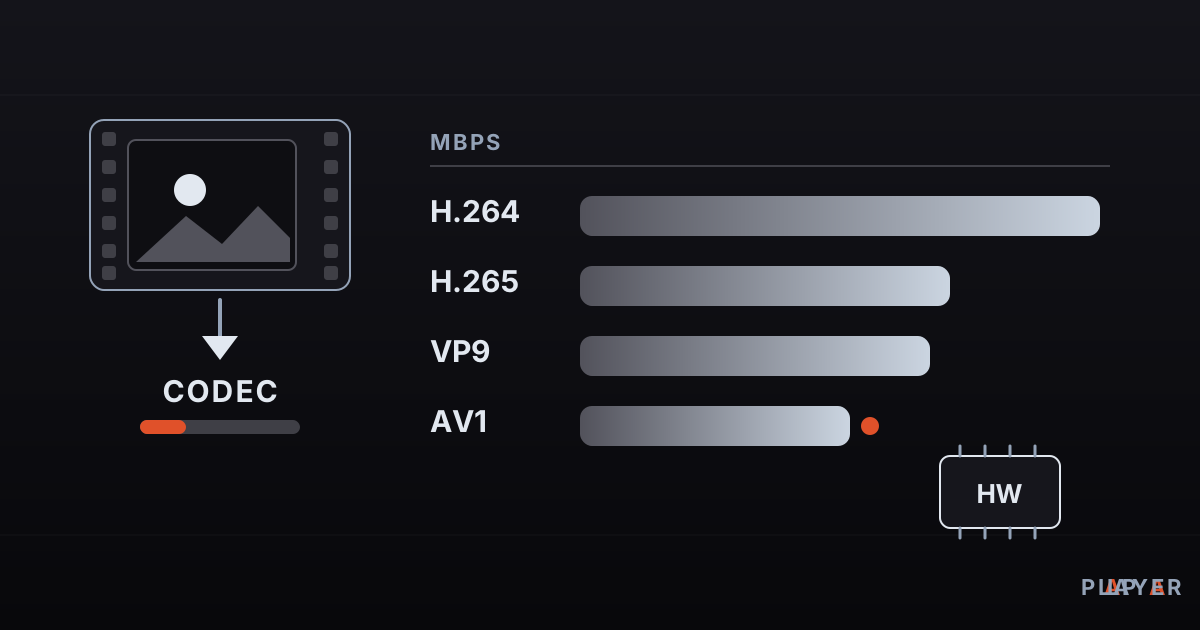
Short answer: A video codec compresses video for storage and streaming and decompresses it for playback. In the H264 vs H265 vs AV1 comparison, H.264 is the most compatible, H.265 (HEVC) and VP9 save bitrate at the same quality, and AV1 is royalty-free and the most efficient but needs newer hardware to play smoothly.
Key takeaways
- A codec shrinks video and expands it again; raw 1080p video at 60 frames per second is about 1.5 gigabits every second, and a codec reduces that to a few megabits.
- H.264 plays almost everywhere; H.265 (HEVC) needs roughly 25-50 percent less bitrate for similar quality; AV1 is the most efficient and royalty-free.
- Containers (MP4, MKV) and codecs (H.264, AV1) are different things, and a file that will not play usually fails on the codec.
- Hardware decoding decides smoothness and battery life at 4K and HDR; older devices stutter when forced to decode newer codecs in software.
- H.264 with AAC is the safe default, H.265 suits 4K HDR, and VP9 or AV1 suit royalty-free web video.
H264 vs H265 vs AV1 is the comparison behind many a stuttering video. A codec is the method that shrinks a video so it can be stored and streamed, then restores it when you press play. If a file opens on one device but not on another, if you hear sound with no picture, or if a 4K clip lags, a codec is almost always involved. This guide explains what codecs are, compares H.264, H.265 (HEVC), VP9 and AV1, shows why hardware decoding matters, and helps you pick the right one.
What is a video codec?
A codec, short for coder-decoder, is the algorithm that compresses video and later decompresses it for playback. The compressing half is the encoder, and the decompressing half is the decoder. The encoder runs once when the file is made; the decoder runs on your device every time you watch. Both sides must speak the same codec.
Audio has its own codecs, such as AAC, AC-3, Opus, FLAC and DTS. This article covers the picture side, but remember that a file plays only if both its video and its audio codec are supported.
Why do we need video codecs, and how do they work?
We need codecs because uncompressed video is enormous. Do the math: one 1920x1080 frame takes about 3.1 megabytes (1.5 bytes per pixel in standard 4:2:0 color). At 60 frames per second that is roughly 187 megabytes every second, or about 1.5 gigabits. No home connection carries that, yet a 1080p stream encoded with H.264 plays on a few megabits, hundreds of times less.
Codecs get there with three tricks. Intra-frame compression avoids storing every similar pixel in a frame, such as a patch of sky. Inter-frame compression notes that consecutive frames look alike and stores only what changed. Perceptual coding throws away detail the eye is unlikely to notice. Because of this, video codecs are lossy: at a high enough bitrate you cannot see the loss, and at a low one it shows up as blocky artifacts. Our guide to bitrate, resolution and frame rate explores that trade-off.
Is a codec the same as a container?
No. A container bundles video, audio and subtitles into one file, while a codec compresses each of those streams. MP4 and MKV are containers; H.264 and AV1 are codecs. An MKV file can hold H.264 or AV1. We separate the two ideas in MP4 vs MKV and handle everyday problems in how to open MKV files.
What are the main video codecs?
Four codecs dominate today: H.264, H.265, VP9 and AV1. Two come from the MPEG and ITU standards family, and two from Google and an open industry alliance.
H.264 (AVC)
H.264, also called AVC or MPEG-4 Part 10, was standardized in 2003 and is still the most widely used video codec in the world. It is found on Blu-ray discs, in camera recordings, on streaming services and in phone videos, and nearly every device has a hardware decoder for it. Its weakness is efficiency: it needs a higher bitrate than newer codecs for the same quality. Also note that 10-bit H.264 (Hi10P) is missing from most hardware decoders, which is why some files misbehave. See the Advanced Video Coding article for details.
H.265 (HEVC)
H.265, formally High Efficiency Video Coding (HEVC), arrived in 2013 and delivers similar visual quality to H.264 at roughly 25 to 50 percent lower bitrate, depending on the content and the encoder. It is the workhorse of 4K and HDR video, since the 10-bit color needed for HDR10 pairs naturally with it. Licensing is complicated because several patent pools are involved. Read more on the HEVC article.
VP9
VP9 is a royalty-free codec developed by Google and finalized around 2013. Its efficiency is in the same class as HEVC. Large video platforms such as YouTube use it, and you will usually meet it inside WebM files, which most browsers support.
AV1
AV1 is a royalty-free codec created by the Alliance for Open Media (AOMedia), with its specification finalized in 2018. It usually matches the quality of HEVC and VP9 at a lower bitrate. The price is much slower encoding and a need for a hardware decoder for smooth playback. The AOMedia website is the official source, and the AV1 article gives a neutral overview. H.266 (VVC) was completed in 2020, but adoption is only starting.
H.264 vs H.265 vs VP9 vs AV1: comparison table
The four codecs trade compatibility against efficiency: H.264 is the most compatible, AV1 the most efficient. Here is the summary.
| Feature | H.264 (AVC) | H.265 (HEVC) | VP9 | AV1 |
|---|---|---|---|---|
| Developed by | ITU-T and ISO/IEC | ITU-T and ISO/IEC | Alliance for Open Media | |
| Released | 2003 | 2013 | About 2013 | 2018 |
| Efficiency at similar quality | Baseline | Roughly 25-50% less bitrate | Close to HEVC | Usually better than HEVC |
| Licensing | Patent pool, royalties | Several patent pools | Royalty-free | Royalty-free |
| Encoding speed | Fast | Slower | Medium | Slowest |
| Device support | Nearly universal | Most recent devices | Browsers and many TVs | Newer chips |
| Typical containers | MP4, MKV, TS | MP4, MKV | WebM, MKV | MP4, MKV, WebM |
| Typical use | General video, cameras, Blu-ray | 4K and HDR | Web video | Next-generation streaming and archives |
The percentages are rough ranges that vary with content, encoder and settings; they are not guarantees.
What is hardware decoding, and why does it matter?
Hardware decoding means a dedicated circuit in the chip decodes the video instead of the main processor, which uses less power and decides whether heavy 4K video plays smoothly. Software decoding leaves the work to the CPU: it is flexible, but it costs battery and heat. If a phone or TV box has a hardware decoder for a codec, that codec plays easily; if not, you get stutter, dropped frames and fast battery drain.
That is why "why does this file lag on my old TV?" is so often answered by a newer codec. H.264 is hardware-decoded almost everywhere, HEVC on most recent devices, and AV1 hardware decoders only began appearing in new chips around 2020, so older devices lack them. When shopping for a box, our Android TV box buying guide says what to check for codec support, and 4K HDR video playback explains the HDR side.
Which codec should you choose?
The right codec depends on who will watch and on what device. This table is a practical starting point.
| Situation | Suggestion | Note |
|---|---|---|
| Must open on every device | H.264 + AAC in MP4 | The safest choice |
| Watching 4K and HDR | H.265 (10-bit) | TV and player must decode HEVC |
| Publishing royalty-free web video | VP9 or AV1 | Check browser support |
| Saving archive space | H.265 or AV1 | Encoding takes long |
| Old TV or old phone | H.264, 8-bit | Avoid 10-bit H.264 |
Streaming services often prepare the same video in several versions and pick one for each device automatically; adaptive bitrate streaming shows how that choice is made.
How can you find out which codec a file uses?
You can read a file's codec in seconds. In VLC, open the Tools menu and choose Codec Information to see the video and audio codecs. The free MediaInfo program gives a far more detailed report. If you prefer the command line, this FFmpeg-family command is enough:
ffprobe -hide_banner video.mkvLook for lines such as "Video: hevc" or "Video: h264"; "Main 10" tells you the video is 10-bit. With that, you can check whether your device decodes it.
How does Alpa Player fit in with codecs?
Alpa Player is a free media player developed by Alpa Yazılım. It plays M3U and M3U8 playlists, HLS streams, MP4, MKV and RTSP sources, and more. As with any player, how smoothly a given file plays also depends on your device's decoders. On Android the default engine is based on ExoPlayer (Media3), and you can choose a VLC engine or an external player. The ExoPlayer vs VLC comparison explains the differences.
Download Alpa Player for free for Android, Android TV, Samsung TV, LG TV, Fire TV and Windows; store versions are still being released. If playback stutters, our video buffering fixes give a checklist. Alpa Player supplies no content, so play only sources you have the right to use.
Frequently asked questions
What is the difference between H.264 and H.265?
H.265 (HEVC) is the successor to H.264 and delivers similar quality at roughly 25 to 50 percent lower bitrate. The cost is heavier processing and more complicated licensing. H.264 works on almost every device, while H.265 is favored for 4K and HDR but can stutter on older hardware.
Is AV1 better than H.265?
In efficiency, usually yes: AV1 can reach similar quality at a lower bitrate than HEVC, and it is royalty-free. But encoding is very slow and smooth playback needs a hardware decoder. On older devices, H.265 or H.264 plays more reliably. Results vary with content and encoder.
What is VP9?
VP9 is a royalty-free video codec developed by Google. Its efficiency is in the same class as HEVC, and it is typically stored in WebM containers. Large platforms such as YouTube use it, and most browsers support it. Hardware decoders for it are common in recent phone and TV chips.
What is hardware decoding?
Hardware decoding uses a dedicated circuit in the chip, rather than the main processor, to decode video. It consumes less power, produces less heat and keeps heavy 4K video smooth. If your device lacks a hardware decoder for a codec, it falls back to software decoding and the video may stutter.
How do I change a video's codec?
You have to re-encode the video, which free tools such as FFmpeg or HandBrake can do. For example, ffmpeg -i input.mkv -c:v libx264 -c:a aac output.mp4 converts the video to H.264. Re-encoding costs some quality and takes time, so only do it when you need to.
Does changing the container change the codec?
No. Moving from MKV to MP4 changes only the box, and the video and audio stay as they are (a remux). The codec changes only when you re-encode. That is why switching containers is lossless, while switching codecs is not.
Sources
Related articles
 Formats & codecs
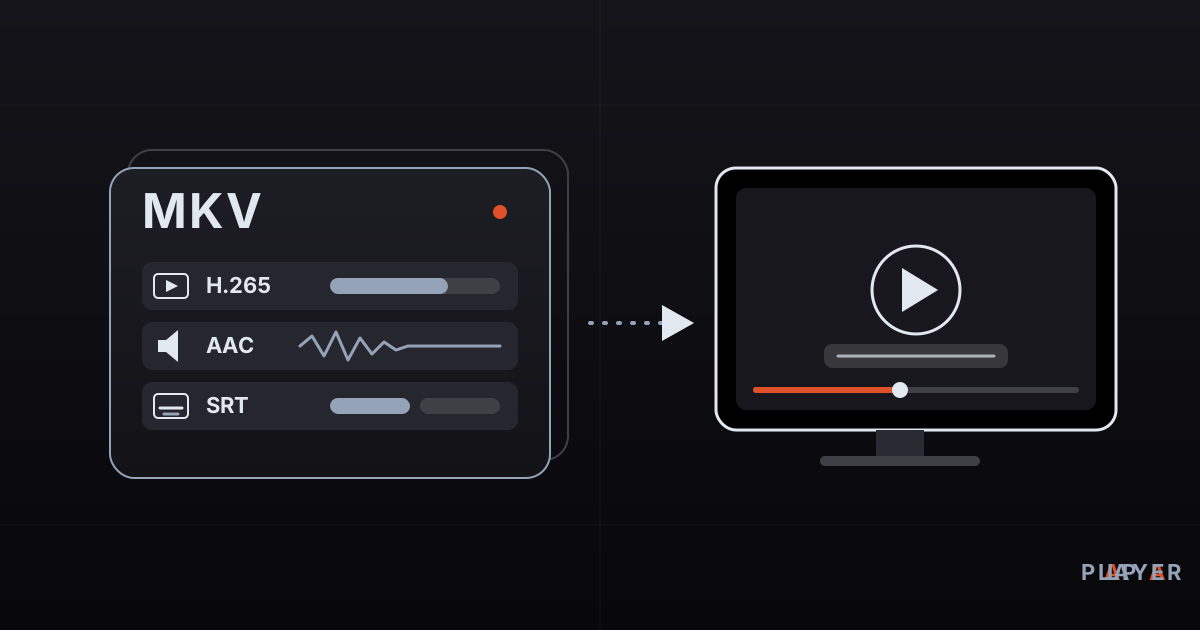
How to Open MKV Files on TV, Phone and PC
How to open MKV files on Windows, Mac, phones and smart TVs. Learn what Matroska is, why playback fails, and how to fix missing sound or video.
 Formats & codecs
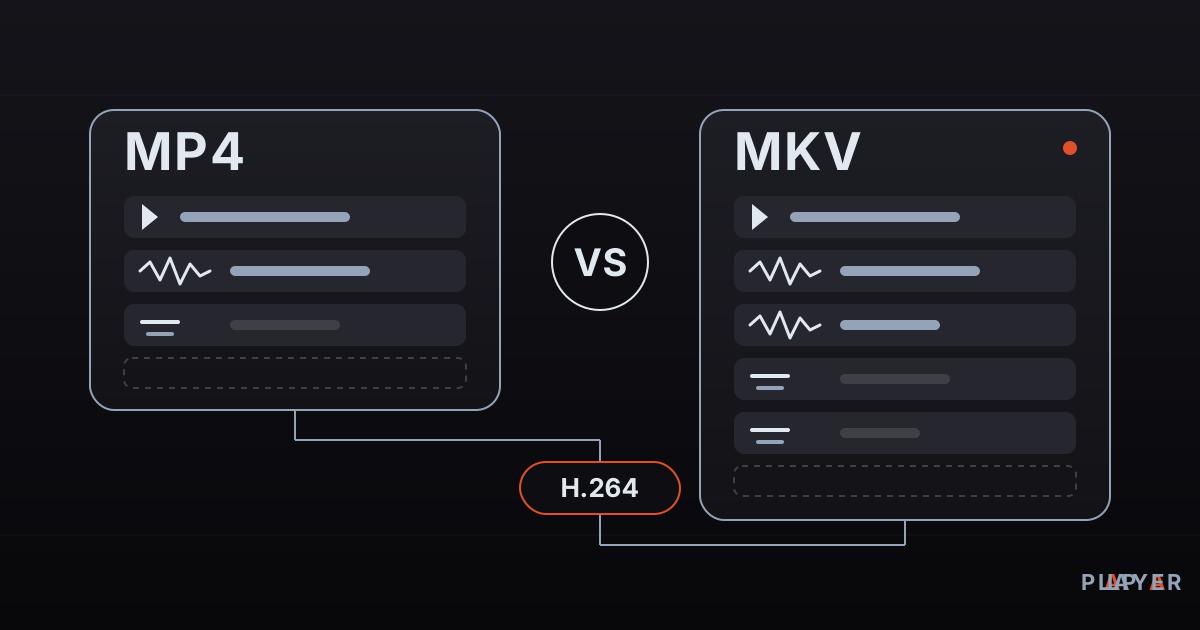
MP4 vs MKV: Differences and Which to Choose
MP4 vs MKV compared: container features, device compatibility, subtitles, audio tracks and quality. Find out which format fits your phone, TV or archive.
 Formats & codecs
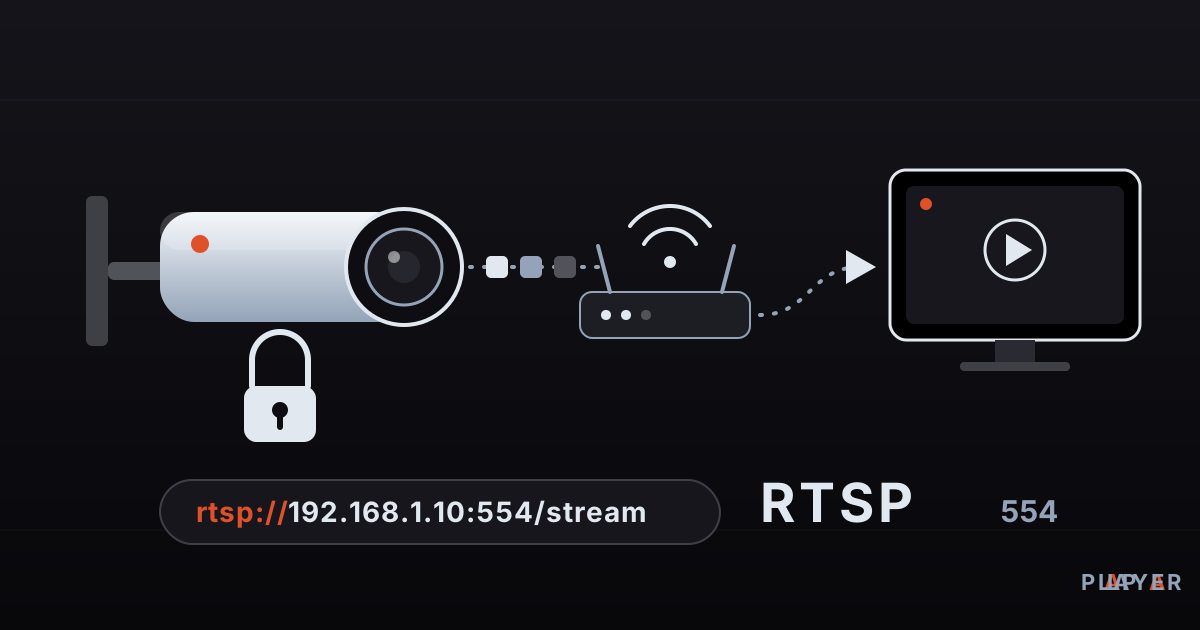
RTSP Stream Player Guide: Watch IP Camera Feeds
What is RTSP and how do you play an IP camera stream? Learn rtsp:// addresses, port 554, stream player setup, troubleshooting and why default passwords must go.