
Playing video on iPhone and iPad: which formats work and which app to pick
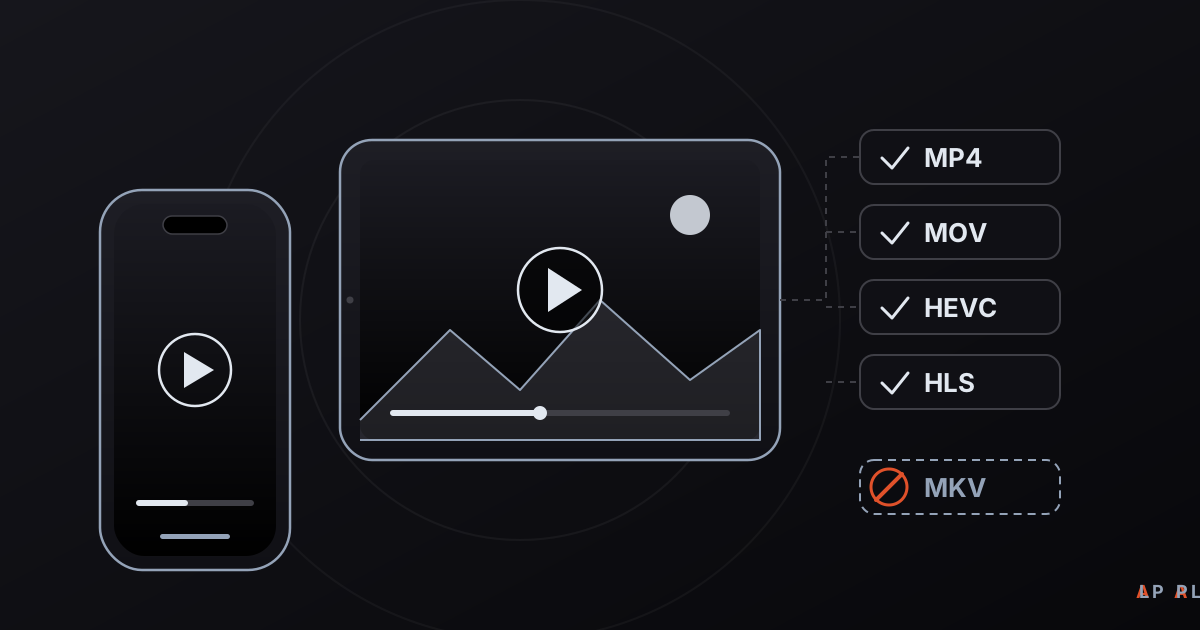
Short answer: iPhone and iPad natively play H.264 and HEVC video in MP4, MOV and M4V files, plus HLS streams, but formats such as MKV need a third-party player. Pick a media player for iPhone and iPad based on the formats you use, and install it only from the App Store. Alpa Player for iPhone and iPad is coming soon; today it is available as an Android APK and a Windows installer.
Key takeaways
- iPhone and iPad play H.264 and HEVC video in MP4, MOV and M4V containers, plus HLS streams, without any extra app.
- Formats iOS does not handle directly, such as MKV, need a third-party player that carries its own decoders.
- In the camera settings, High Efficiency (HEVC) shrinks files, while Most Compatible uses H.264 for easier sharing.
- Install apps only from the App Store, and avoid installers and profiles from unclear sources.
- Alpa Player for iPhone and iPad is coming soon and is not released yet; the current status is always on the download section.
When you choose a media player for iPhone and iPad, the deciding factor is which video formats you actually watch. The built-in apps handle Apple's own formats superbly, but they often cannot open an MKV file downloaded from a computer, or a video in some other container. This guide lists what iOS plays by itself, which formats cause trouble and what your player options are on iPhone and iPad.
One announcement up front: the iPhone and iPad version of Alpa Player, a free media player developed by Alpa Yazılım, is coming soon. There is no released iOS version today. We say so plainly here, and we also cover what you can do in the meantime.
Which video formats do iPhone and iPad play natively?
iPhone and iPad natively play H.264 and HEVC (H.265) video in MP4, MOV and M4V containers, common audio formats and HLS streams, with no extra app. That is because iOS's media framework is built around Apple's own formats and around HLS, the streaming technology Apple created, which is documented as RFC 8216.
| Format | In built-in apps | Note |
|---|---|---|
| MP4 (H.264) | Plays | The most compatible choice. |
| MOV (H.264 / HEVC) | Plays | The default container of the iPhone camera. |
| M4V | Plays | Apple's MP4-like container. |
| HEVC (H.265) | Plays | Makes files smaller; uses hardware decoding. |
| HLS (.m3u8) | Plays | Supported by Safari and the system player. |
| MKV | Does not play directly | Needs a third-party player. |
| AVI and some older containers | Mostly does not play | Needs a third-party player. |
The difference between a container and a codec matters here: a file extension names the box, while the codec is the compressed video inside it. For details, see MP4 versus MKV and H.264, H.265 and AV1.
Why won't MKV and other formats open on an iPhone?
MKV files do not open on an iPhone because iOS's built-in player does not read the Matroska container; your file may be perfectly fine, and the system simply cannot parse it. The same applies to some AVI files and to unusual audio codecs.
There are usually two ways out:
- Install a player that carries its own decoders. Third-party apps include their own video and audio decoders, so they can play formats such as MKV regardless of the system.
- Convert the file. The H.264 or HEVC video inside an MKV can often be moved into an MP4 container without recompressing it; if the audio codec is incompatible, only the audio is converted. The built-in player then opens the result.
We explain what MKV is and how to open it on different devices in how to open MKV files.
How do you get video files onto an iPhone?
The main ways to move video onto an iPhone are the Files app, AirDrop, iCloud Drive, file sharing through Finder on a Mac or iTunes on Windows, and connecting to network servers. Which one you use depends on where the file lives.
- Files app: It lists videos in iCloud Drive, on the device and on external drives, and the Share menu can send a video to another player.
- AirDrop: A quick transfer from a Mac or another Apple device.
- File sharing: Connect to a computer and copy videos into the folder of a player app that supports file sharing.
- Network connection: The Files app's Connect to Server option lets you reach SMB network shares.
A reminder: play only videos you shot yourself, bought, or otherwise have the right to use.
What kinds of video player exist for iPhone?
Three kinds stand out on iPhone: built-in apps, multi-format standalone players and media server clients. The table summarizes who each suits. Prices and features change, so check the current store page.
| Type | Example | Strength | Keep in mind |
|---|---|---|---|
| Built-in apps | Photos, Files, Safari | No setup; easy on the battery | Formats such as MKV do not open. |
| Multi-format standalone player | VLC (free, open source), Infuse | Broad format support | Pricing models differ. |
| Media server client | Plex and Jellyfin apps | Organizes your own collection | You need to run a server. |
VLC is a free player from the VideoLAN project that is available on the App Store, and Infuse is an app focused on Apple devices; check its pricing on its store page. Both are good options. To compare free choices more widely, see our free video player article.
What should you know about HEVC, HDR and storage on iPhone?
The iPhone camera's default High Efficiency setting records video in HEVC, which takes noticeably less space at the same quality. You can find it under Settings, Camera, Formats. The Most Compatible option records photos and videos as JPEG and H.264 instead, which helps when you share with older or non-Apple devices.
- HEVC files: They are decoded in hardware on iPhone, but can cause trouble on older computers and some TVs.
- HDR: Newer iPhone models can record and play HDR video; for HDR to look right on another screen, that screen must support it too. See 4K HDR video playback for background.
- Storage: 4K video fills storage quickly, so move older clips to a computer or the cloud before the device gets full.
What if video stutters or has no sound on an iPhone?
Most stutter and audio problems come down to one of four causes: an unsupported codec, a slow network, full storage or a very high-bitrate file. You can rule them out in order.
- Picture but no sound: The audio codec is probably unsupported. A player that carries its own decoders will often play the file with sound.
- Stream stutters: Check Wi-Fi strength and internet speed. Around 15 to 25 Mbps is generally considered enough for a 4K stream.
- Device feels slow: See whether storage is nearly full; the system can slow down as free space shrinks.
- File is very heavy: Converting a very high-bitrate 4K file to a lower bitrate reduces stutter.
For a longer troubleshooting list, read how to fix video buffering.
Does the iPad's bigger screen change which player to choose?
A bigger screen makes the same player more comfortable to use, but it does not change format support. The iPad shares the iPhone's media framework, so MKV and similar formats need a third-party player there too. The difference is in the interface: controls and menus are easier to read, simpler to operate by touch, and the video fills a larger area.
Is Alpa Player available for iPhone and iPad?
No, not yet. The iPhone and iPad version of Alpa Player is coming soon, but there is no release on the App Store today. The current status is always shown on the download section, and files offered as "Alpa Player for iPhone" on other websites are not official.
Alpa Player is a free media player developed by Alpa Yazılım, with no sign-up, subscription or purchase. Today you can use it on:
- Android phones and tablets: The Android APK is available from alpaplayer.com as a direct download. On Android the default engine is ExoPlayer (Media3) based, with a VLC engine and an external player as options. See the Android video player guide for choosing and installing.
- Windows: The installer can be downloaded from alpaplayer.com.
- Android TV, Google TV and TV boxes: Installed with the APK. Store versions for Samsung (Tizen 2020 and later) and LG (webOS 2020 and later) televisions are coming soon.
Alpa Player has no built-in channels, movies, series or playlists, and it is not a streaming service. It plays only the playlists, video links and accounts you have the right to use, and the addresses and passwords you add are stored encrypted with AES-256 in the device's secure storage. Which features the iPhone version will have has not been announced, so we make no promises here. If you are curious about the interface, take a look at the browser-based web demo, which uses openly licensed sample videos.
How can you keep your apps safe on iPhone?
The safest approach on iPhone is to install apps only from the App Store and to stay away from sites that promise installs outside it. Be suspicious of any player that is offered as "free and unlimited" on a third-party site and asks you to install a profile or use a signing service.
Read the permissions an app asks for, restrict unnecessary access in Settings and check the developer name on the official store page. For the general picture, read whether media players are safe and private.
Frequently asked questions
Why won't an MKV file open on my iPhone?
The built-in player does not read the Matroska (MKV) container, so the file does not open directly. You can install a third-party player that carries its own video and audio decoders, or convert the file to MP4. If the video inside is H.264 or HEVC, conversion can usually be done without quality loss.
What video formats does an iPhone support?
Natively, it plays H.264 and HEVC video in MP4, MOV and M4V containers, plus HLS streams. MKV, AVI and some unusual codecs do not work directly. For those you can use a multi-format player such as VLC.
What is the best video player for iPhone?
There is no single answer. If you only watch clips shot on your iPhone, the built-in apps are enough. For MKV and similar files, a multi-format player such as VLC or Infuse makes sense, and if you keep a large collection, a server client such as Plex or Jellyfin may suit you.
Is Alpa Player out for iPhone and iPad?
No. The iPhone and iPad version is coming soon, but there is no released iOS version at the moment. Alpa Player is available today as an Android APK and a Windows installer from alpaplayer.com. You can follow the current status on the download section.
How do I transfer videos from a computer to an iPhone?
Connect the iPhone and use Finder on a Mac or iTunes on Windows to copy videos into the folder of a player app that supports file sharing. Wireless options include AirDrop, iCloud Drive and a network share connection in the Files app. Transfer only videos you have the right to use.
Sources
Related articles
 Device guides
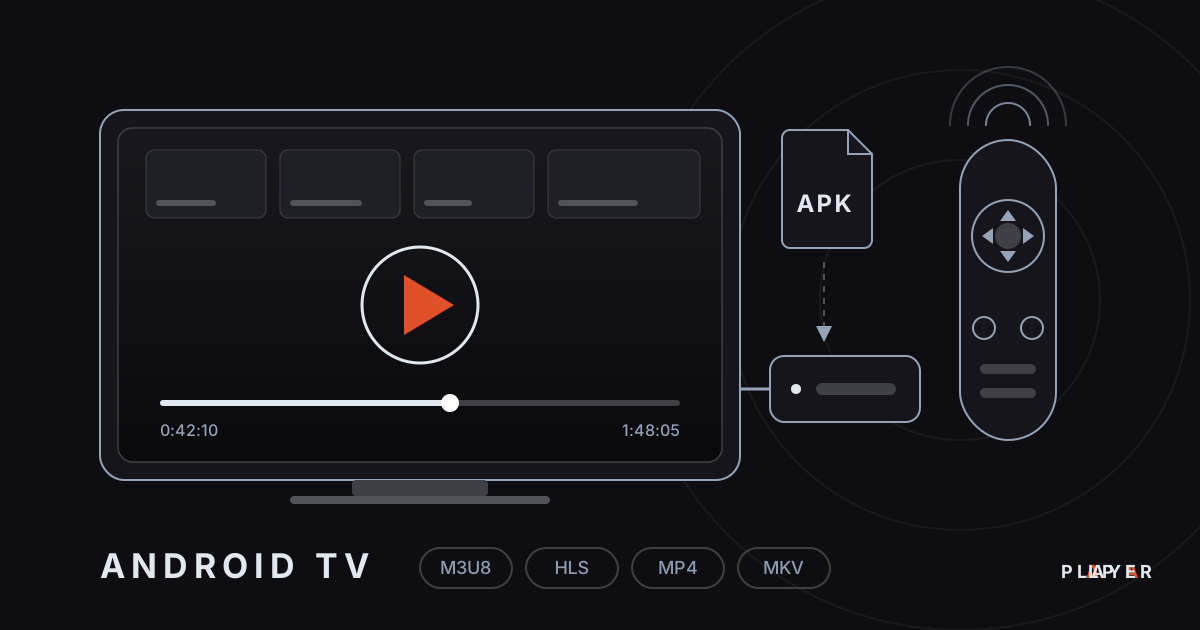
Media Player for Android TV: How to Choose
Looking for a media player for Android TV? See what to look for, compare popular options and set up Alpa Player, a free app built for the remote.
 Device guides
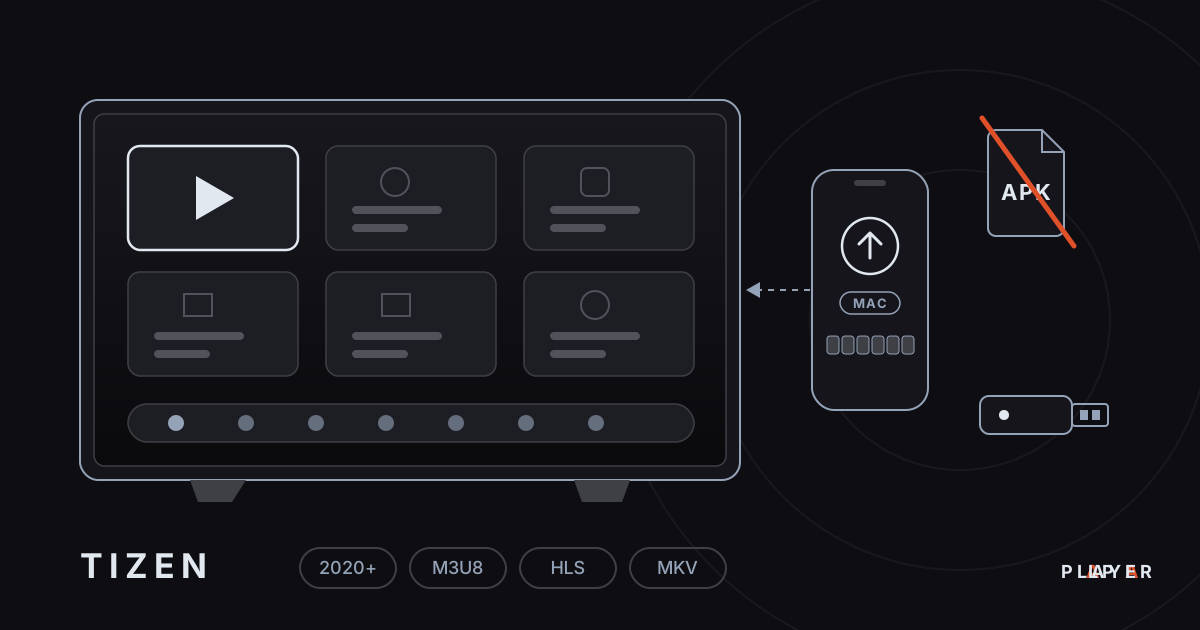
Samsung Smart TV Media Player: Options for 2026
Need a Samsung smart TV media player? Learn how Tizen apps work, which models Alpa Player supports and how to watch your own videos today.
 Device guides
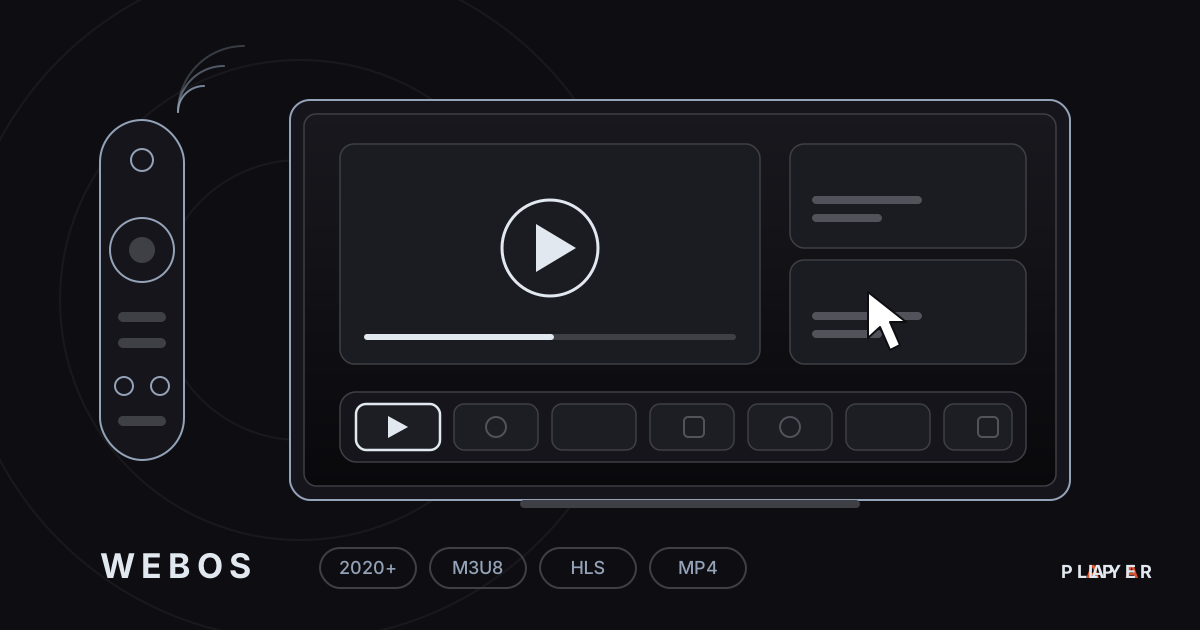
LG webOS Media Player: Compatibility and Setup
Looking for an LG webOS media player? See which models work, how the LG store route differs from APKs, and how to load a playlist without typing.